PDF Style Settings
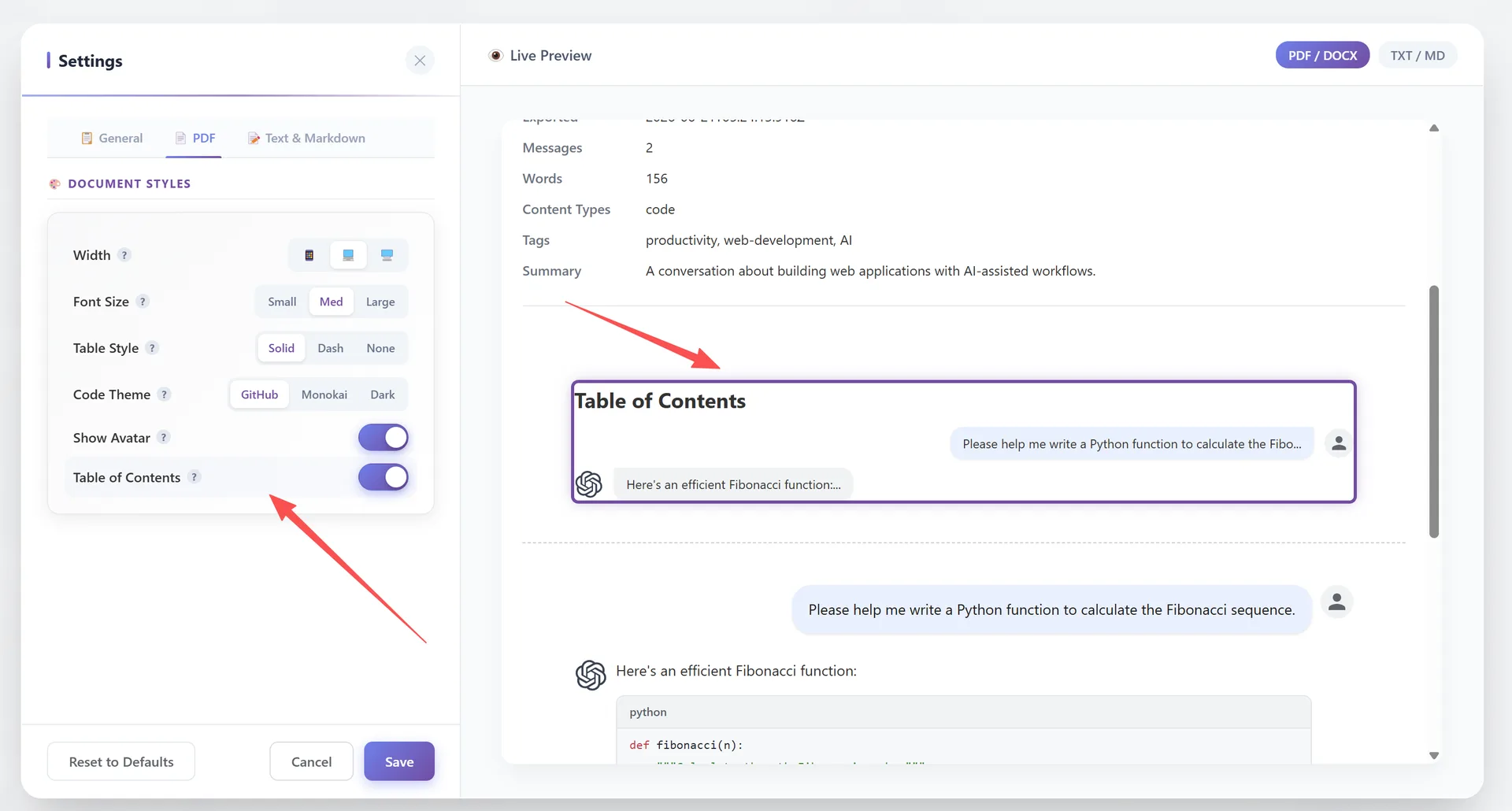
The **PDF tab** in Settings controls how your PDF documents look. All settings are in the "Document Styles" group with a live preview pane on the right.
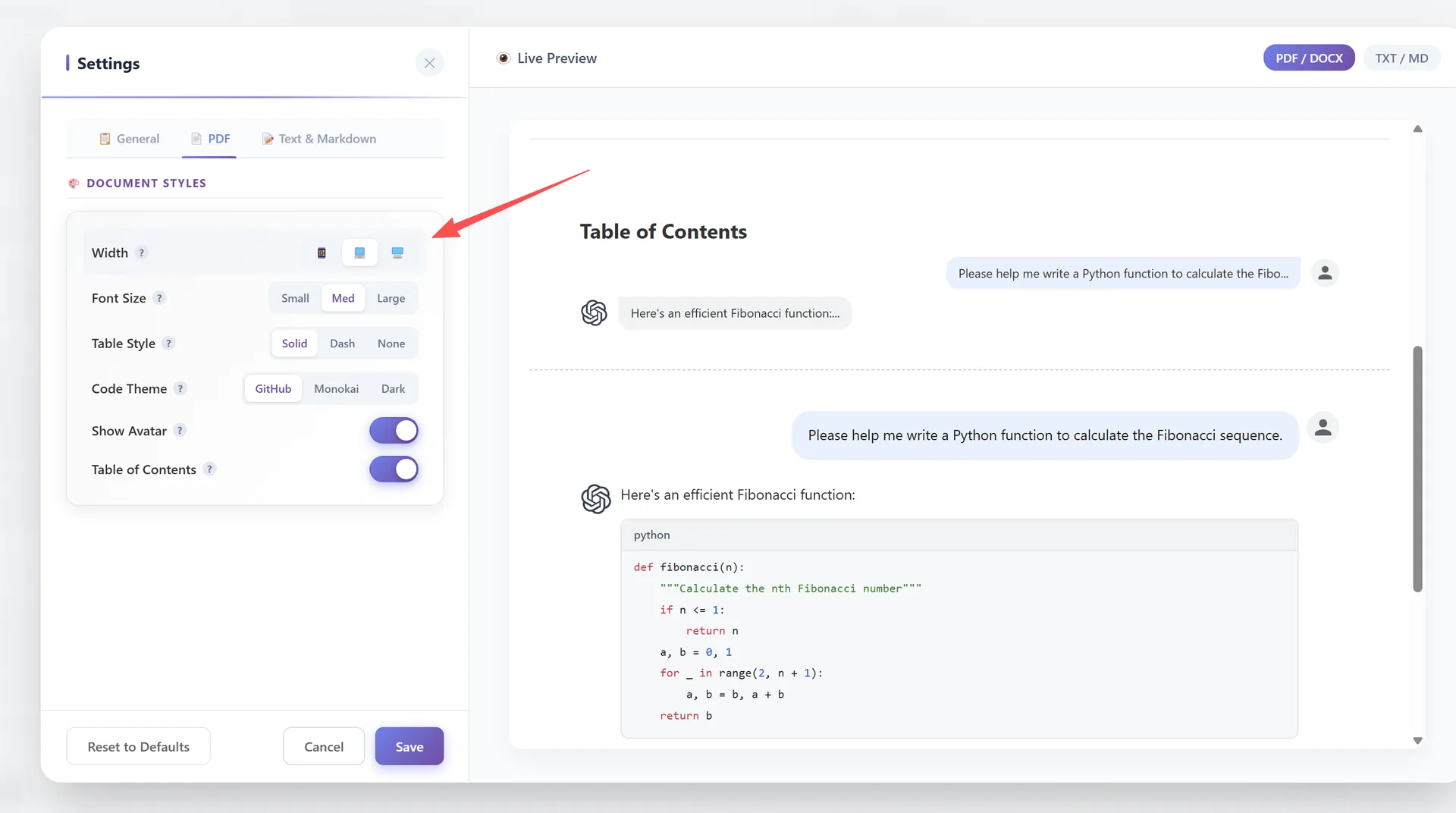
Width
Control the content width of your PDF:
- 📱 Narrow — Narrower content area, good for mobile viewing
- 💻 Standard — Balanced layout (default)
- 🖥️ Wide — Maximum content area, more content per line
This replaces the page width setting. The PDF page size defaults to A4.
Font Size
- Small — Dense, more content per page
- Med — Standard readability (default)
- Large — Comfortable reading, fewer words per page
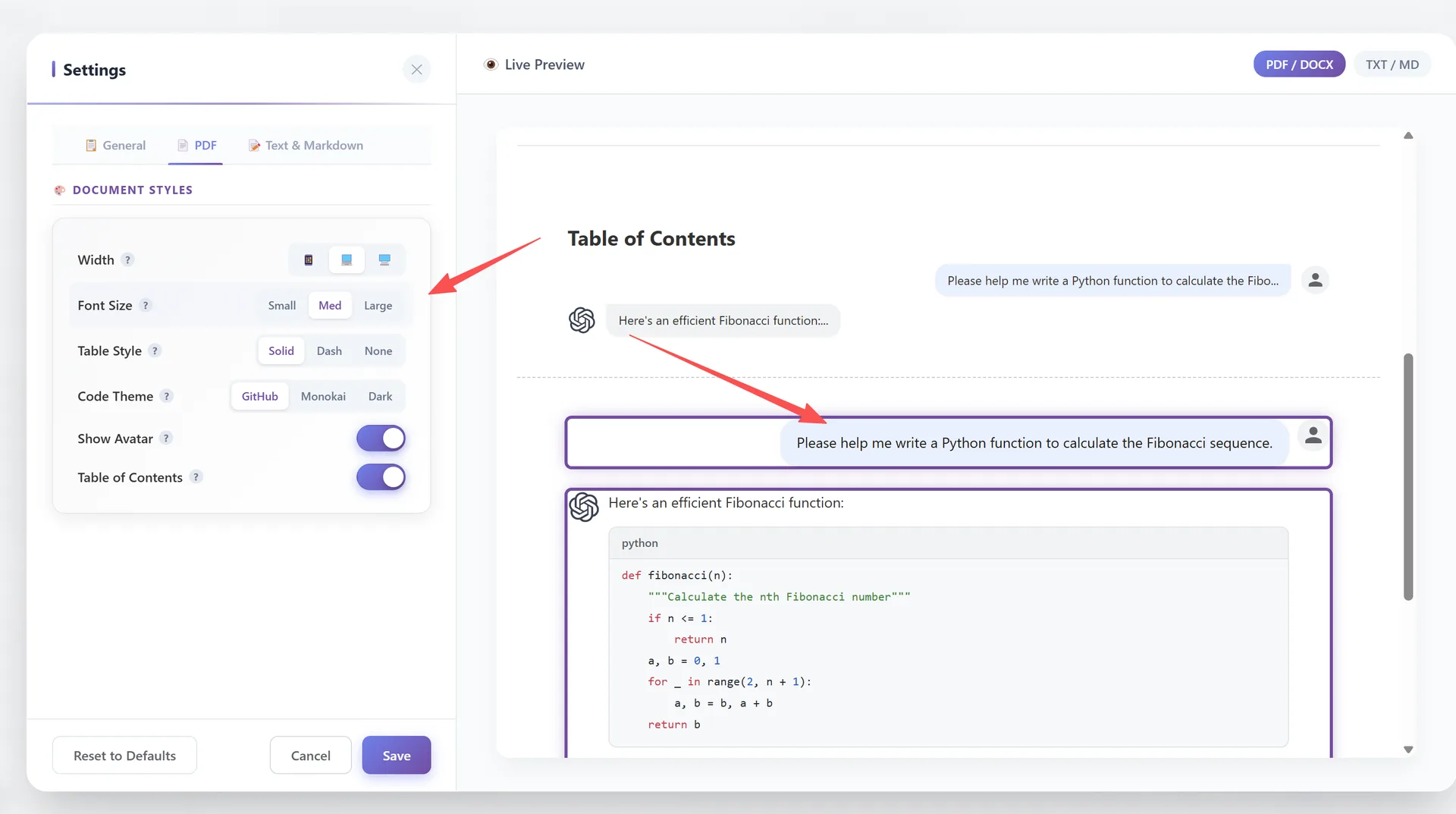
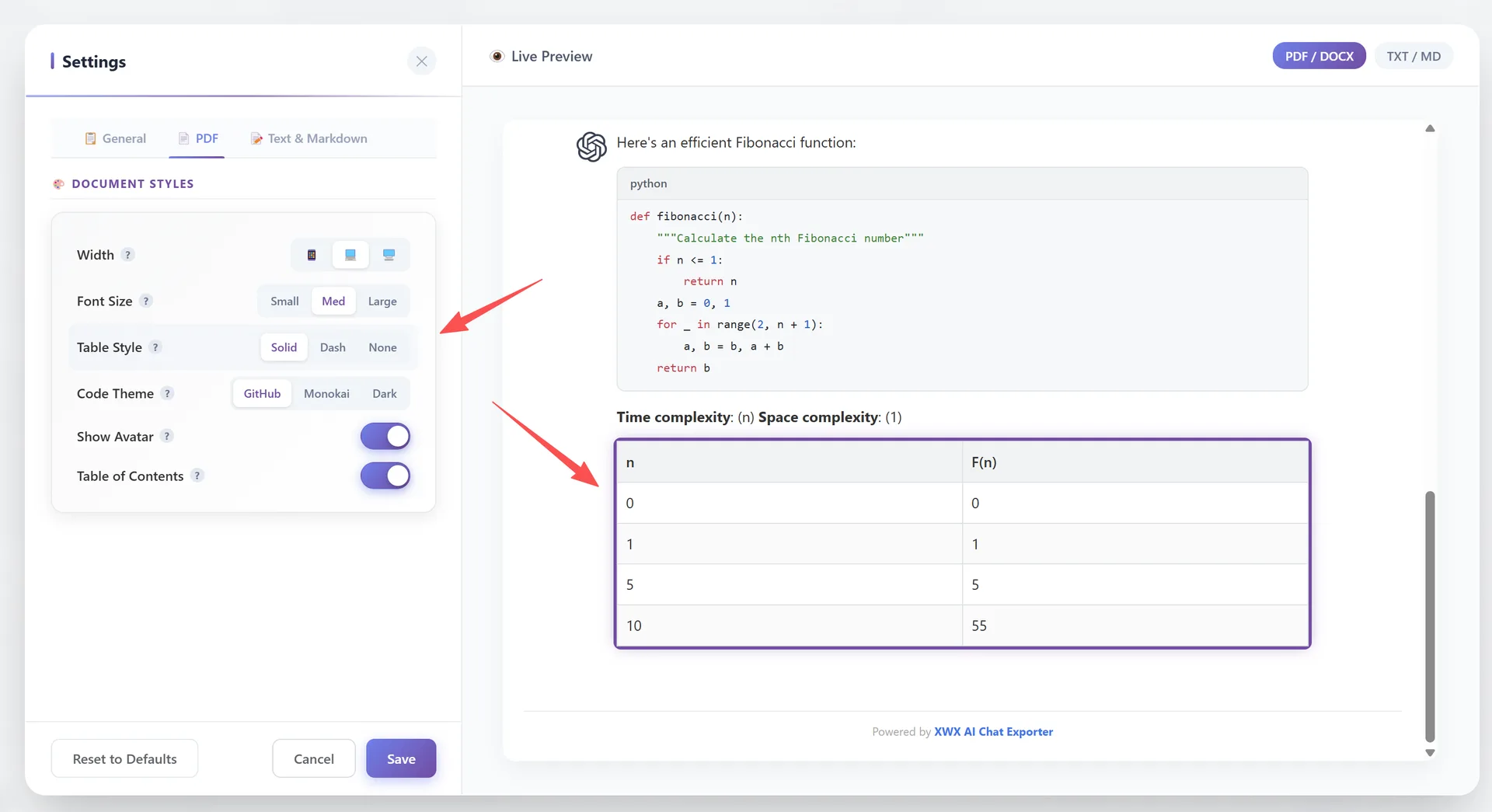
Table Style
Control how tables are rendered in PDF:
- Solid — Full solid borders (default)
- Dash — Dashed borders for a lighter look
- None — No table borders, cleaner appearance
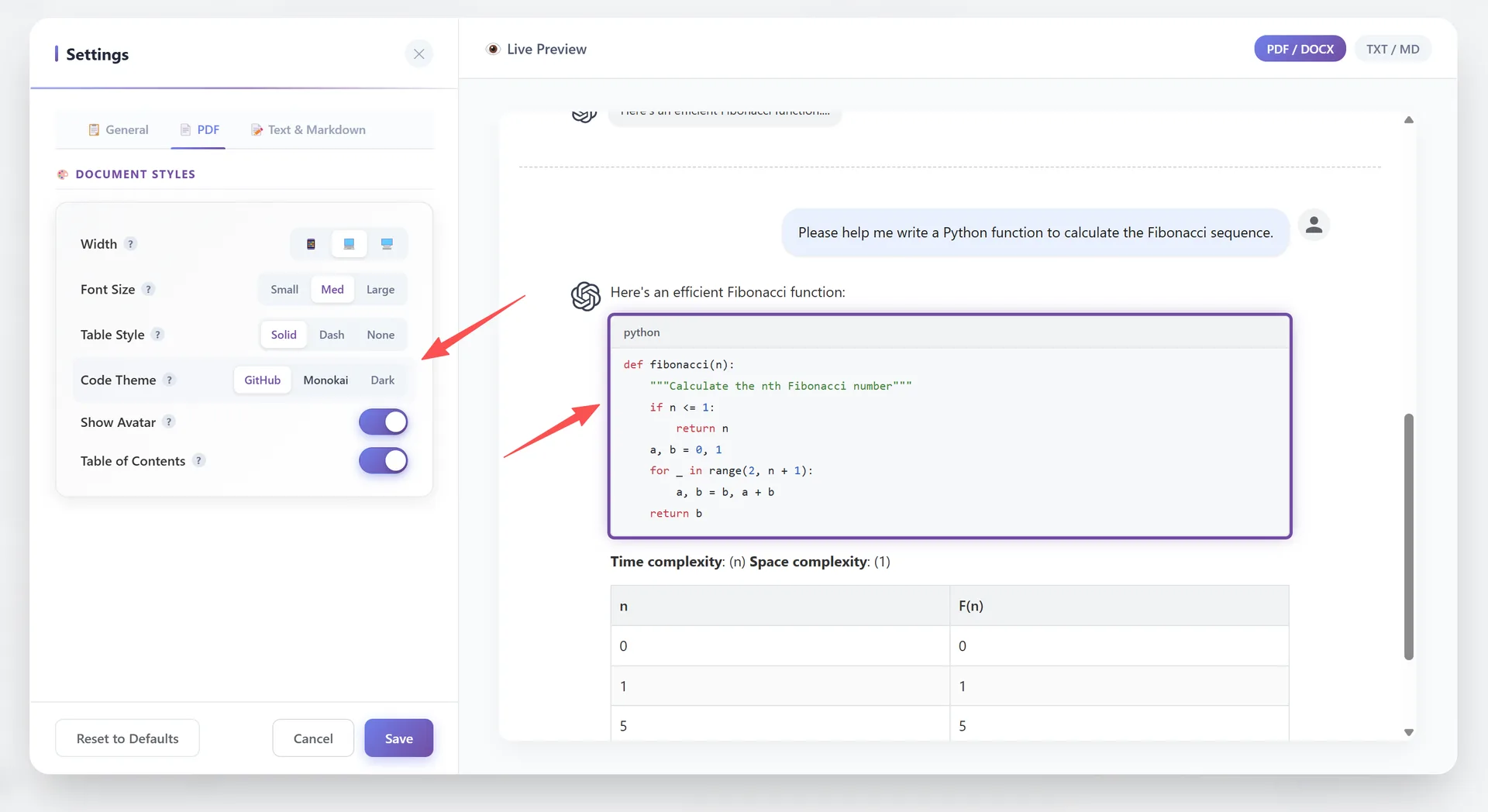
Code Theme
Choose a syntax highlighting theme for code blocks:
- GitHub — Clean light theme (default)
- Monokai — Classic dark theme with vibrant colors
- Dark — Modern dark theme
Each theme supports 50+ programming languages with proper syntax coloring.
Avatar & Table of Contents
Show Avatar: Toggle user and AI profile pictures on/off in the PDF. Default: ON.
Table of Contents: Auto-generate a clickable table of contents at the beginning of the PDF. The ToC extracts headings from the conversation. Default: ON.

Frequently Asked Questions
What page size does the PDF use?+
The PDF defaults to A4 page size. This is set internally and not exposed as a UI option.
How many code themes are available?+
3 themes: GitHub (light), Monokai (dark vibrant), and Dark (modern dark).
Can I hide avatars in the PDF?+
Yes. Toggle "Show Avatar" off in Settings → PDF tab.