Select Mode — Export Only the Messages You Need
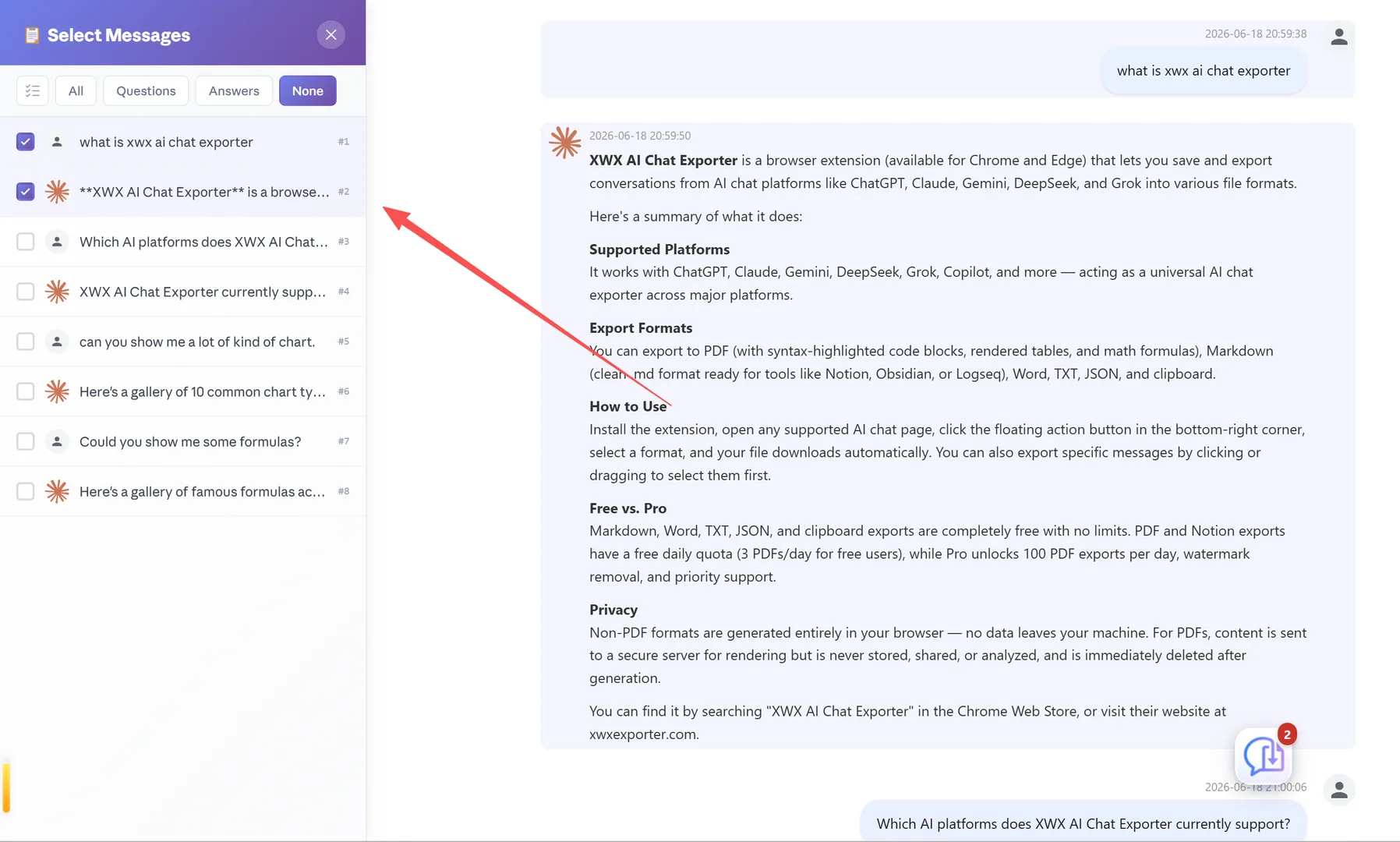
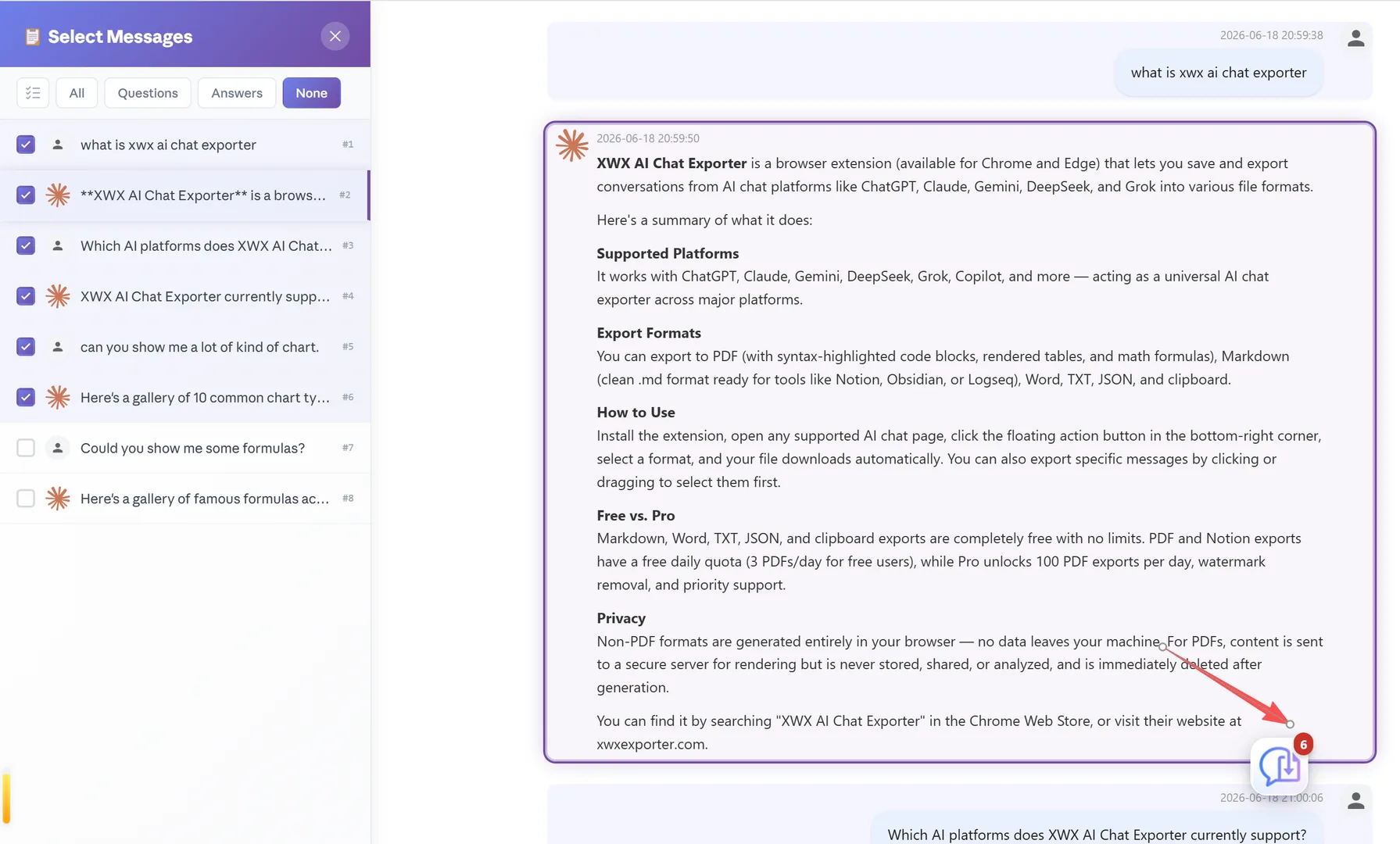
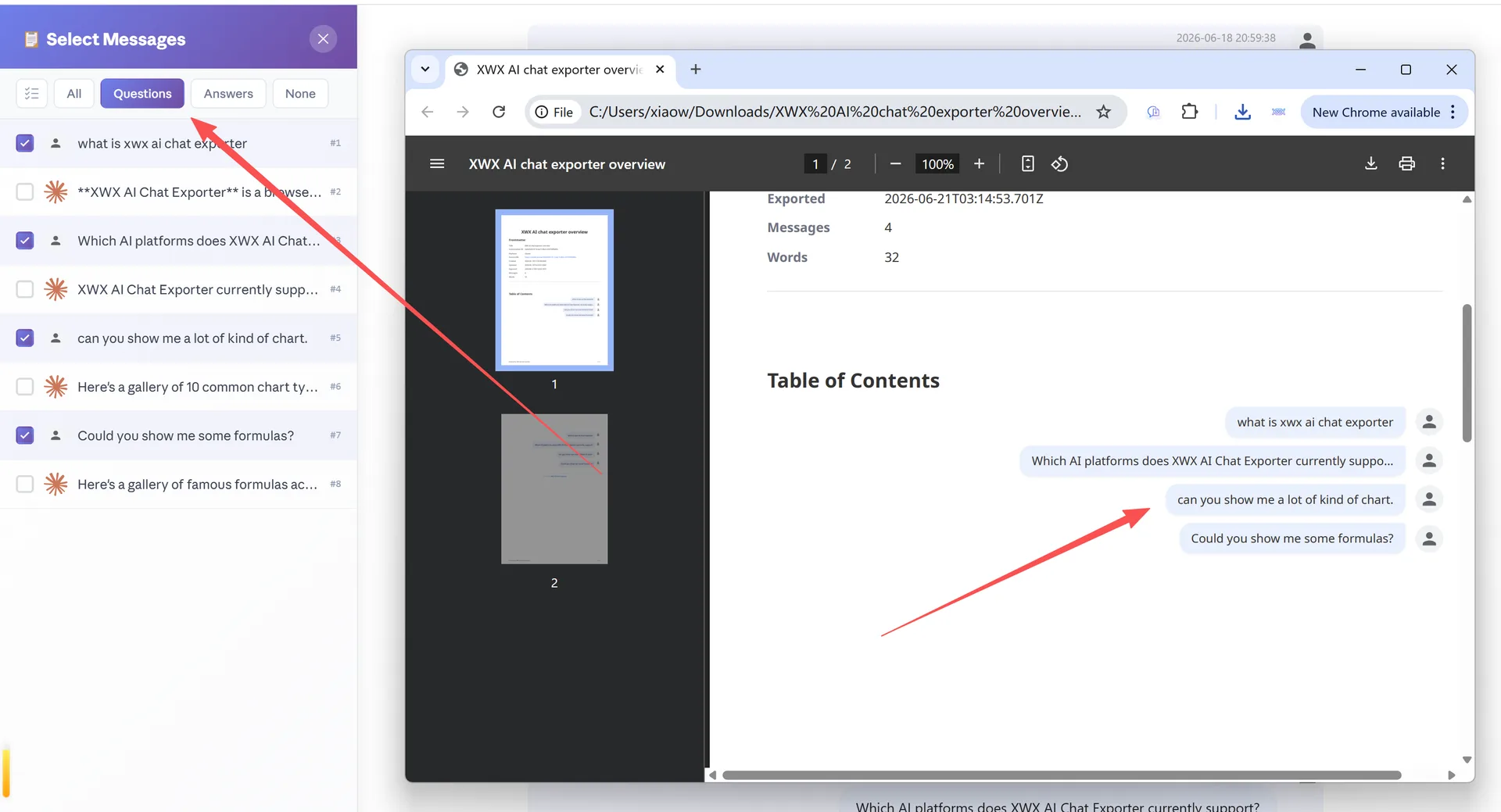
Select Mode lets you pick individual messages from an AI conversation and export only those. A left sidebar shows all messages with checkboxes — filter by questions, answers, or view selected only. No more exporting entire threads when you only need one answer.
How Select Mode Works
When you enter Select Mode:
- A left sidebar drawer opens, showing all messages in the conversation
- Each message has a checkbox, avatar icon, text preview, and message number (#1, #2, #3...)
- A filter bar at the top lets you quickly filter: All / Questions / Answers / None
- Toggle "Selected Only" to show only checked messages
- Use Shift+Click to select a range of messages
- The FAB shows a badge with your selected count
- Only selected messages are included in the export
Entering Select Mode
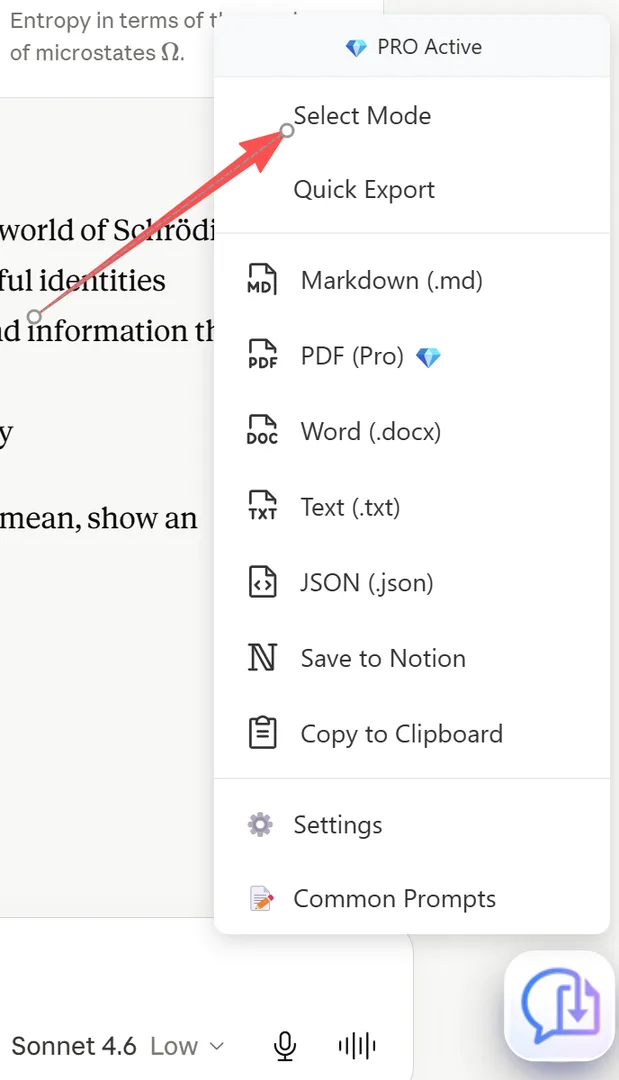
To enter Select Mode:
- Open any AI chat on a supported platform
- Click the XWX floating action button (FAB)
- Click "Select Mode" in the dropdown menu (it has a checkmark toggle)
- The left sidebar opens with the message list
Alternatively, click the Select Messages satellite button (checkbox icon) to the left of the FAB.
A toast notification will appear: "Click anywhere on a message to select it."
Selecting Messages
Once in Select Mode:
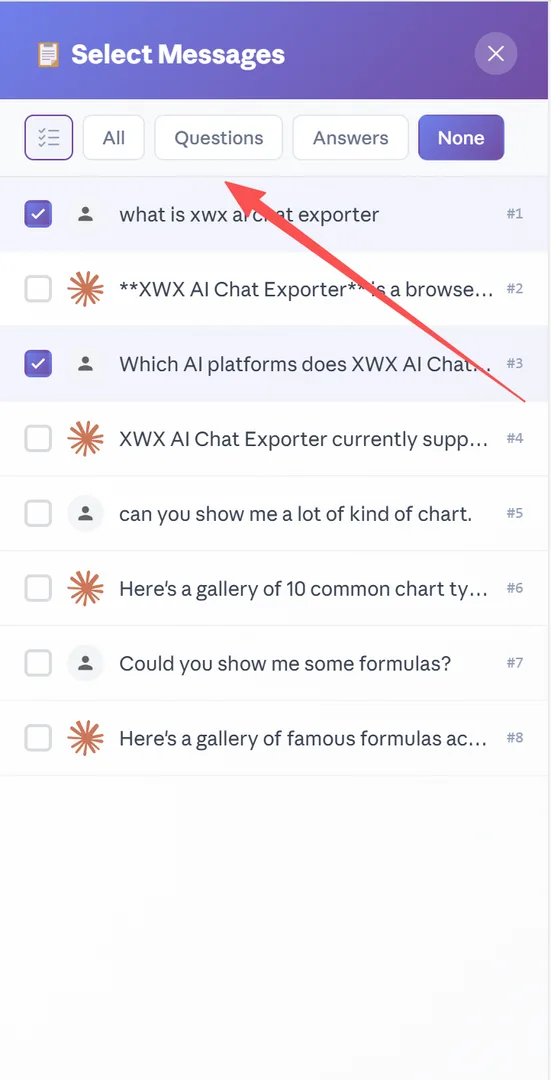
Click to select: Click on any message in the sidebar to check/uncheck it. The checkbox animates to show the selection state.
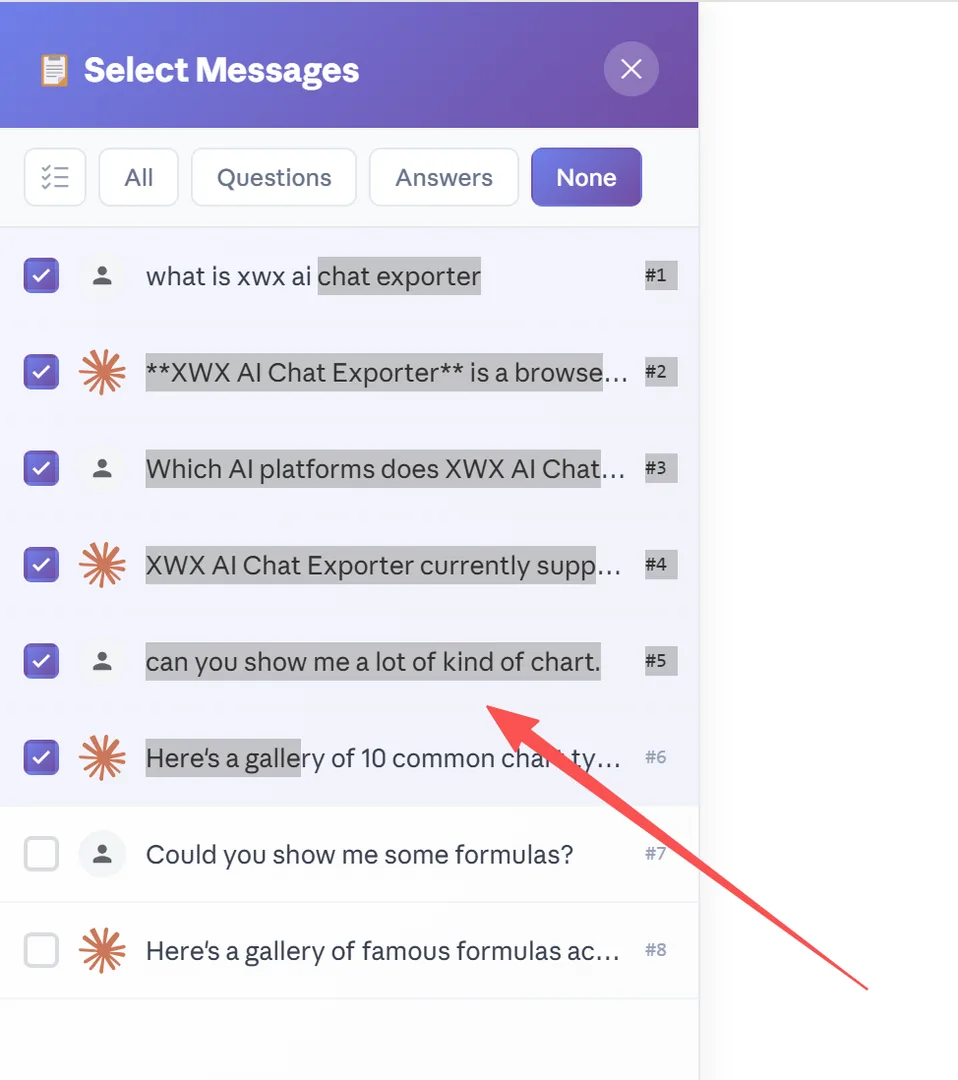
Shift+Click for range: Click one message, hold Shift, then click another message. All messages between the two points are selected.
Filter buttons:
- All — Check all messages
- Questions — Check only user messages
- Answers — Check only AI responses
- None — Uncheck all messages
Selected Only toggle: Toggle this to hide unselected messages and view only your selection.
The FAB badge updates in real time, showing how many messages you've selected.
Exporting Selected Messages
With your messages selected:
- Check the FAB badge — it shows your selection count
- Click the FAB to open the export menu
- Choose your format (Markdown, PDF, Word, etc.)
- The export includes ONLY your selected messages, in their original order
The exported file preserves all formatting: code highlighting, math formulas, tables, images, and message structure.
When to Use Select Mode
Select Mode is ideal for:
- Extracting key answers from long conversations — filter by "Answers" and select the best ones
- Creating focused documents — pick the most relevant Q&A pairs for a report
- Sharing specific insights — export only the messages worth sharing with colleagues
- Building knowledge bases — select and export messages into your Obsidian vault or Notion workspace
- Code snippet collection — filter and select only messages containing useful code examples
Frequently Asked Questions
Can I select non-adjacent messages?+
Yes. Click individual messages to toggle them on/off. You can select message 1, skip 2 and 3, then select 4 — only 1 and 4 are exported.
Does Select Mode work with all export formats?+
Yes. Select Mode works with Markdown, PDF (Pro), Word, Notion sync, Clipboard, Text, and JSON exports.
Can I select images and code blocks?+
Yes. Every type of content — text, code, images, tables, charts — is included when its parent message is selected.
Is Select Mode free?+
Yes, Select Mode is a core feature available in the free version.