AI Provider Configuration
Configure which AI provider generates tags and summaries for your exports. We support 9 providers via Bring Your Own Key (BYOK) — you use your own API key, keeping full control of costs and data.
Setting Up a Provider
- Open Settings (FAB → Settings, or gear satellite button)
- Go to the General tab
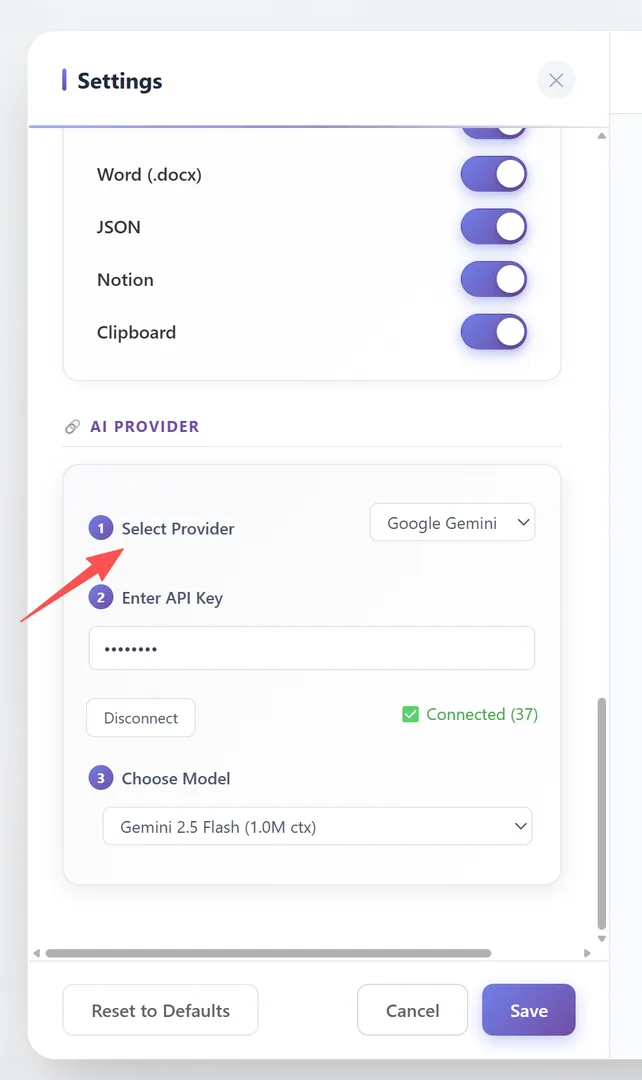
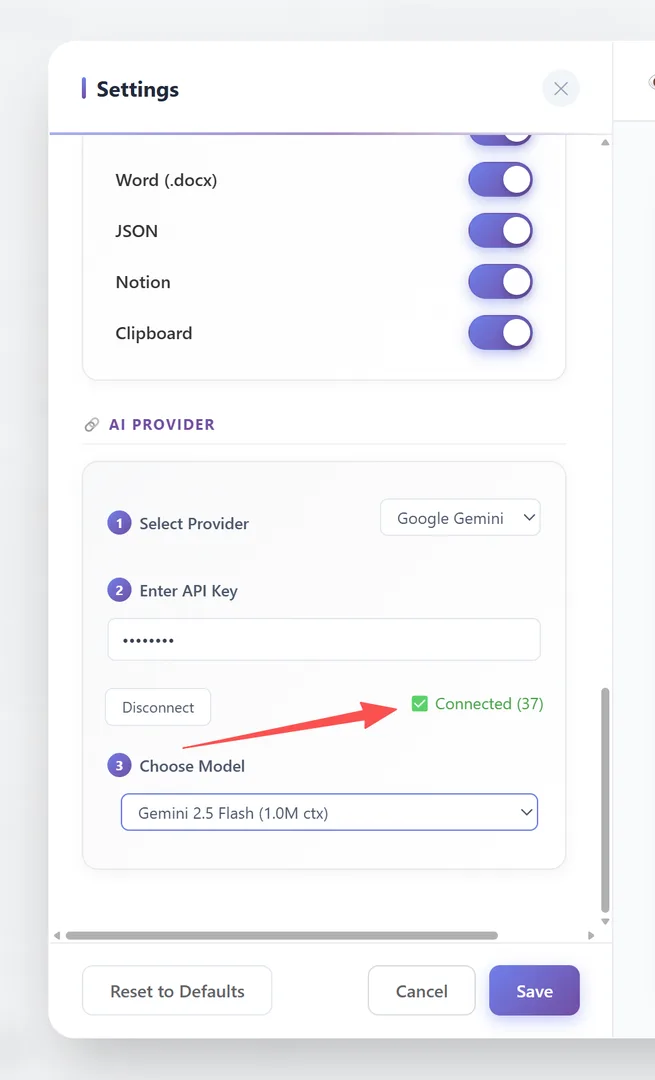
- Scroll to the 🔗 AI Provider group
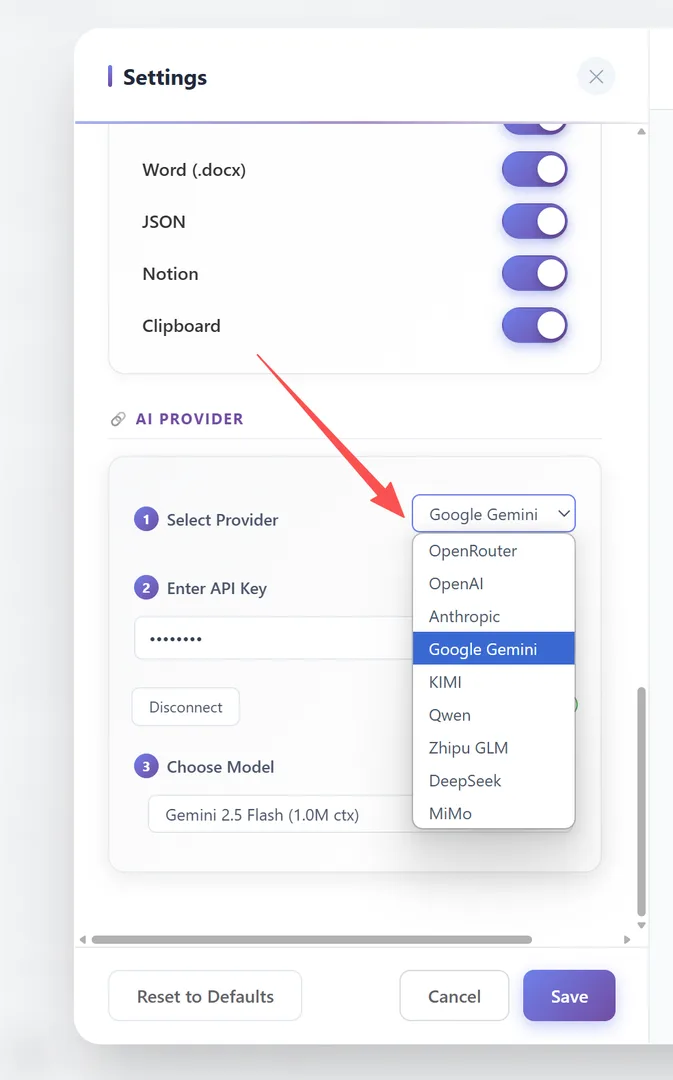
- Step 1: Select Provider — Choose from the dropdown (9 providers available)
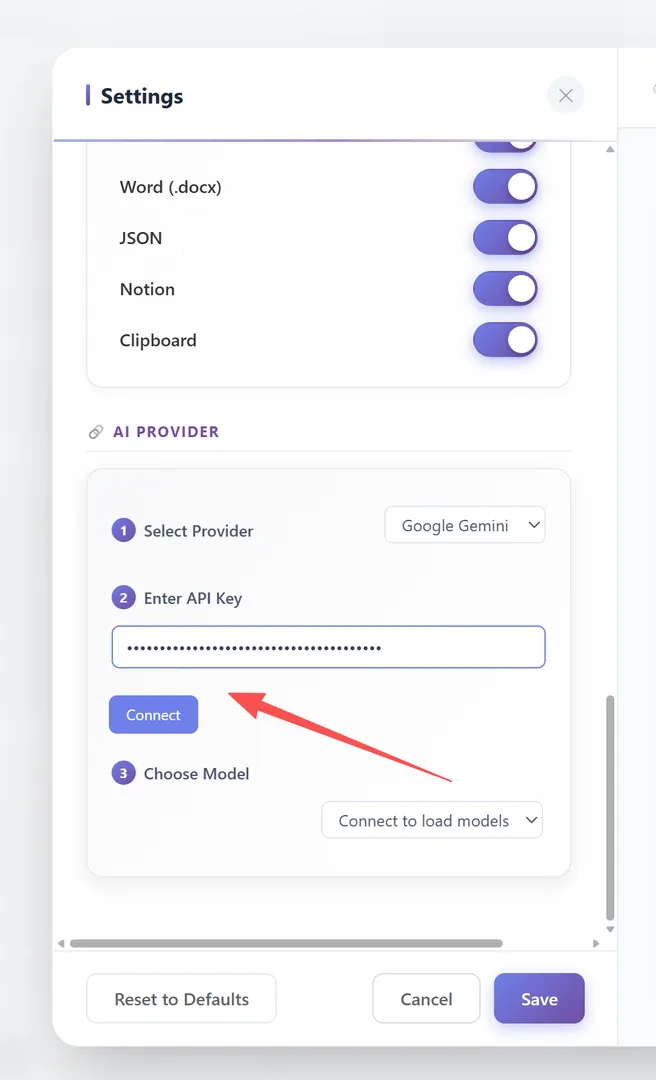
- Step 2: Enter API Key — Paste your key → Click Connect
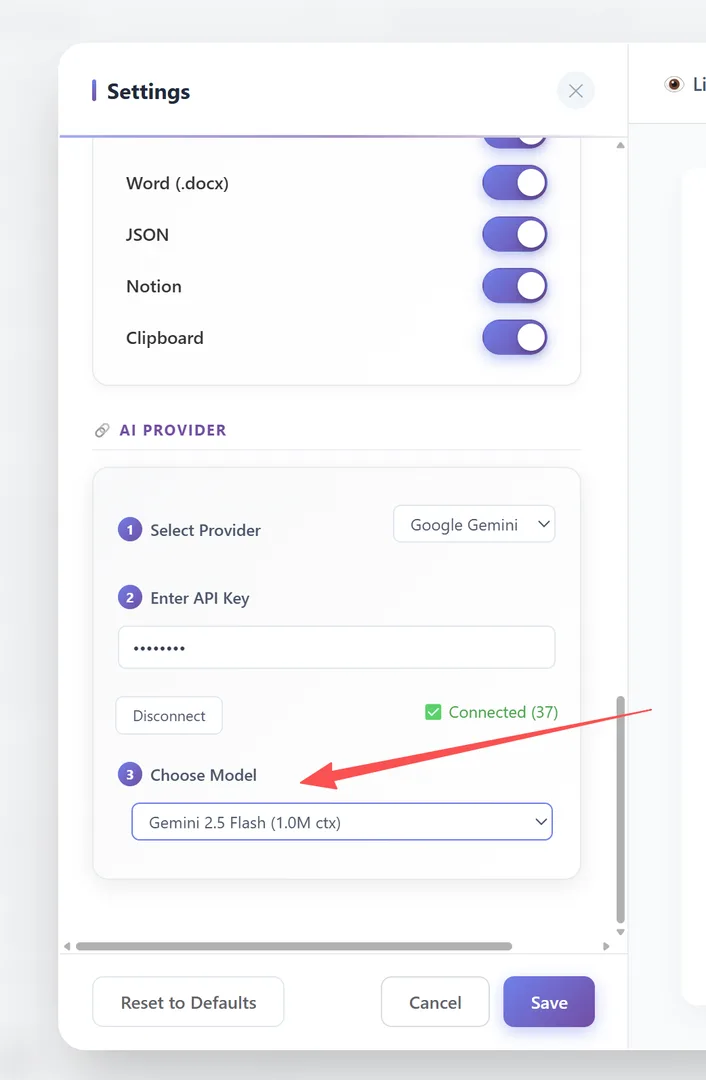
- Step 3: Choose Model — Select from the model dropdown (populated after connection)
The API key is tested when you click Connect. A successful connection confirms the setup works.
To disconnect, click the Disconnect button and the API key is cleared.
Provider Comparison
| Provider | Default Model | API Key Format |
|---|---|---|
| OpenRouter | gemma-4 | sk-or-v1-... |
| OpenAI | gpt-4o | sk-... |
| Anthropic | claude-sonnet-4 | sk-ant-... |
| Google Gemini | (via API) | AIza... |
| KIMI | kimi-k2.5 | sk-... |
| Qwen | qwen-plus | sk-... |
| Zhipu GLM | glm-5 | xxxxx.yyyyy |
| DeepSeek | deepseek-v4-flash | sk-... |
| MiMo | mimo-v2.5-pro | sk-... |
Setup location: Settings → General → 🔗 AI Provider
API Key Management
Storage: Your API key is stored in chrome.storage.local — it never leaves your browser.
Multiple keys: You can configure one key per provider. Switch between providers anytime from the dropdown.
Key rotation: If you suspect your key is compromised:
- Revoke it at the provider's dashboard
- Generate a new key
- Update it in the extension settings
Security: The key is used only for tag/summary generation. It is sent directly to the provider's API from your browser — we are never an intermediary.
Custom Endpoints & Advanced Usage
Currently, the extension supports 9 predefined providers. Custom API endpoints are not yet supported.
Provider-specific notes:
- OpenRouter: Provides access to 100+ models through a single API key. Most flexible option.
- DeepSeek: Best quality-to-cost ratio. Recommended for AI Tags.
- KIMI (Moonshot AI): Chinese AI provider with strong multilingual support.
- Qwen (Alibaba Cloud): Chinese AI provider, strong at Chinese and English content.
- Zhipu GLM: Chinese AI provider (ChatGLM family).
- MiMo (Xiaomi): Xiaomi's AI model.
For each provider, the model dropdown is populated dynamically after the API key is validated. Available models depend on your account permissions with each provider.
Frequently Asked Questions
Is my API key sent to your servers?+
No. Your API key is stored locally and used only to make direct API calls from your browser to the provider you chose.
Which provider is cheapest?+
DeepSeek offers the best value. OpenRouter gives access to many models including cheap ones.
Can I use multiple providers?+
You can configure one active provider at a time. Switch between them anytime from the dropdown. Keys are remembered when you switch back.
Is Ollama or local model support available?+
Not yet. Currently only 9 cloud-based providers are supported. Local model support may be added in the future.