Getting Started with XWX AI Chat Exporter
Go from zero to your first exported AI conversation in under 5 minutes. This guide covers installation, your first export, and the key concepts you need to know.
Step 1: Install the Extension
XWX AI Chat Exporter is a Chrome browser extension. Install it from the Chrome Web Store — it works on Google Chrome, Microsoft Edge, Brave, Arc, and all Chromium-based browsers.
- Open the Chrome Web Store and search for "XWX AI Chat Exporter"
- Click Add to Chrome
- Confirm the permissions prompt
- The extension icon appears in your browser toolbar
Pin the extension for easy access: click the puzzle piece icon in your toolbar, then click the pin next to XWX AI Chat Exporter.

Step 2: Open an AI Chat Platform
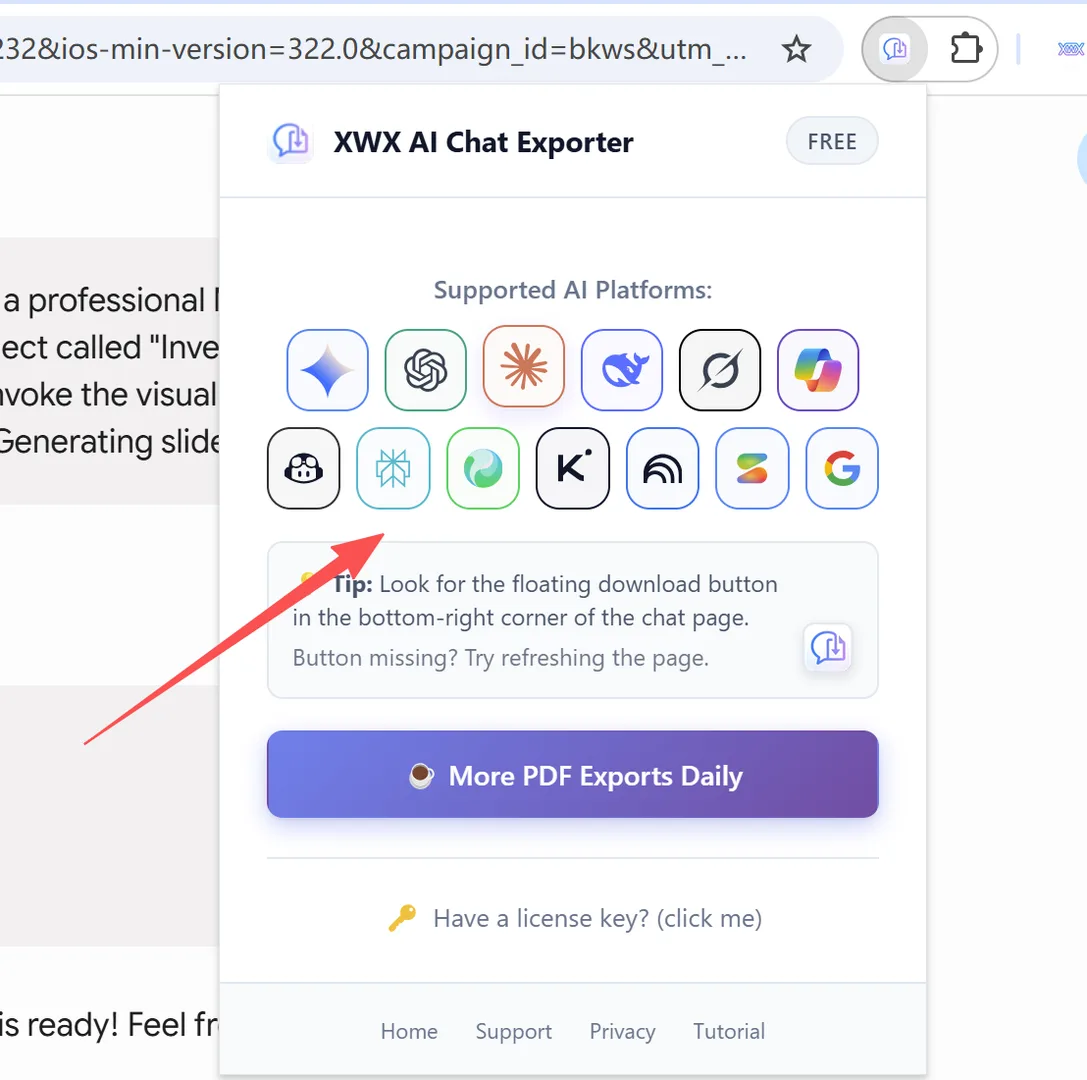
Navigate to any supported AI chat platform. XWX AI Chat Exporter works with 13 platforms:
- ChatGPT (chatgpt.com / chat.openai.com)
- Claude (claude.ai)
- Google Gemini (gemini.google.com)
- Microsoft Copilot (copilot.microsoft.com)
- Perplexity (perplexity.ai)
- DeepSeek (chat.deepseek.com)
- Grok (grok.com)
- GitHub Copilot (github.com)
- Tencent Yuanbao (yuanbao.tencent.com)
- Kimi (kimi.com)
- Google NotebookLM (notebooklm.google.com)
- Google AI Studio (aistudio.google.com)
- Google AI Overviews (google.com)
Once you're on a supported page, the extension activates automatically.
Step 3: Click the Floating Action Button
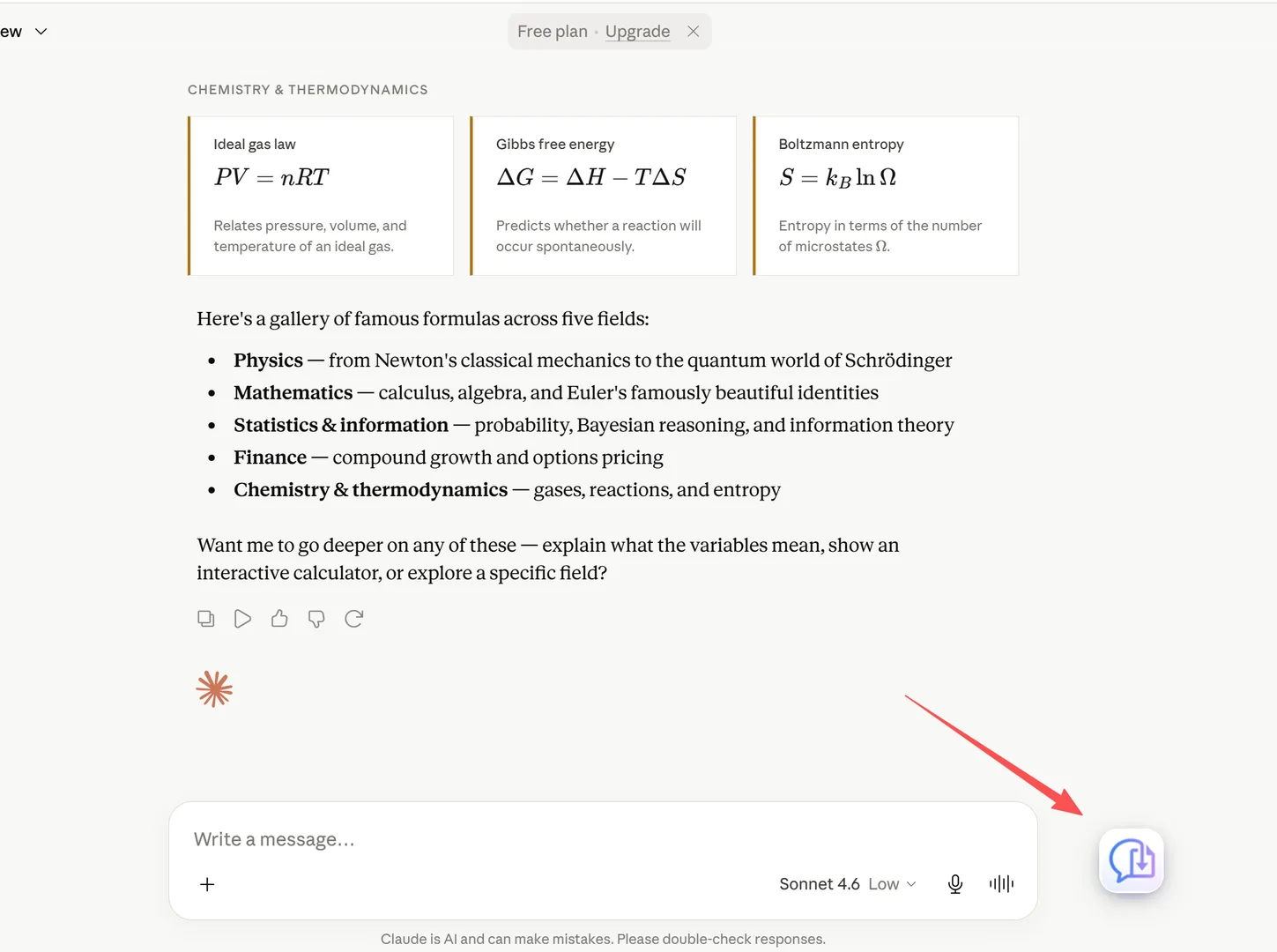
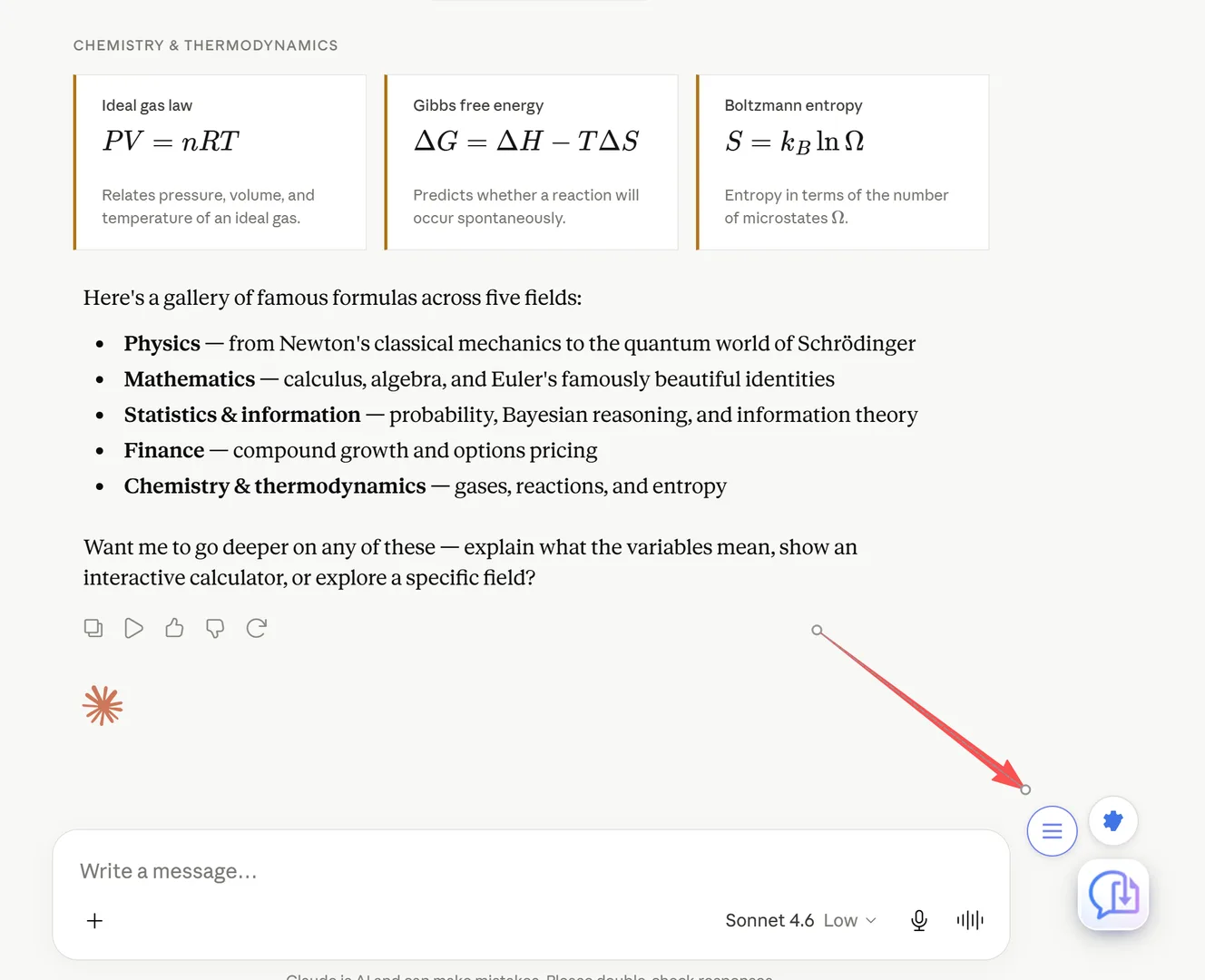
A floating action button (FAB) appears in the bottom-right corner of the page. This button only shows up on supported AI chat pages.
Click the FAB to open the export menu. You'll see all available export formats and options.
Step 4: Choose Export Format
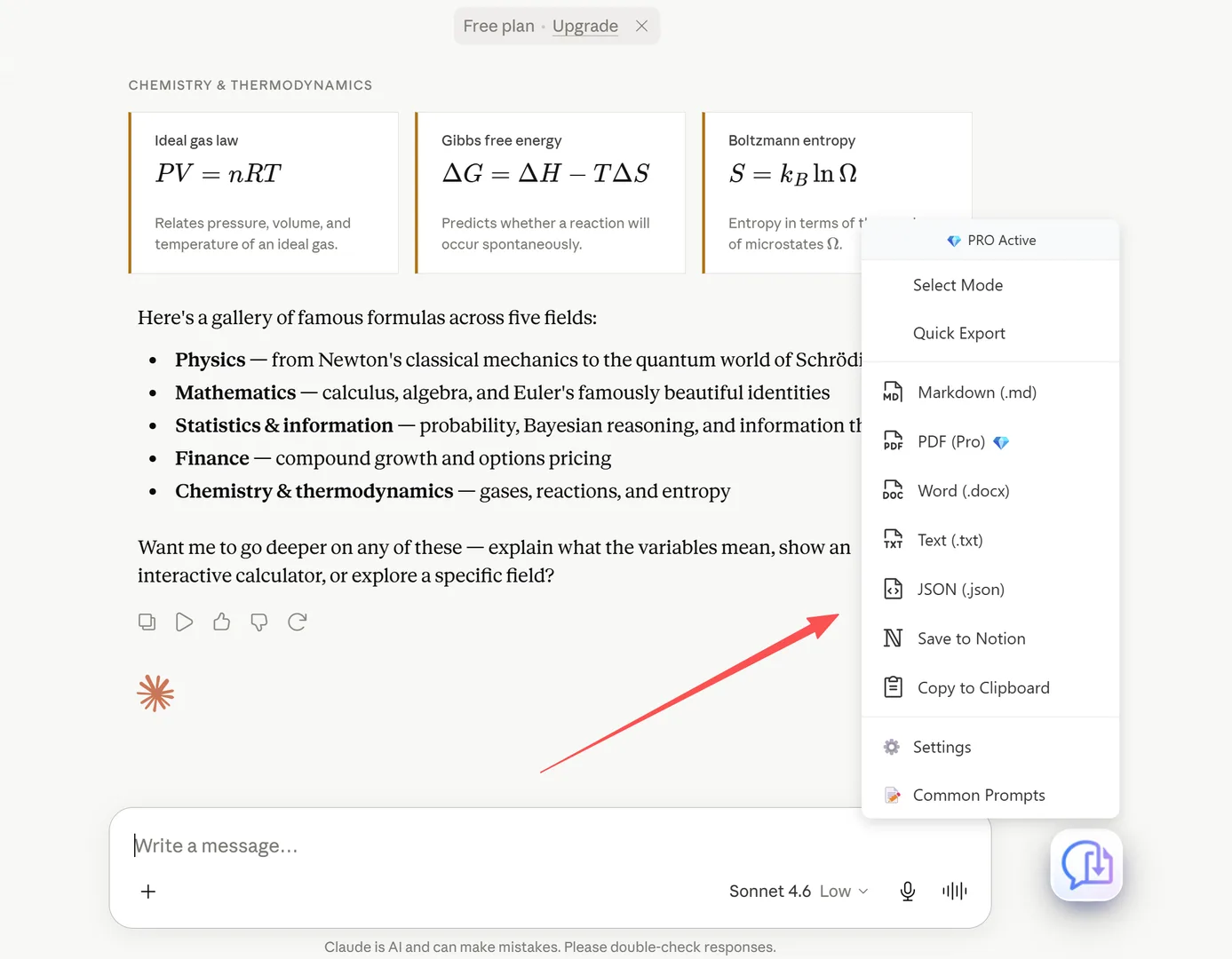
From the export menu, select your desired format:
| Format | Label in Menu | Best For |
|---|---|---|
| Markdown | Markdown (.md) | Obsidian, Notion, PKM tools |
| PDF 💎 | PDF (Pro) | Sharing, printing, archiving |
| Word | Word (.docx) | Editing, collaboration |
| Text | Text (.txt) | Plain text archive |
| JSON | JSON (.json) | Programmatic use, backups |
| Notion | Save to Notion | Knowledge base sync |
| Clipboard | Copy to Clipboard | Quick paste anywhere |
💡 The 💎 on PDF indicates enhanced rendering quality.
What Happens After Export
After clicking a format in the menu:
- Export starts immediately — no second button to click
- Progress ring — an animated ring appears around the FAB showing export progress
- Download — the file downloads to your browser's default download location
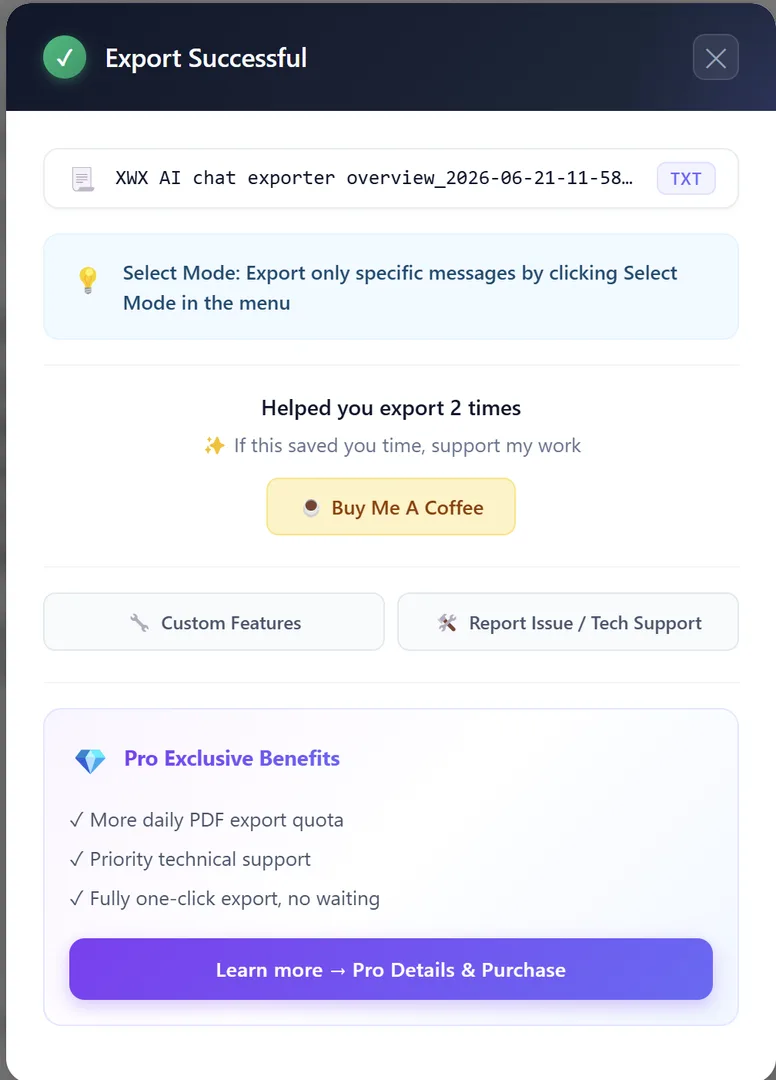
- Success modal — a confirmation dialog appears showing:
- The exported file name and format - A random usage tip - A "Buy Me A Coffee" support button - Premium feature highlights
- Click anywhere outside the modal to dismiss it
💡 Tip: Enable Super One-Click in Settings to skip the success modal — the menu closes immediately after download for a faster workflow.
Common Prompts — Saved Snippets
The FAB menu includes a 📝 Common Prompts submenu — a quick way to access your saved prompt snippets.
How it works:
- Hover over the 📝 Common Prompts item in the FAB menu
- A side panel slides out showing your saved prompts
- Click any prompt to use it
Two output modes:
- ⌨️ Output to Input — inserts the prompt directly into the AI chat's text input box
- 📋 Output to Clipboard — copies the prompt text to your clipboard
Managing prompts:
- Click ⚙ Manage Prompts at the bottom of the submenu
- Add, edit, delete, and reorder your saved prompts
- Each prompt tracks how many times you've used it
💡 Common Prompts are stored locally in your browser — they're never sent to any server.
Activating Your License
To unlock premium features, you'll need a license key. Here's how to get and activate it.
Step 1: Get Your License Key
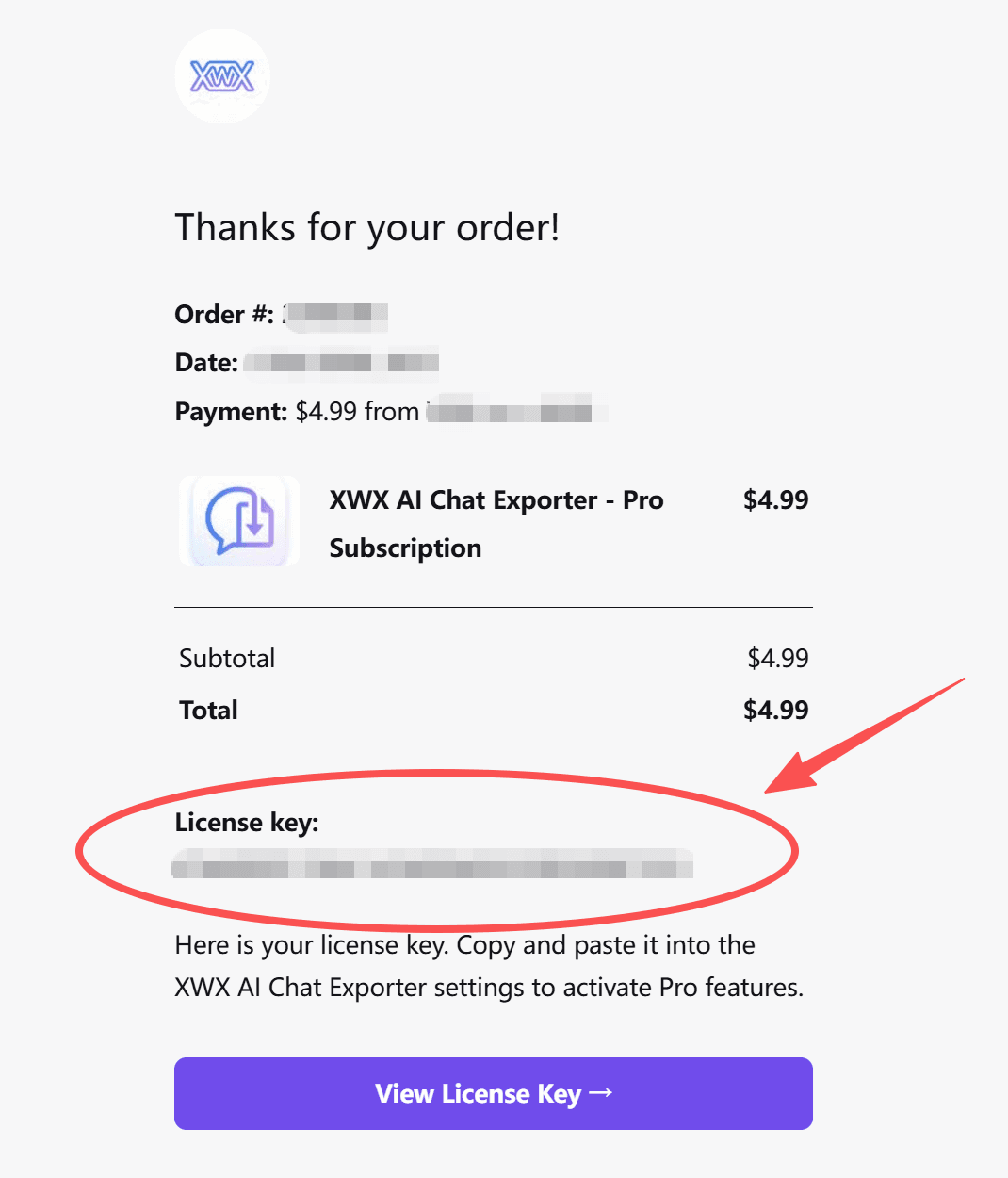
Visit the pricing page to purchase a plan. After purchase, check your email for a confirmation from Lemon Squeezy. The email contains your License Key in the format XXXX-XXXX-XXXX-XXXX. Copy it.
Step 2: Enter and Activate
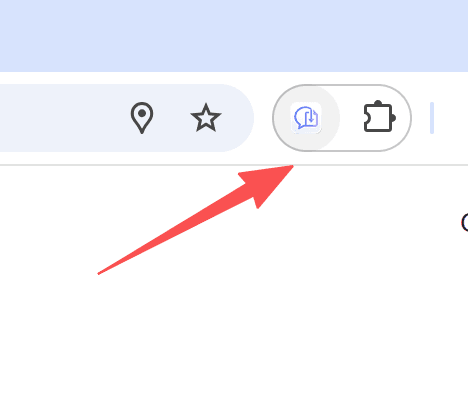
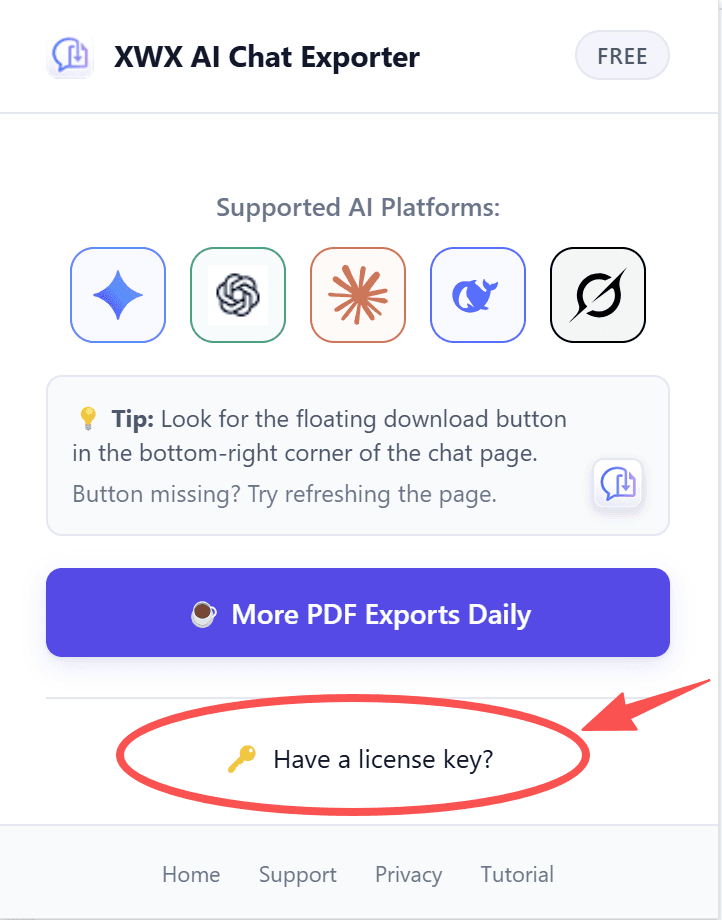
- Click the XWX extension icon in your browser toolbar to open the popup
- Click "Have a license key?" at the bottom of the popup
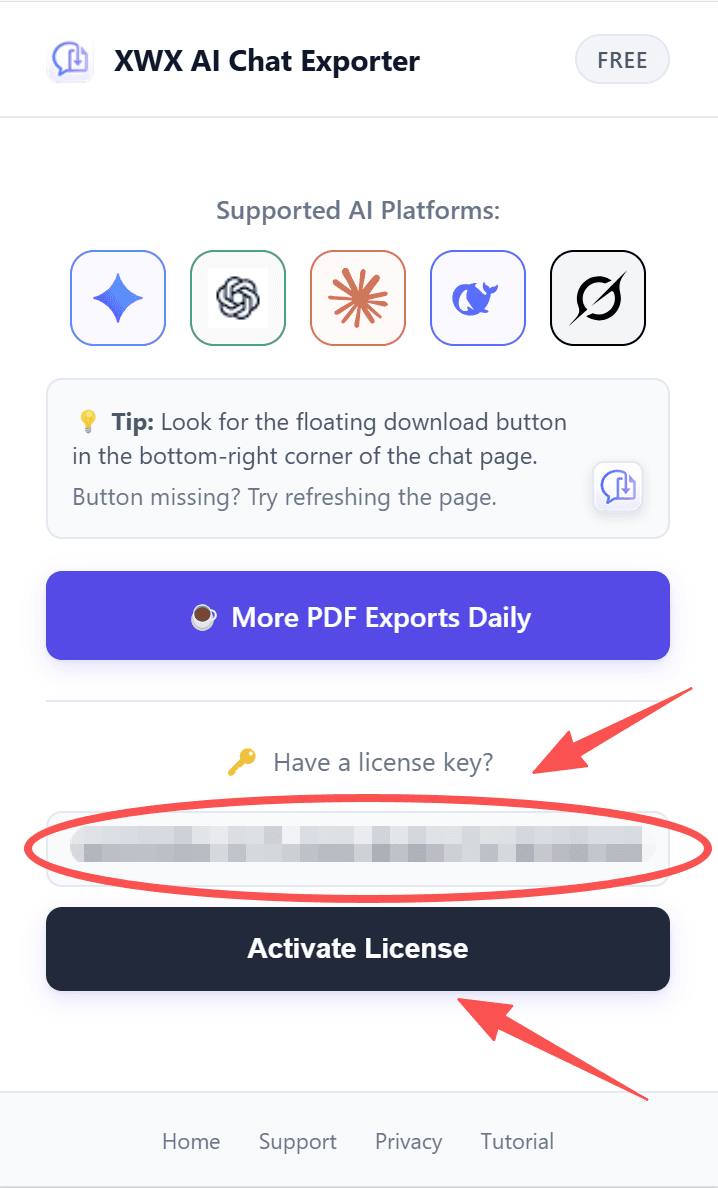
- Paste your license key into the input field
- Click Activate
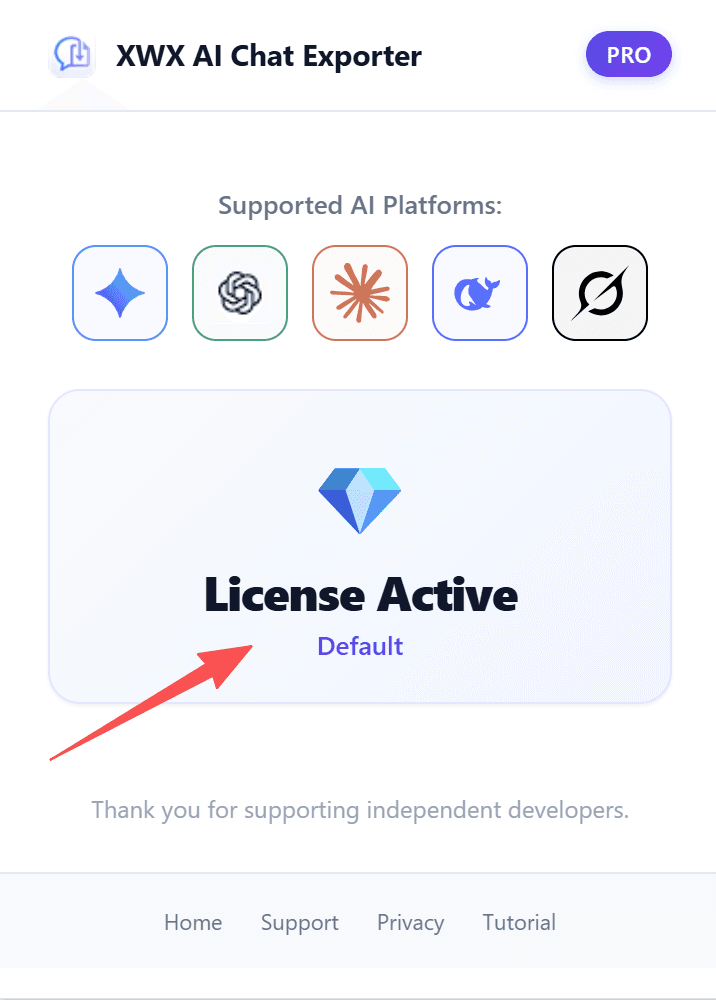
- You'll see the PRO diamond badge 💎 appear — activation is complete!
Step 3: Enjoy Premium Features
Once activated, all premium features are unlocked instantly. No restart needed.
Step 5: Download Your Export
After selecting a format, the export processes locally in your browser. Your file downloads automatically.
For PDF, Markdown, and Word exports:
- The file is saved to your browser's default download location
- File naming follows your settings (smart filename or custom)
- If subfolder organization is enabled, files are placed in the correct folder
For Notion sync:
- The conversation is pushed directly to your connected Notion workspace
- Content is auto-structured with headings, blocks, and metadata
Frequently Asked Questions
Is XWX AI Chat Exporter free?+
Yes, all 7 export formats are completely free. Pro features include: Remove Watermark, Super One-Click (skip success modal), and AI Tags & Summaries.
Which browsers are supported?+
Any Chromium-based browser: Google Chrome, Microsoft Edge, Brave, Arc, Vivaldi, Opera. Safari and Firefox are not currently supported.
Is my data safe? Does the extension send my chats to a server?+
All export processing happens locally in your browser. Your conversations are never sent to our servers. The only external connections are for Pro license verification and AI Tags (sent directly to your chosen AI provider).
Which AI platforms are supported?+
We support 13+ platforms: ChatGPT, Claude, Gemini, Copilot, Perplexity, DeepSeek, Grok, Mistral, Kimi, GLM, Qwen, Doubao, Poe, and more.