Export AI Chats in 7 Formats
XWX AI Chat Exporter supports 7 output formats. Each format preserves different aspects of the conversation — choose the one that fits your workflow.
Format Comparison
| Format | Menu Label | Editable | Code | Math | Images | Tables |
|---|---|---|---|---|---|---|
| Markdown | Markdown (.md) | ✅ | ✅ | ✅ | ❌ | ✅ |
| PDF (Pro) 💎 | ❌ | ✅ | ✅ | ✅ | ✅ | |
| Word | Word (.docx) | ✅ | ✅ | ✅ | ✅ | ✅ |
| Text | Text (.txt) | ✅ | ✅ | ✅ | ❌ | ✅ |
| JSON | JSON (.json) | ✅ | ✅ | ✅ | ❌ | ✅ |
| Notion | Save to Notion | ✅ | ✅ | ✅ | ✅ | ✅ |
| Clipboard | Copy to Clipboard | ✅ | ✅ | ✅ | ❌ | ✅ |
✅ = content preserved. ❌ = content not included.
- Code: Text and Clipboard include code as plain text (no syntax highlighting). PDF, Word, Markdown, JSON, and Notion preserve code blocks with language tags.
- Math: All formats preserve math formulas. PDF and Word render them visually. Text, Clipboard, and Markdown preserve LaTeX as readable text (
$...$). Notion converts formulas to equation blocks. - Images: PDF, Word, and Notion include actual images. Markdown and JSON only store image paths/URLs as text. Text and Clipboard do not include images.
💡 The 💎 on PDF indicates enhanced rendering quality.
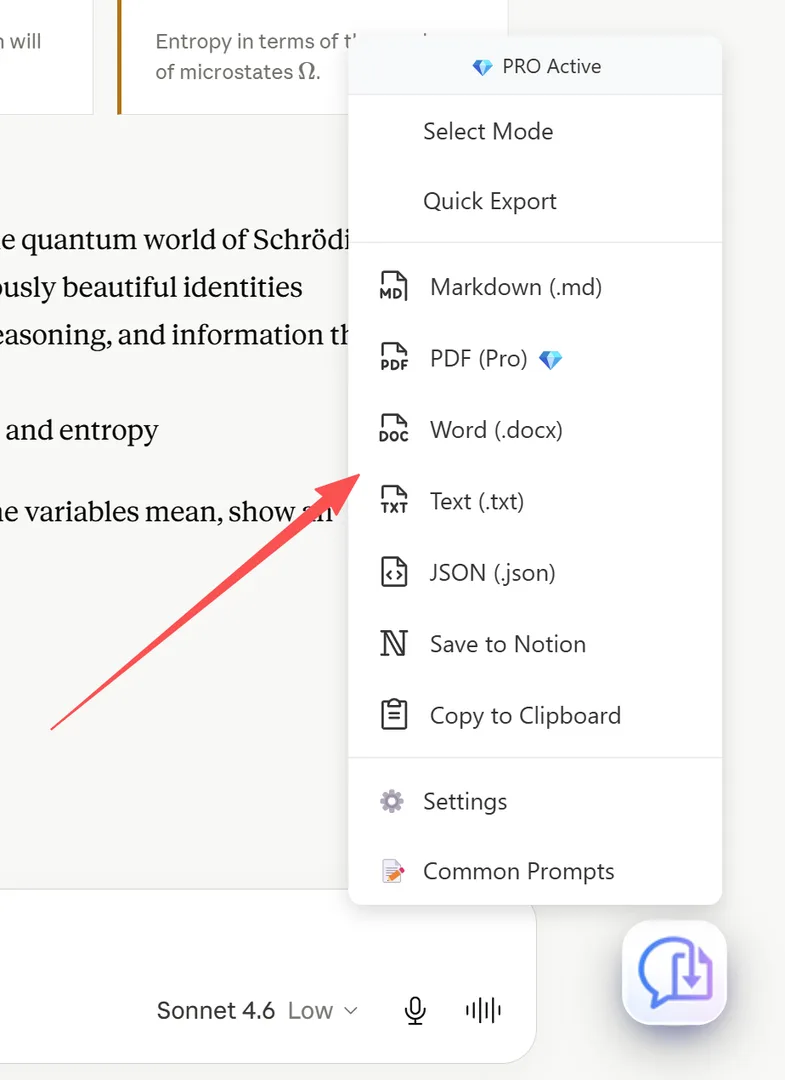
PDF — Best for Sharing & Printing
PDF is the universal format for sharing documents. Exports include:
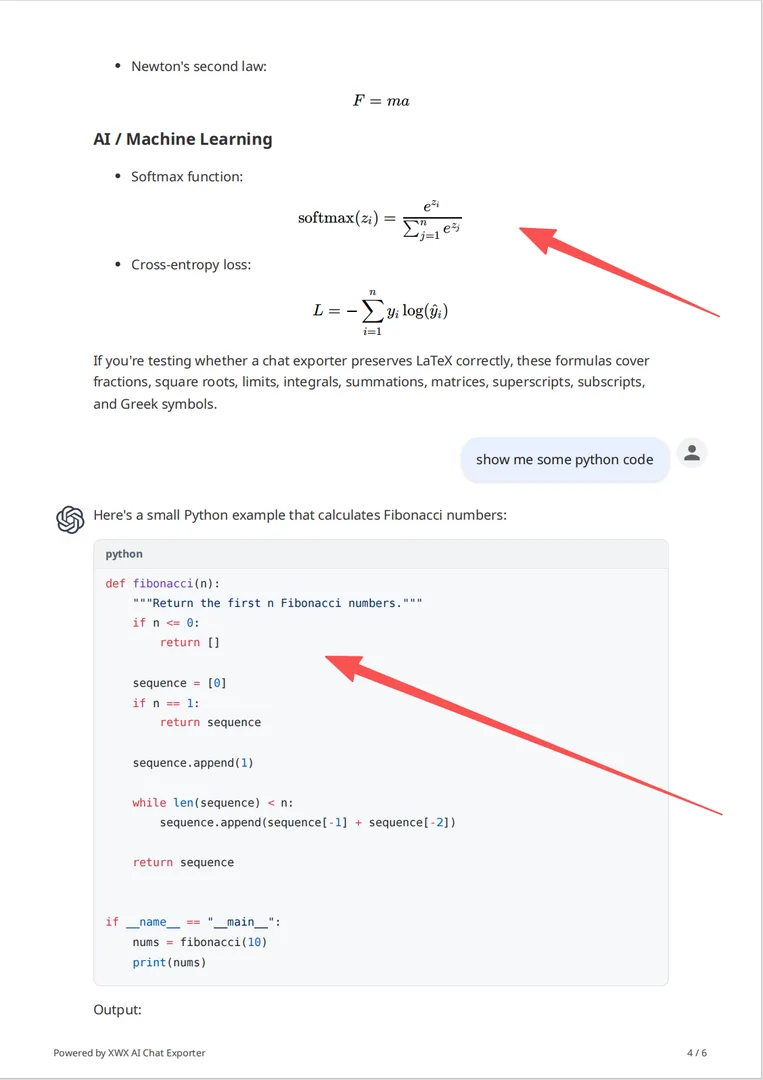
- Syntax-highlighted code blocks
- Rendered LaTeX math formulas
- Full-color images and charts
- Auto-generated table of contents for long conversations
- Dark mode support
Best for: Sharing with colleagues, printing, archiving, client deliverables.
Markdown — Best for PKM & Knowledge Tools
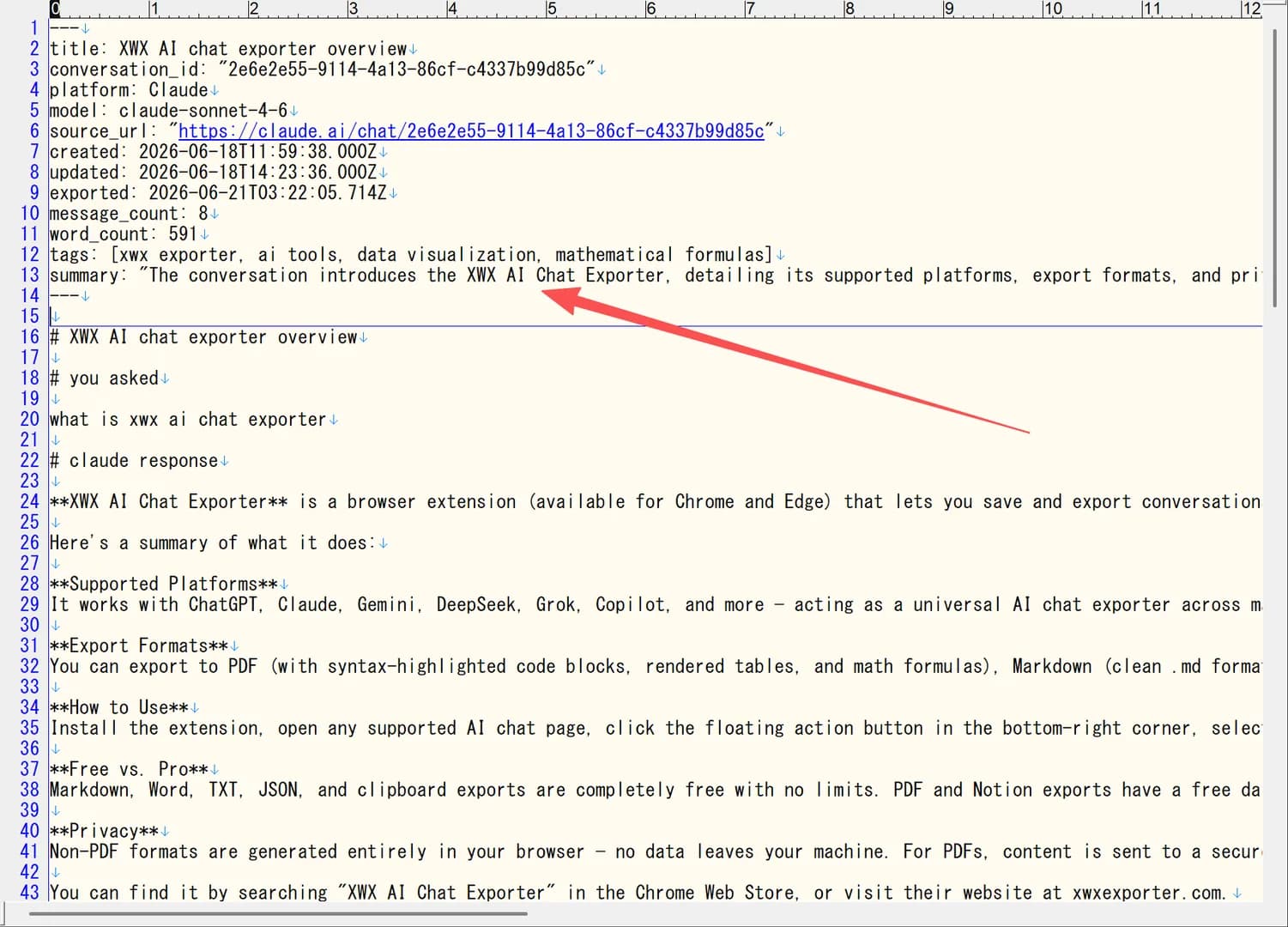
Markdown exports include clean, standards-compliant .md files with:
- ATX-style headings and formatting
- Fenced code blocks with language tags
- Image references (downloaded locally)
- Optional YAML frontmatter with AI-generated tags, summaries, and metadata
- Math formulas in $...$ and $$...$$ blocks
Best for: Obsidian, Notion, Logseq, Joplin, Zettelkasten workflows.
Word (.docx) — Best for Editing & Collaboration
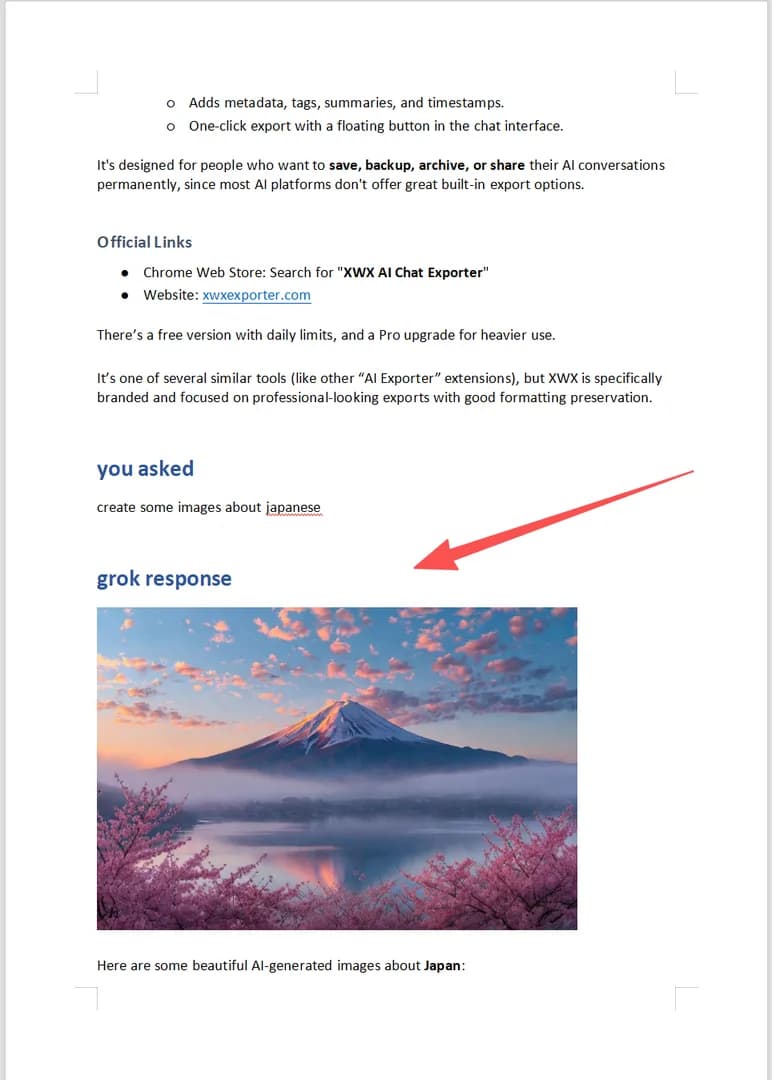
Word exports produce fully editable .docx files:
- Headings mapped to Word heading styles (H1-H6)
- Tables with formatting preserved
- Code blocks as styled monospace sections
- Images embedded inline
- Comments and track changes compatible
Best for: Reports, documentation, collaborative editing in Microsoft Word or Google Docs.
Notion Sync — Best for Knowledge Bases
Notion sync pushes conversations directly to your Notion workspace:
- No file download — content appears instantly in Notion
- Auto-structured with Notion-native blocks
- Headings, toggles, callouts, and code blocks
- Optional: add AI-generated tags and summaries as properties
Best for: Building a centralized knowledge base from multiple AI conversations.
Clipboard — Best for Quick Paste
Copy the conversation as formatted text directly to your clipboard:
- One click, instant copy
- Paste into any text field, email, or document
- Preserves basic formatting (bold, code, links)
Best for: Quick sharing, pasting into Slack/email, ad-hoc documentation.
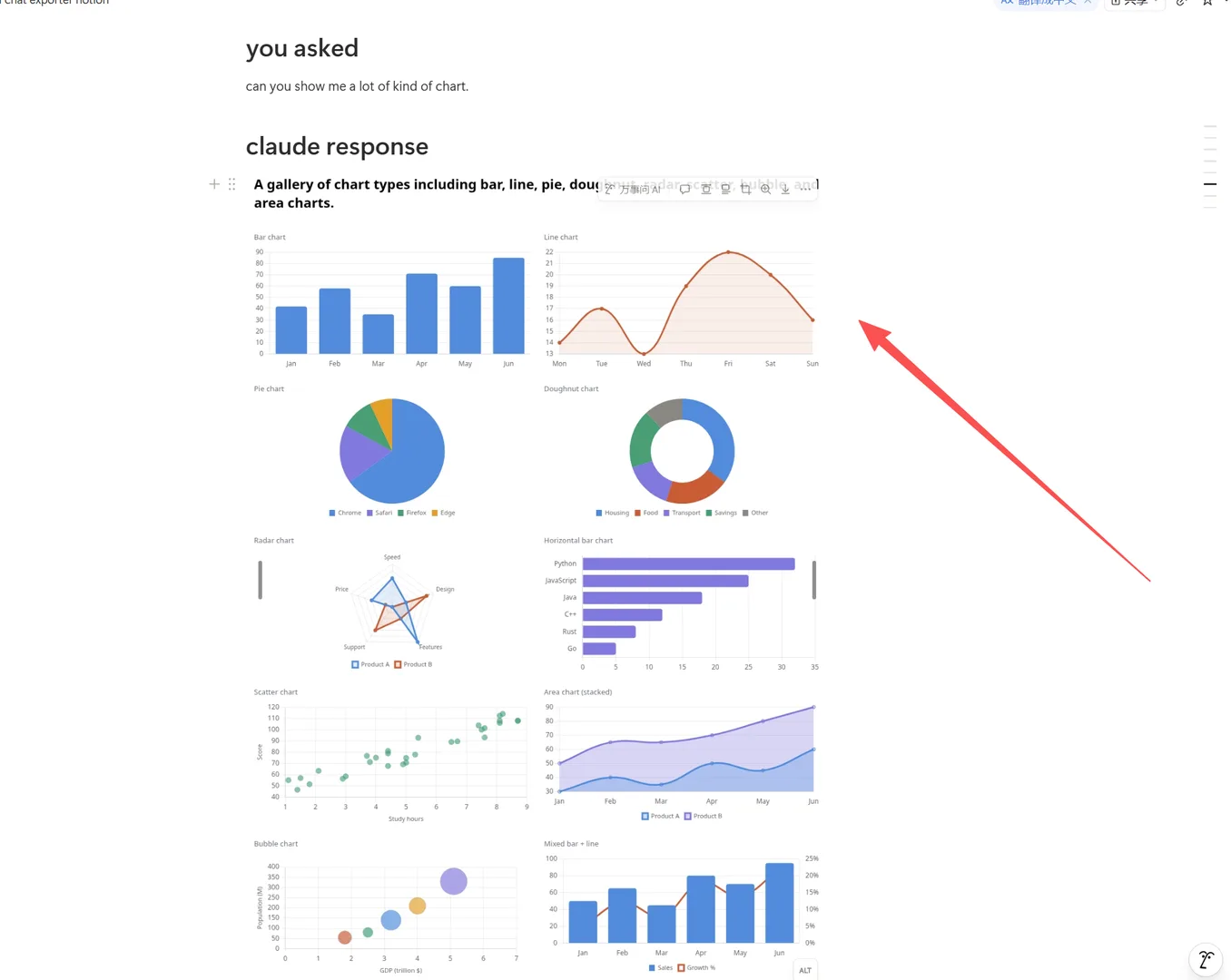
TXT & JSON — Best for Archives & Programmatic Use
TXT: Plain text with no formatting. Smallest file size. Good for simple text archives.
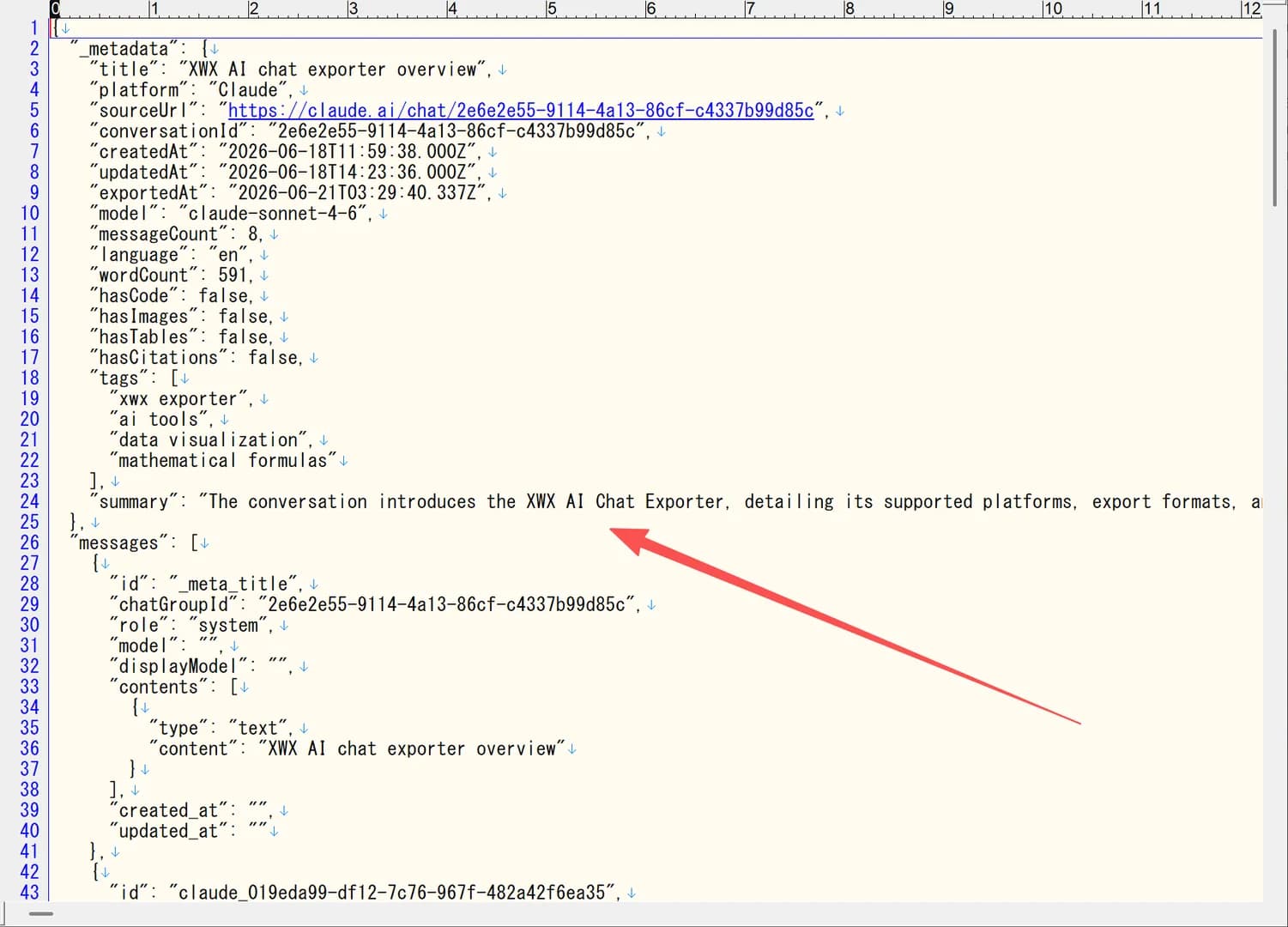
JSON: Structured data with full conversation metadata:
- Message roles (user/assistant/system)
- Timestamps
- Content as structured objects
- Platform and model information
Best for: Programmatic processing, custom integrations, data analysis, backups.
Frequently Asked Questions
Which format should I choose?+
For sharing: PDF. For Obsidian/PKM: Markdown. For editing: Word. For knowledge base: Notion sync. For quick paste: Clipboard.
Is PDF export free?+
Yes, PDF export is completely free for all users. The 💎 label indicates enhanced rendering quality. All 7 export formats are free.
Can I convert between formats later?+
Yes. Export to Markdown first (most flexible), then convert to other formats using tools like Pandoc.