Export AI Chats to Markdown
Markdown is the native language of knowledge management tools. Export your AI conversations as clean, standards-compliant .md files ready for Obsidian, Notion, Logseq, Joplin, and any other PKM tool.
How to Export to Markdown
- Open your AI chat
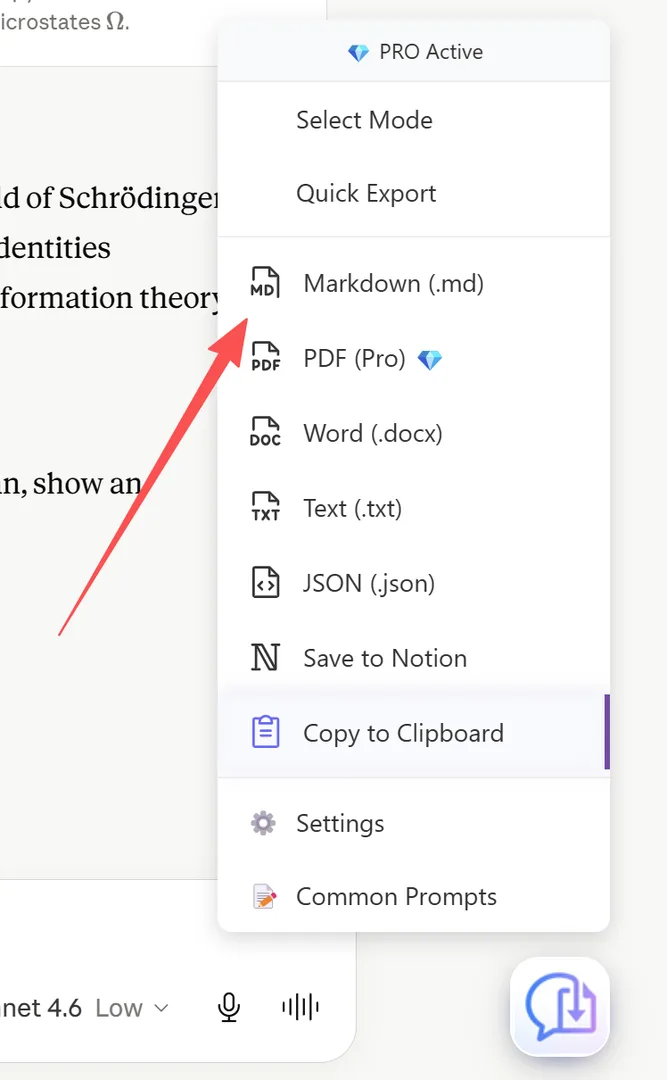
- Click the XWX floating button (FAB)
- Select Markdown from the format menu
- The export starts immediately — the .md file downloads automatically
- A success modal confirms the export
Images referenced in the conversation are downloaded locally and linked with relative paths, so your Markdown file works offline.
Markdown Features
The exported Markdown includes:
- ATX headings:
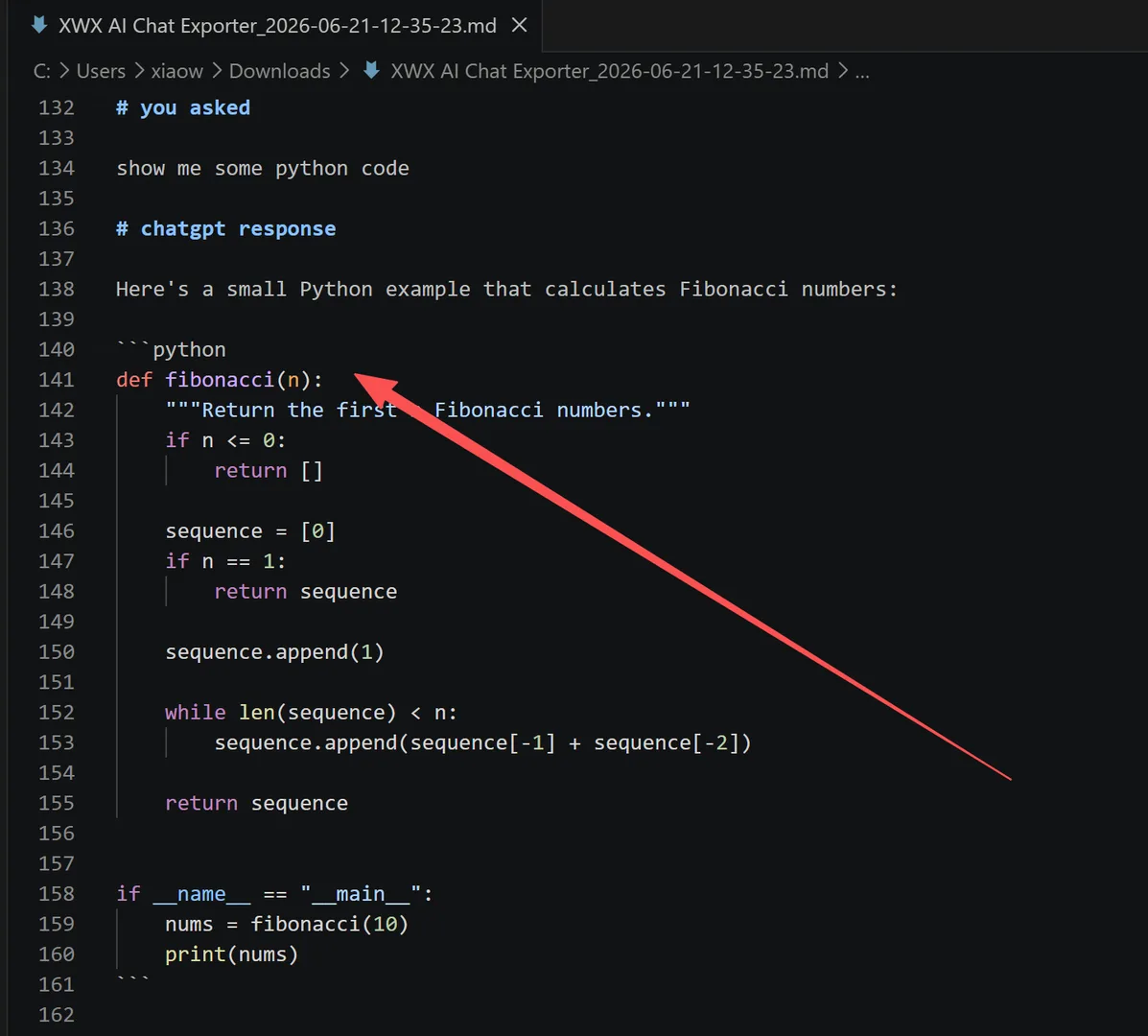
# H1,## H2, etc. - Fenced code blocks: With language tags for syntax highlighting
- Math blocks:
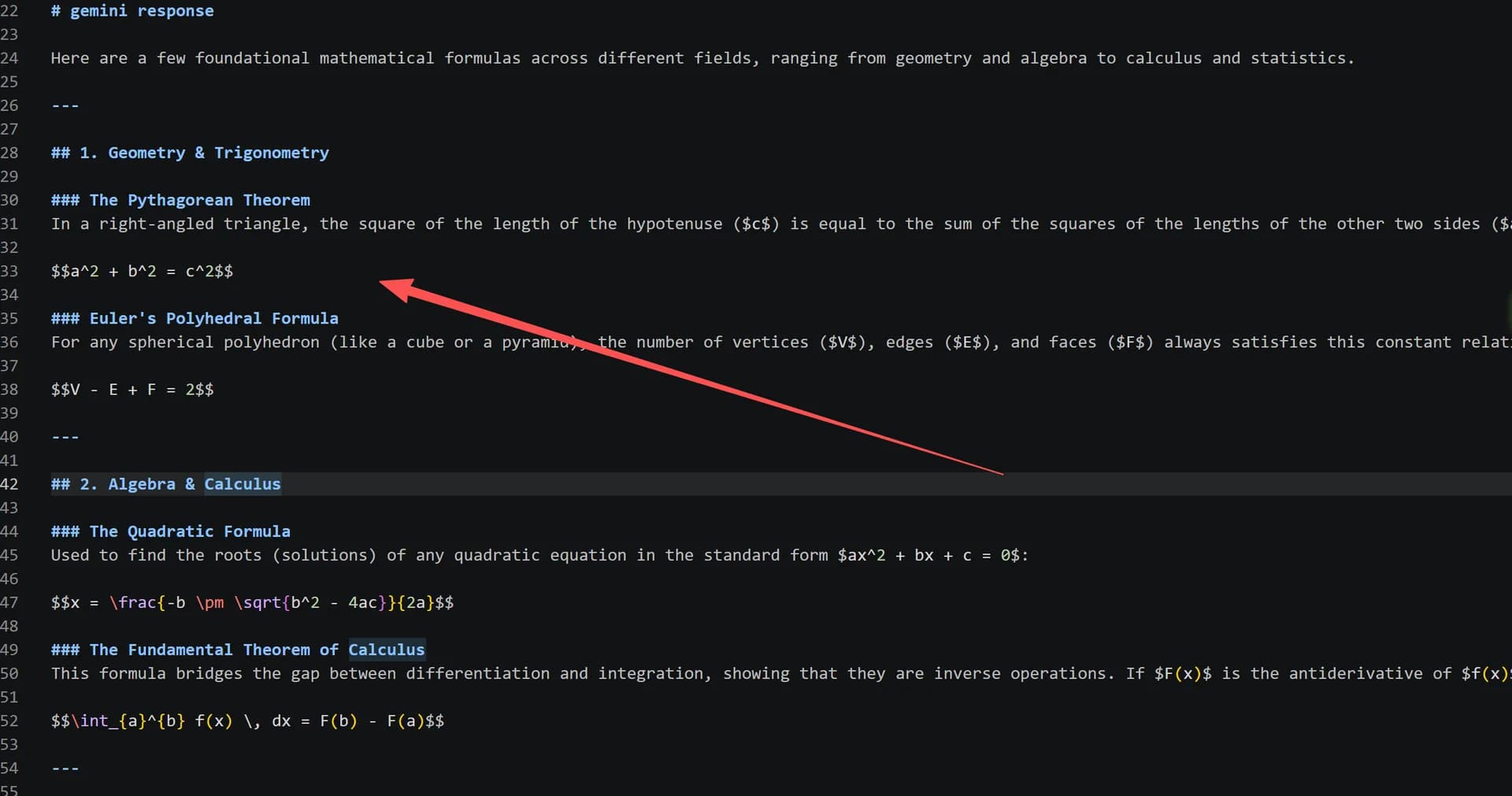
$inline$and$$display$$math (KaTeX/MathJax compatible) - Tables: GFM-style tables with alignment
- Images:
with local file references - Links: Preserved with original URLs
- Blockquotes: For cited or quoted content
- Lists: Ordered and unordered, nested correctly
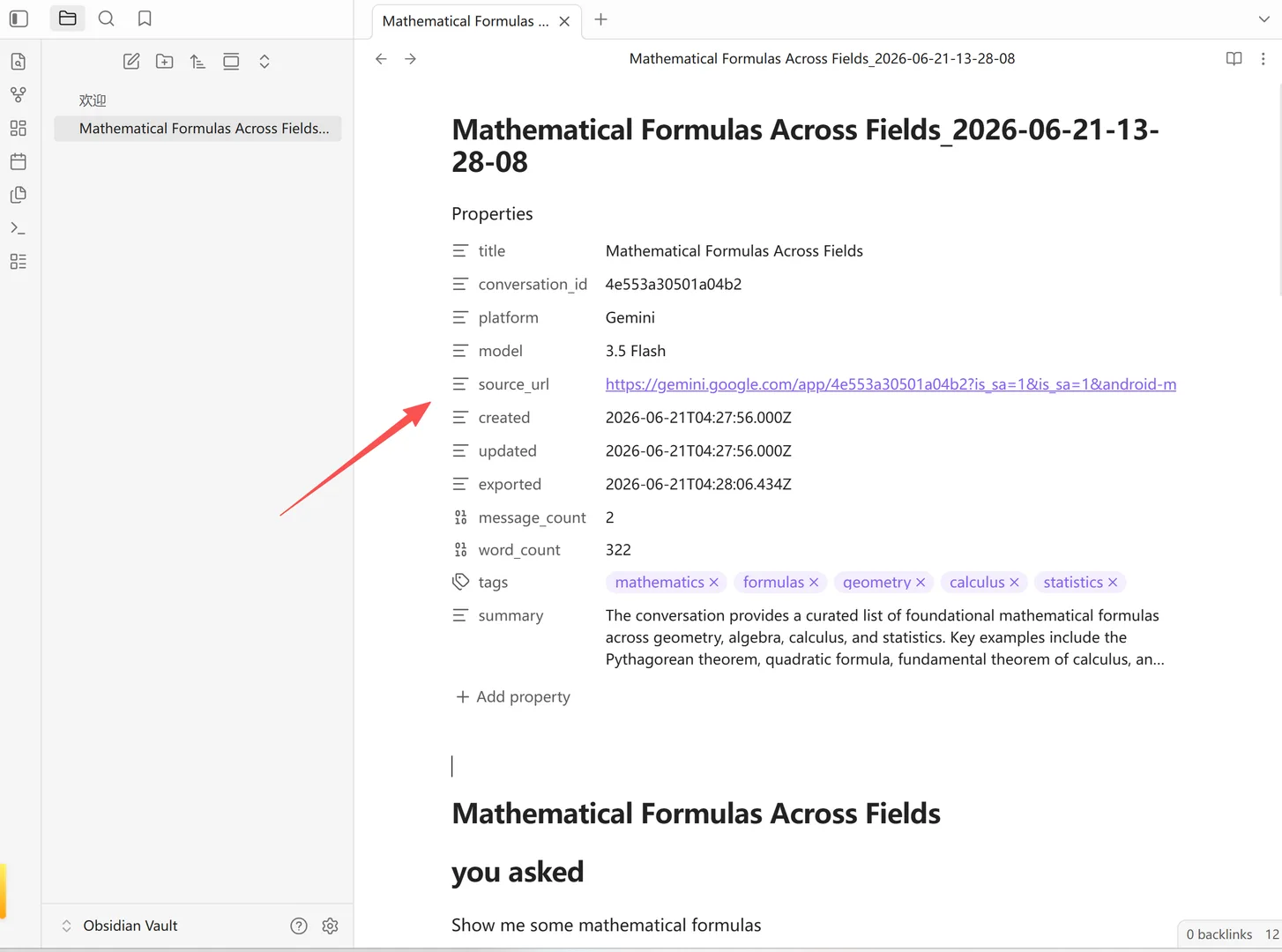
YAML Frontmatter with AI Metadata
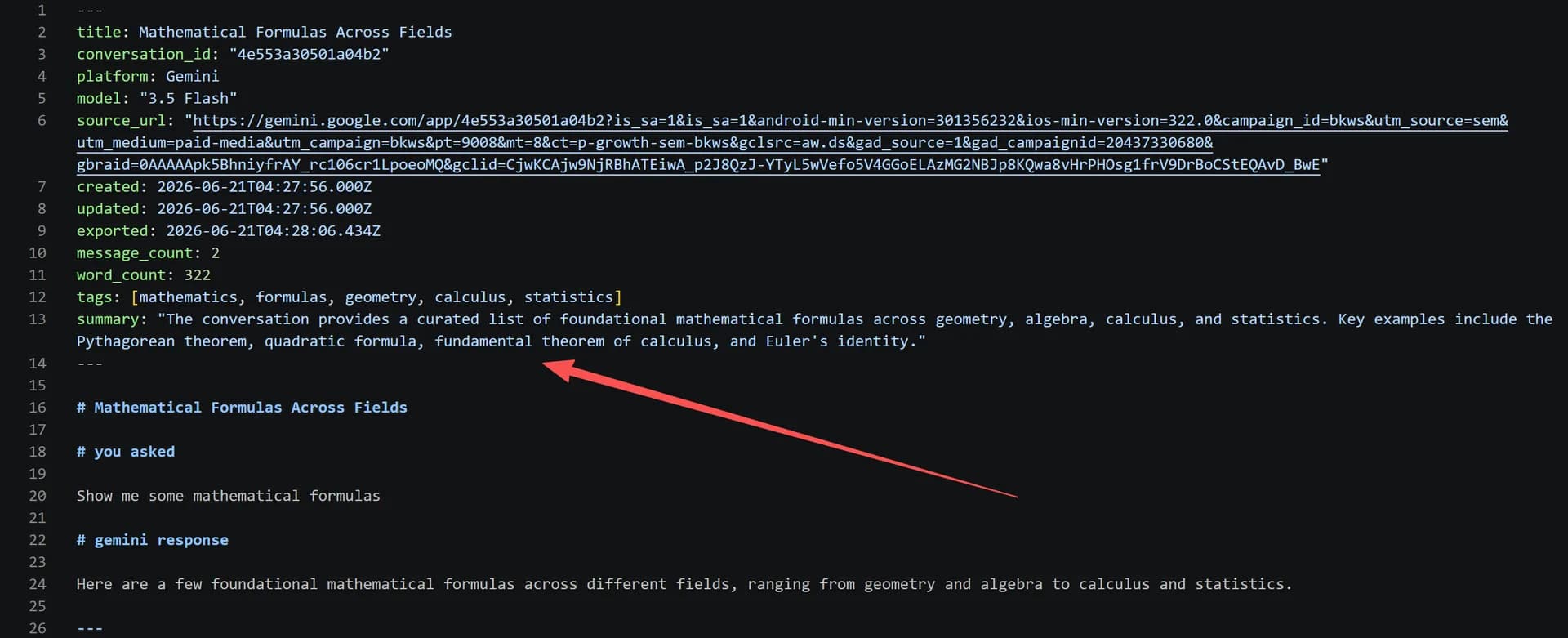
When Frontmatter is enabled, every Markdown export includes a YAML frontmatter block with individually toggleable fields:
---
title: "Conversation about Python optimization"
conversation_id: "abc123"
platform: "chatgpt"
model: "gpt-4"
source_url: "https://chat.openai.com/c/abc123"
created: "2024-01-15T10:00:00Z"
updated: "2024-01-15T11:30:00Z"
exported: "2024-01-15T12:00:00Z"
message_count: 42
word_count: 2340
content_types: [code, images, tables, citations]
tags: [python, optimization, performance]
summary: "A detailed discussion about Python profiling..."
---
Each field can be individually toggled on/off in Settings → General → Frontmatter. Date format is configurable (ISO 8601, Date Only, or Local).
AI Tags and AI Summary are advanced features that require an AI Provider to be configured.
PKM Workflow Integration
Markdown exports integrate seamlessly with popular PKM tools:
- Obsidian: Drop .md files in your vault. Use Dataview to query by tags, date, model, or platform.
- Notion: Import .md files or use the Notion sync feature for direct push.
- Logseq: Outliner-compatible formatting.
- Joplin: Full Markdown support with nested notebooks.
- Zettelkasten: Each export becomes an atomic note with rich metadata.
Frequently Asked Questions
Does the Markdown preserve code blocks?+
Yes. Code blocks use fenced syntax with language tags (e.g., ```python) for syntax highlighting in any Markdown renderer.
Are images downloaded locally?+
Yes. Images are downloaded to a local folder and referenced with relative paths. Your Markdown file works offline.
What is YAML frontmatter?+
It's a metadata block at the top of the Markdown file (between --- markers) containing tags, summary, model, date, and other structured data.
Can I use this with Obsidian?+
Absolutely. The Markdown is optimized for Obsidian. Combined with AI Tags, your exports become queryable via Dataview.