Export AI Chats to Editable Word Documents
Word (.docx) is the standard for collaborative document editing. Export your AI conversations as fully editable Word files — perfect for reports, documentation, and sharing with non-technical stakeholders.
How to Export to Word
- Open your AI chat
- Click the XWX floating button (FAB)
- Select Word from the format menu
- The export starts immediately — the .docx file downloads automatically
- A success modal confirms the export
Open the file in Microsoft Word, Google Docs, LibreOffice, or any compatible editor. Everything is fully editable.
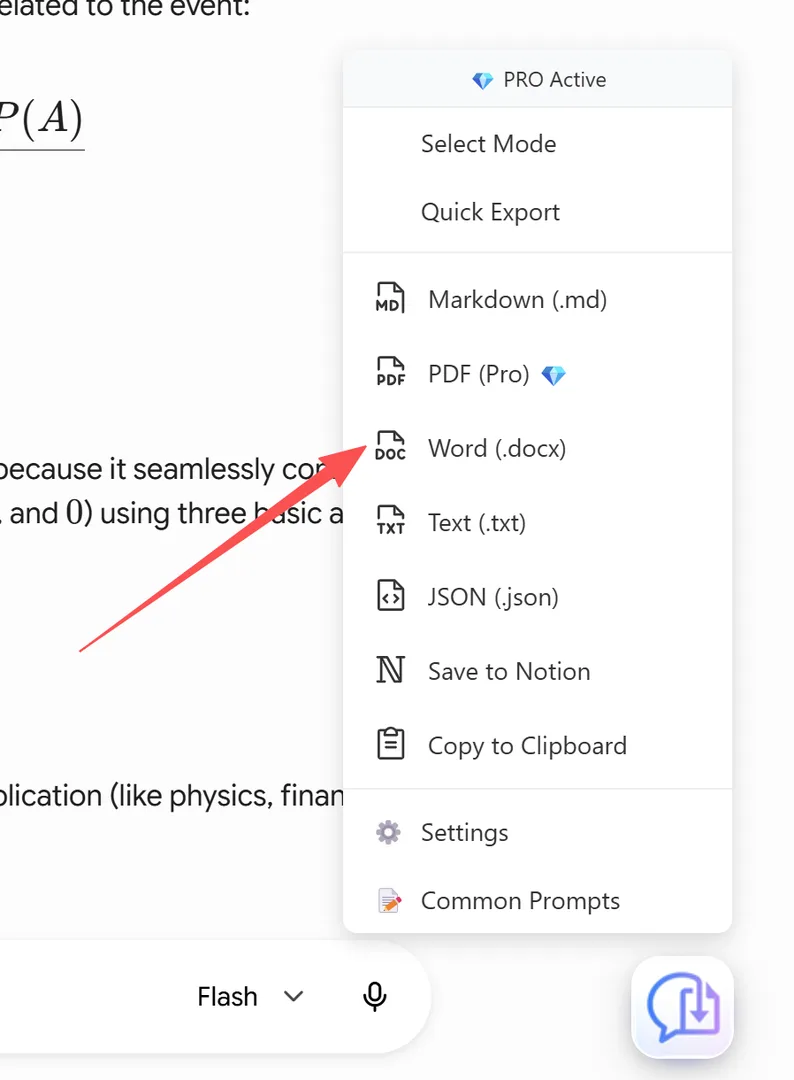
Word (.docx) option in the export menu
What's Preserved in Word
The Word exporter maps AI chat elements to native Word formatting:
- Headings → Word Heading 1-6 styles (compatible with Word TOC)
- Code blocks → Monospace styled boxes with background color
- Tables → Word tables with borders, headers, and alternating row shading
- Images → Inline embedded images
- Bold/italic/code → Preserved inline formatting
- Lists → Word list styles (bulleted and numbered)
- Blockquotes → Indented with left border styling
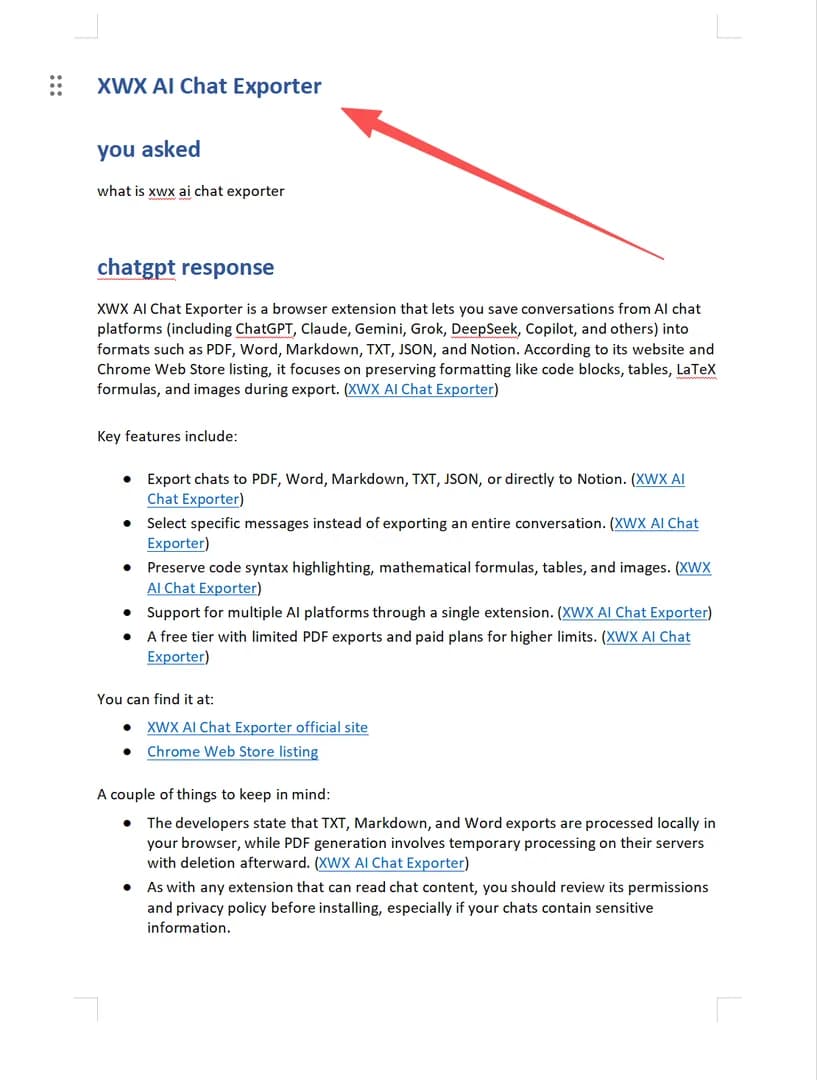
Word output — headings mapped to Word Heading styles
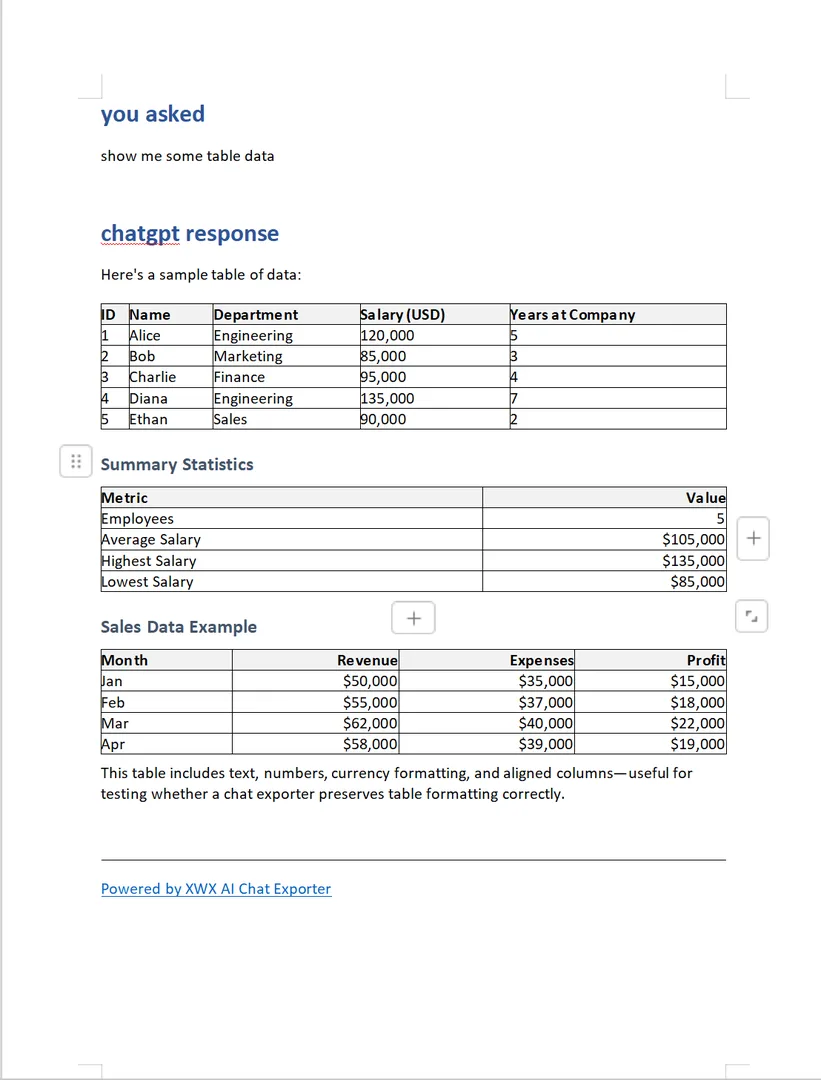
Word output — formatted table with alternating row colors
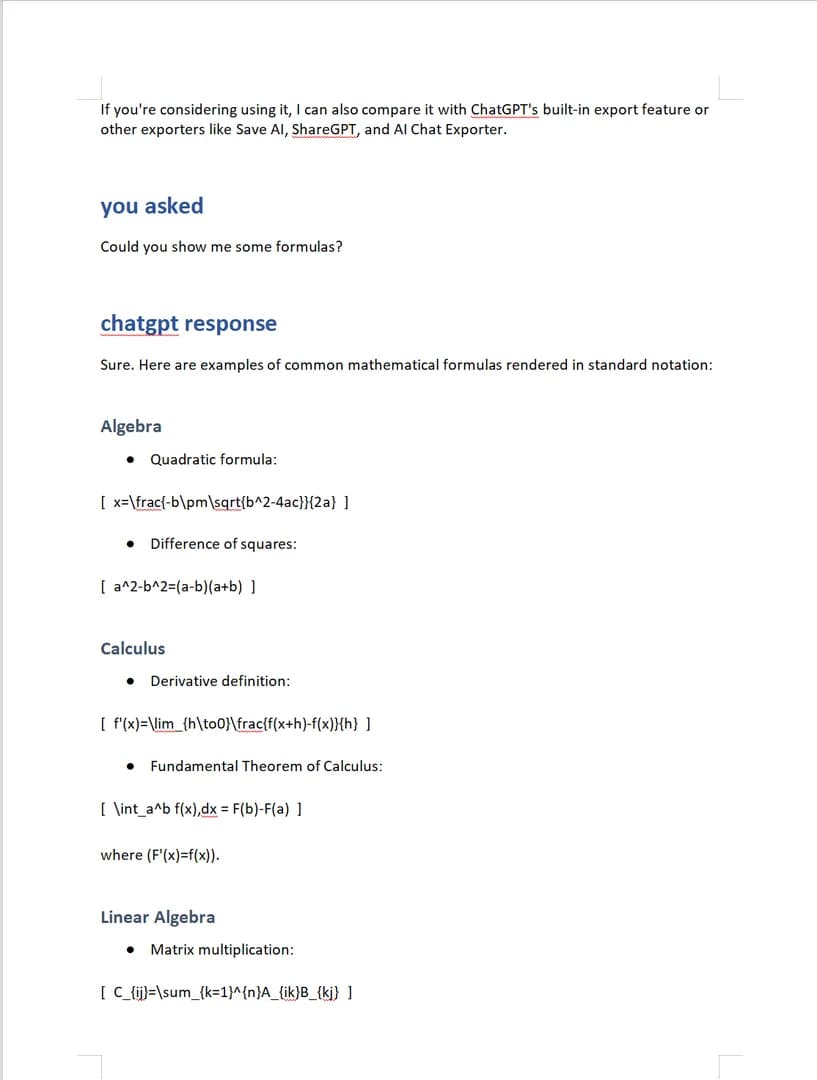
Word output — code block as styled monospace section
tip: Use Word's built-in Table of Contents feature to auto-generate a TOC from the heading styles in the exported document.
When to Use Word Export
Word export is ideal when you need to:
- Write reports based on AI-assisted research
- Create documentation that team members can edit
- Share with non-technical stakeholders who prefer Word
- Merge multiple exports into a single document
- Track changes and collaborate using Word's review features
- Submit deliverables in .docx format required by clients or organizations
Frequently Asked Questions
Can I edit the exported Word file?+
Yes. The .docx file is fully editable in Microsoft Word, Google Docs, LibreOffice, and any compatible editor.
Are tables preserved?+
Yes. Tables are exported as native Word tables with formatting — borders, headers, and cell content all preserved.
Is Word export free?+
Yes, Word export is completely free. All 7 export formats are free to use.