Export Gemini Conversations to PDF
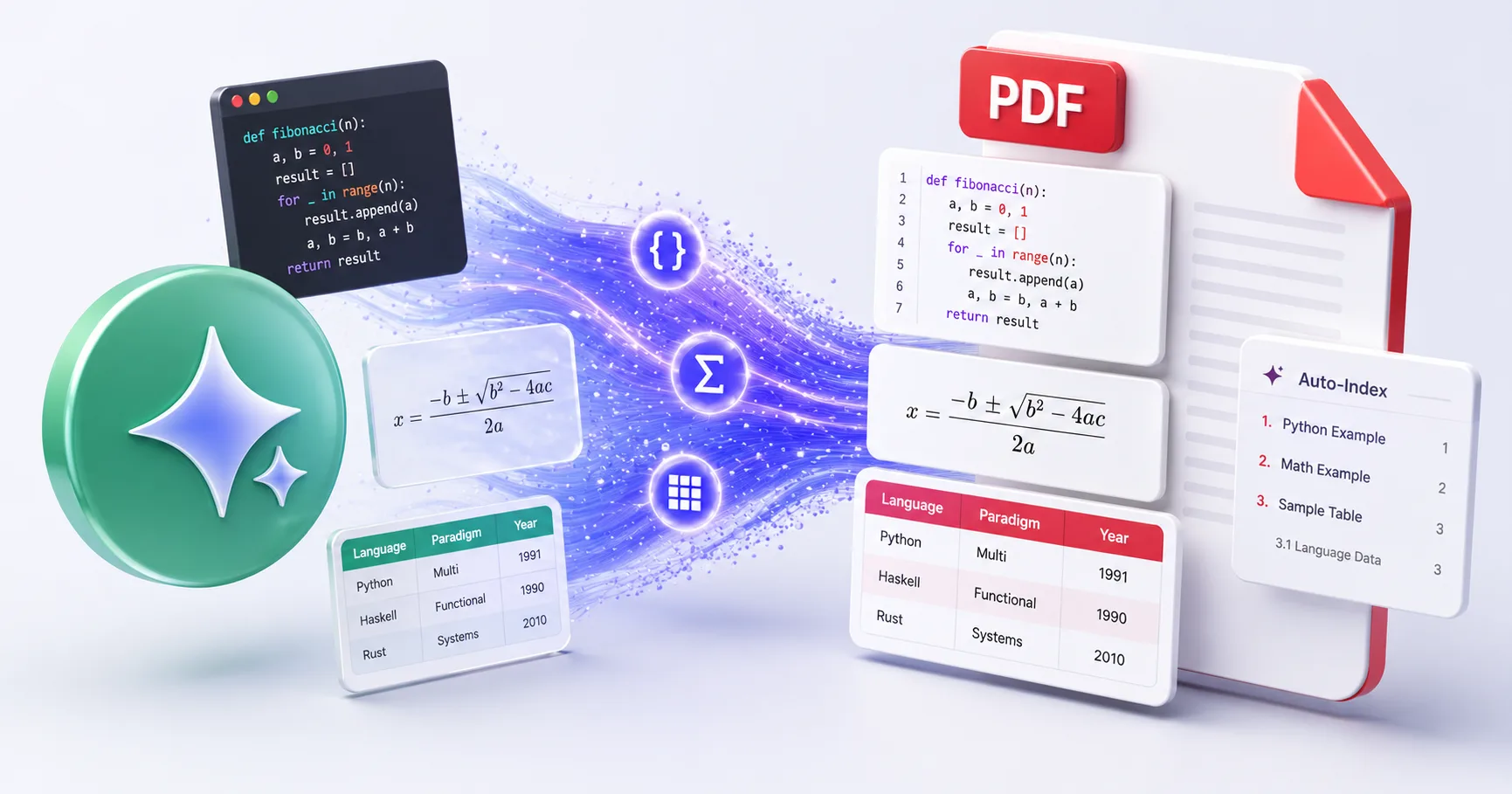
Save your Google Gemini chats as beautifully formatted PDF documents — including AI-generated images, code blocks, tables, and math formulas. One click, no account required.
Why Export Gemini to PDF?
Gemini conversations are trapped inside Google's interface. There's no native export. Screenshots are lossy. Copy-paste breaks formatting. Exporting to PDF preserves everything — including Gemini's unique multimodal outputs.
Preserve AI-Generated Images
Gemini's image generation outputs are embedded directly in the PDF — not just links, but the actual images.
Keep Code & Math Intact
Syntax-highlighted code blocks and LaTeX formulas render perfectly, just as they appear in Gemini.
Export Tables & Data
Structured data, comparison tables, and formatted lists maintain their layout in the exported PDF.
Works with All Gemini Models
Gemini 2.0, 2.5, Pro, Ultra — all models and features are supported, including multimodal conversations.
Auto Table of Contents
Long conversations get an automatic clickable index for easy navigation.
Private & Secure
PDF content is deleted immediately after rendering. We never store your conversations.
How to Export Gemini to PDF
Install XWX AI Chat Exporter
Add the free Chrome extension. It auto-detects when you're on Gemini and activates the export button.
Open Your Gemini Conversation
Go to gemini.google.com and open the chat you want to export.
Click Export → PDF
Click the floating button in the bottom-right corner, select PDF format. Your file downloads instantly.
Review & Share
Open the PDF to verify formatting. Share, print, or archive — it's a self-contained document.
Who Exports Gemini to PDF?
Students
Save Gemini's study explanations, solved problems, and visual aids as printable PDFs for exam prep.
Designers & Creatives
Archive AI-generated images, design concepts, and creative brainstorming sessions as visual PDF portfolios.
Developers
Export code reviews, debugging sessions, and technical explanations with syntax highlighting preserved.
Researchers
Save Gemini's research summaries, fact-checking results, and data analysis as citable PDF documents.
Business Professionals
Turn Gemini's business analysis, market research, and strategy recommendations into shareable PDF reports.
What Makes XWX Different?
Multimodal Content Support
Only XWX preserves Gemini's AI-generated images directly in the PDF — not just text, but full visual content.
13 Platforms, One Extension
Works on Gemini, ChatGPT, Claude, and 10 more. Switch between AI platforms without changing tools.
Smart Metadata
Every PDF includes title, date, model info, and source URL — making it instantly searchable and citable.
FAQ
How do I download a Gemini chat as PDF?+
Install XWX AI Chat Exporter, open your Gemini conversation, click the floating export button, and select PDF. The file downloads with all formatting, images, and code preserved.
Does it save Gemini-generated images?+
Yes. Unlike other exporters that only save text, XWX embeds Gemini's AI-generated images directly into the PDF. Visual content is preserved exactly as rendered.
Which Gemini models are supported?+
All Gemini models — Gemini 2.0, 2.5, Pro, Ultra, and Flash. Including multimodal conversations with images, code, and mixed content.
Is it free?+
Yes. XWX includes a free daily PDF export quota. Markdown, TXT, and clipboard exports are unlimited and free. Pro unlocks unlimited exports.
Can I export long Gemini conversations?+
Yes. XWX handles conversations of any length. Long PDFs automatically get a table of contents for easy navigation.
Is my data secure?+
Yes. PDF content is sent to our secure server for rendering and deleted immediately. We never store or share your conversations.
Related Features
Ready to Export Your AI Chats?
Free Chrome extension. No account required. Works on 13 AI platforms.