Export AI Chats to Obsidian
Save your AI conversations as Obsidian-ready Markdown files with YAML frontmatter, AI-generated tags, and structured metadata. Turn scattered chats into a searchable, queryable knowledge vault.
Why Export AI Chats to Obsidian?
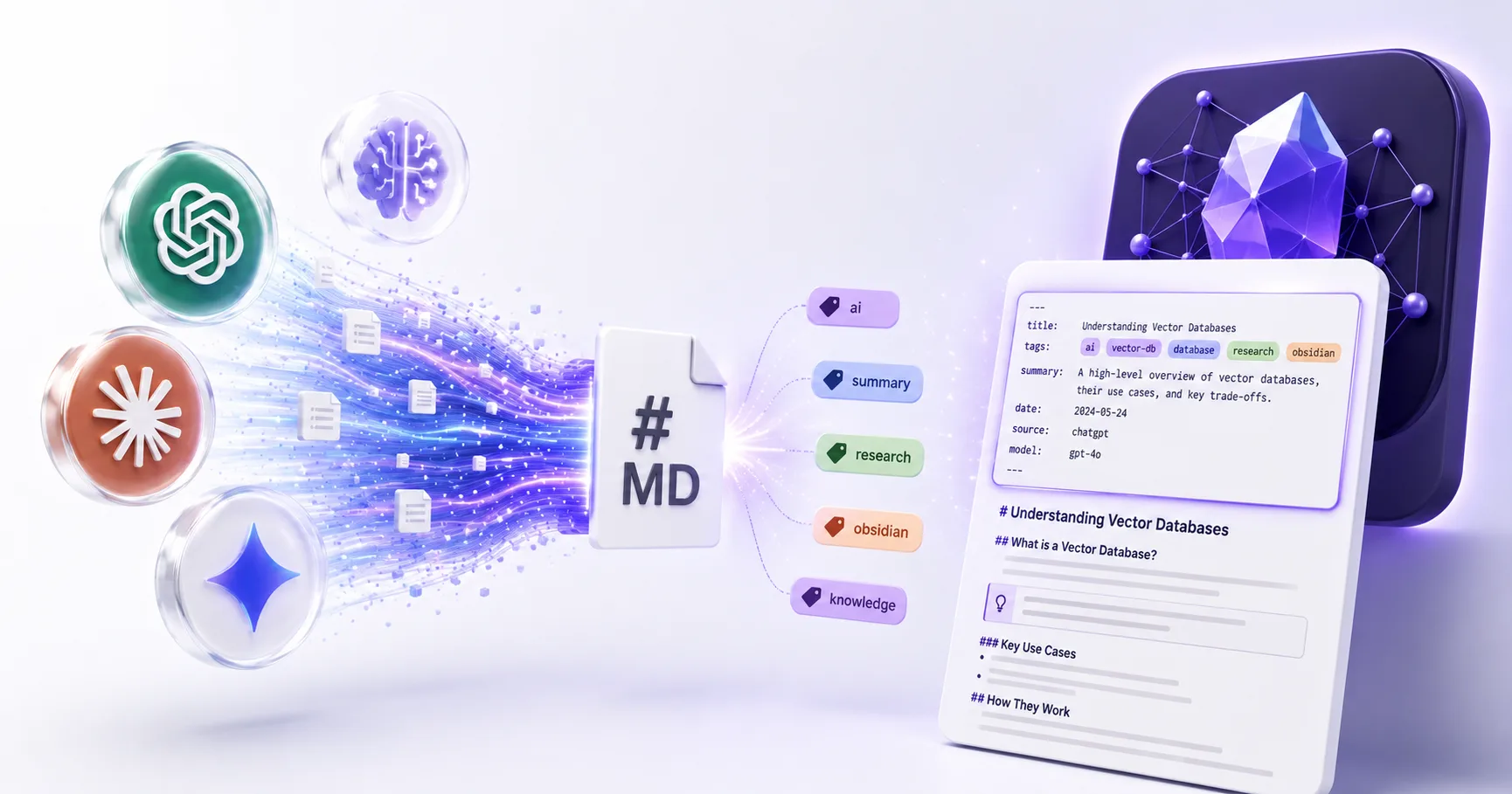
Your best AI insights are trapped inside ChatGPT, Claude, and Gemini. Without structured exports, they're unsearchable and disconnected from your knowledge base. XWX turns AI conversations into first-class Obsidian notes — with metadata that makes them instantly findable.
YAML Frontmatter
Every export includes title, date, platform, model, timestamps, message count, and source URL — fully queryable by Dataview.
AI-Generated Tags
Connect 9 AI providers to auto-generate topic tags. No more spending 10 minutes manually tagging each export.
AI Summaries
Auto-generated 2-3 sentence summaries let you scan hundreds of exports instantly. Know what each conversation contains at a glance.
Code Highlighting Preserved
Syntax-highlighted code blocks render perfectly in Obsidian's Markdown view — Python, JS, SQL, and 50+ languages.
Math & Tables Intact
LaTeX math formulas and Markdown tables are preserved exactly. Compatible with Obsidian's math rendering plugins.
100% Local & Private
Markdown exports run entirely in your browser. No data leaves your machine. Perfect for privacy-conscious PKM practitioners.
How to Export AI Chats to Obsidian
Install XWX AI Chat Exporter
Add the free Chrome extension. It works with ChatGPT, Claude, Gemini, and 10 more AI platforms.
Open Your AI Conversation
Navigate to any supported AI platform and open the conversation you want to save.
Click Export → Markdown
Click the floating button and select Markdown format. The .md file downloads with full YAML frontmatter.
Drop Into Your Obsidian Vault
Move the .md file into your Obsidian vault folder. It appears instantly with all metadata, tags, and formatting intact.
Who Exports AI Chats to Obsidian?
PKM Practitioners
Build a 'second brain' from daily AI interactions. Every export is a self-documenting note with tags, summary, and metadata.
Researchers
Archive AI research conversations with full traceability — source URL, model, timestamps. Query by topic with Dataview.
Developers
Save coding conversations as Markdown with syntax highlighting. Link code snippets to your project notes in Obsidian.
Writers & Bloggers
Turn AI brainstorming sessions into Obsidian notes. Use AI summaries to find relevant conversations months later.
Students
Organize AI study notes by subject with auto-generated tags. Build a searchable knowledge base from every tutoring session.
Data Analysts
Export AI data analysis conversations with preserved tables and charts. Link findings to your analytical notebooks.
What Makes XWX Different?
AI-Powered Metadata
The only exporter that auto-generates tags and summaries using 9 AI providers — turning exports into queryable knowledge assets.
Privacy-First
Markdown exports run 100% locally. No account, no data collection. Your AI conversations never leave your browser.
13 Platforms
Export from ChatGPT, Claude, Gemini, Perplexity, DeepSeek, and 9 more — all with consistent YAML frontmatter format.
FAQ
How do I export ChatGPT to Obsidian?+
Install XWX AI Chat Exporter, open your ChatGPT conversation, click the floating export button, and select Markdown. The .md file downloads with YAML frontmatter. Drop it into your Obsidian vault folder.
What is YAML frontmatter and why does it matter?+
YAML frontmatter is structured metadata at the top of a Markdown file — title, date, tags, summary, platform, model, source URL. It makes your exports queryable by Obsidian Dataview, letting you filter and search hundreds of AI conversations by any field.
How do AI-generated tags work?+
Connect your preferred AI provider (OpenRouter, OpenAI, Gemini, Qwen, KIMI — 9 total) in XWX settings. When you export, the AI analyzes the conversation content and generates relevant topic tags automatically. No manual tagging needed.
Is it compatible with Dataview?+
Yes. The YAML frontmatter uses standard fields (title, date, tags, source) that Dataview can query natively. Example: `TABLE summary FROM "AI Chats" WHERE platform = "ChatGPT"`.
Is my data safe?+
Markdown exports run entirely in your browser — no data is sent anywhere. For AI tag generation, only the conversation text is sent to your chosen AI provider with your own API key. We never see or store your data.
Can I customize which metadata fields are included?+
Yes. XWX settings let you toggle each metadata field on/off — title, date, tags, summary, platform, model, timestamps, message count, word count, source URL. Include only what you need.
Does it work with Logseq and other PKM tools?+
Yes. The Markdown format with YAML frontmatter is compatible with any PKM tool that supports standard Markdown — Obsidian, Logseq, Roam Research, Notion, and more.
Related Features
Export ChatGPT Chats to PDF
Learn More →Export Gemini Conversations to PDF
Learn More →Download Claude Chats as PDF
Learn More →Sync AI Chats to Notion
Learn More →Export AI Chats to Word
Learn More →AI-Generated Tags & Summaries for AI Chats
Learn More →Smart Message Selection with Synced Sidebar
Learn More →Ready to Export Your AI Chats?
Free Chrome extension. No account required. Works on 13 AI platforms.