How to Save Google AI Overviews & AI Mode Results to PDF
You search for something important, Google hands you a clean AI Overview with sources — and then it’s gone. The Overview lives only in that moment. Change the query, refresh the page, or come back an hour later and the answer is different, shortened, or replaced entirely. Google does not offer a "save this AI answer" button. This guide shows you how to capture AI Overviews and the new conversational **AI Mode** results as PDFs you can keep, with the query and the sources included.
Why AI Overviews are impossible to bookmark
Three facts make AI Overviews different from any other AI answer you’ve tried to save:
- They change every time. Google regenerates Overviews based on the query, the date, and your context. What you read this morning may not exist this afternoon.
- They aren’t URLs. There’s no "permalink to this Overview." The same search tomorrow renders a new answer.
- AI Mode is a conversation, not a page. At google.com/aimode, you ask follow-up questions in a running thread — like a chat. Saving it requires a real export, not a screenshot.
If you use Google search for research, verification, or client work, the answers you rely on deserve better than a browser tab you can’t go back to.
The ways to save Google AI Overviews (honest comparison)
| Method | Setup | Output quality | Query saved | Sources kept | Best for |
|---|---|---|---|---|---|
| Screenshot | None | Poor — clips on scroll, no text | Partially | No | Quick one-off |
| Copy-paste → docs | None | Poor — layout and citations lost | No | No | Snippets only |
| Browser print | None | Fair — long answers clip, layout breaks | No | Partial | Single short result |
| Chrome extension | 1 click | Excellent — full answer, query header, sources | Yes | Yes | Anyone researching in Google |
The extension route is the only method that produces a file that says what you searched, what Google answered, and where the answer came from.
Method 1: Screenshot
The fastest way to save anything, and the least useful for AI Overviews. A long Overview scrolls past the screen, so you get fragments. The citations become unreadable thumbnails. And the query — the single most useful piece of context — is usually cropped out. Fine for one short paragraph. Nothing more.
Method 2: Copy-paste into a document
Select the answer, paste into Google Docs or Word, and save as PDF. You lose the layout, the source chips, and the citation mapping, and you have to remember which query produced it. Acceptable for a one-off snippet; it fails as a backup system the moment you have more than a few.
Method 3: Browser print
- On the search page, press Ctrl+P (Windows) or Cmd+P (Mac).
- Destination → Save as PDF.
- Disable Headers and footers; enable Background graphics.
The catch: the search results page is not designed for print. The AI Overview column breaks across pages, long answers clip, and the organic results print alongside it whether you want them or not.
Method 4: Save with a Chrome extension (recommended)
Step 1 — Install. Search for XWX AI Chat Exporter in the Chrome Web Store and click Add to Chrome. No account, no signup.

Steps 2–4: Run a search, click Export, choose PDF
Step 2 — Run a search and get your AI answer. Search on google.com and let the AI Overview load. For conversational answers, open AI Mode at google.com/aimode and ask your questions. The extension detects Google Search AI Mode automatically (supported since XWX v2.0.8).
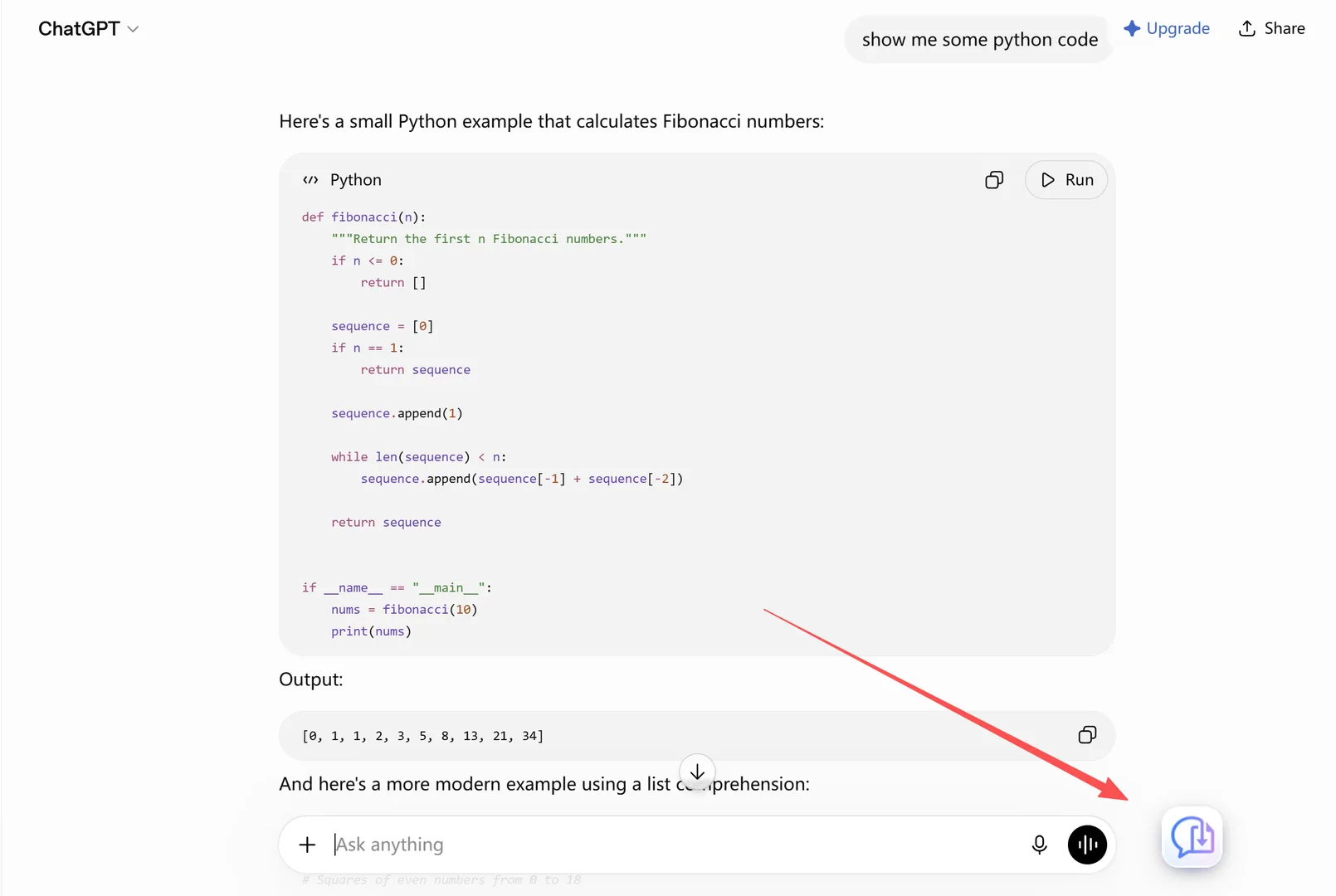
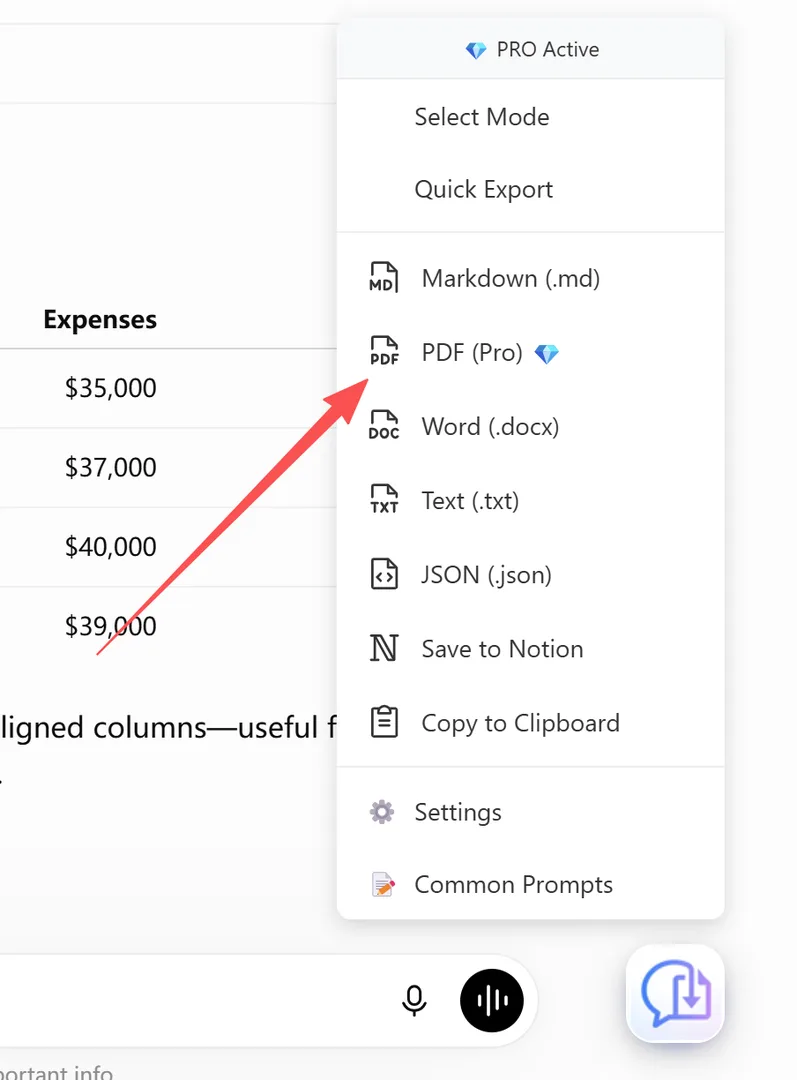
Click Export and choose PDF
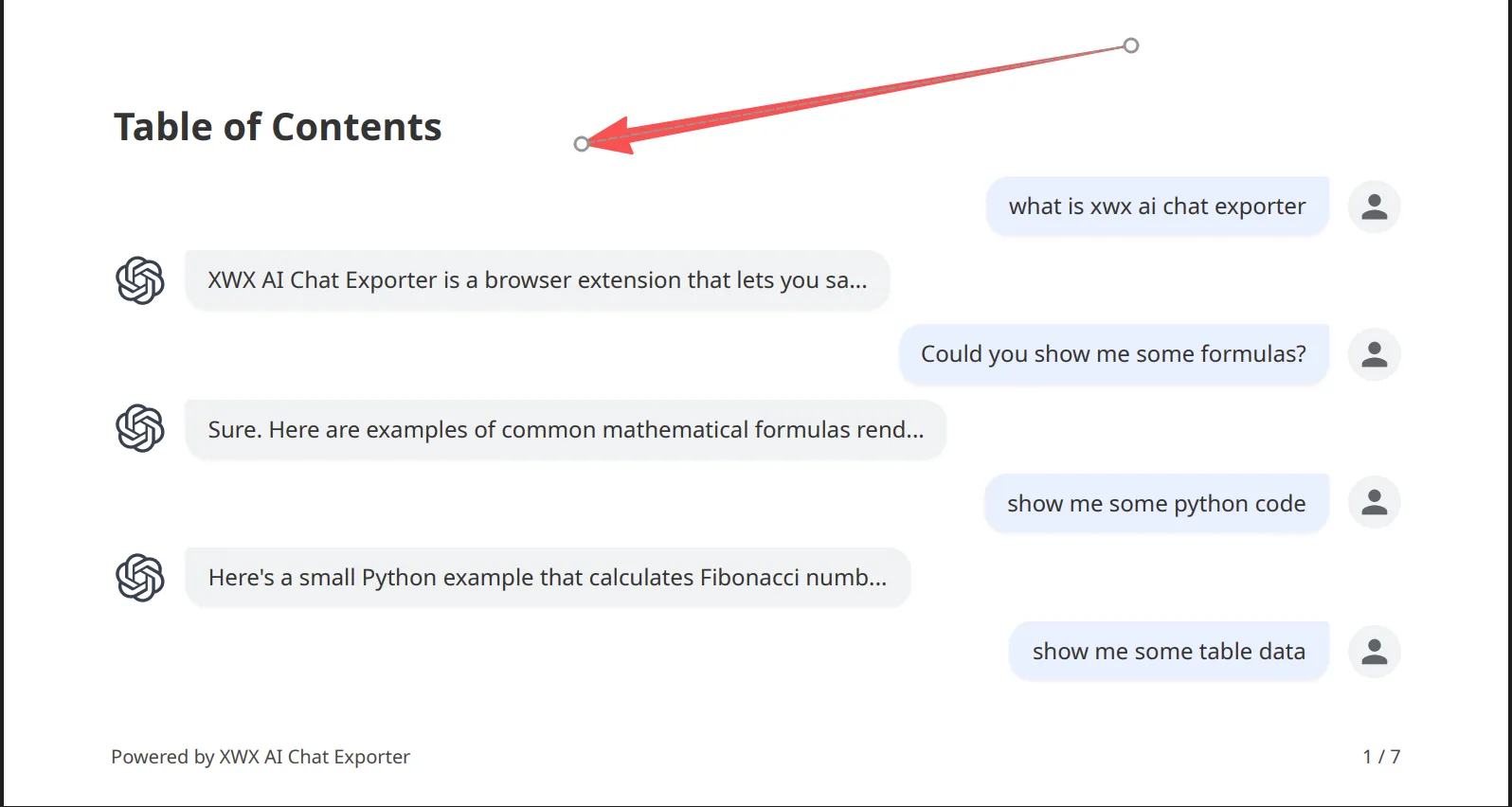
Step 3 — Click Export and choose PDF. The exported PDF includes the full AI answer, the query you searched in the document header, and the source references in place — so the file is self-documenting.
Step 4 — (Optional) Export the follow-up chain. In AI Mode, export the whole conversation thread — every follow-up and answer — not just the first response.
What survives in the export
| Content type | Screenshot / print | XWX export |
|---|---|---|
| Full AI Overview text | Clips on scroll | Complete |
| Your original query | Usually cropped | Written in the document header |
| Source citations / links | Unreadable | Kept in place |
| AI Mode follow-up chain | Manual screenshots | Complete thread |
| Tables in answers | Breaks across pages | Intact |
| Links in the answer | Dead text | Preserved |
| Search timestamp | Not included | In metadata/frontmatter |
Realistic limitations
- PDF exports go through a render server for consistent professional layout; content is deleted immediately after generation and never stored. Markdown, TXT, JSON, and Word run 100% locally.
- Google Search AI Mode is not a pure-API platform. XWX reads it via network interception and DOM parsing, so if Google dramatically changes the search page structure, export may briefly need an extension update — the honest trade-off for a platform Google doesn’t open to API export.
- AI Overviews are generated at search time. Save the answer while you’re looking at it — nothing can recover a version Google has already replaced.
- Images in an answer fall back to a URL or placeholder if a host blocks the download.
Who saves Google AI answers to PDF
- Researchers & fact-checkers — capturing the AI Overview behind a claim before the next search invalidates it.
- Students — saving AI-assisted research steps with the source trail intact, instead of a folder of screenshots.
- Consultants & analysts — keeping client-relevant search findings as dated, query-tagged PDFs in the project file.
- Journalists & writers — preserving the exact wording and sources of an Overview for verification and citations.
- Compliance-conscious users — keeping a timestamped record of what Google said when, in case it changes later.
Alternatives to PDF
- Markdown — when you want the answer inside your notes system (Obsidian, Logseq, Notion), with the query in YAML frontmatter. See Export AI Conversations to Obsidian.
- Word (.docx) — when you need to edit, annotate, or fold the answer into a report. See Export AI Chats to Word.
- TXT / JSON — plain-text and structured records for archival.
- Notion — pushes the answer into your Notion workspace as a structured page. See Sync AI Chats to Notion.
よくある質問
Can I save a Google AI Overview to PDF?+
Google has no built-in option. A browser extension like XWX AI Chat Exporter adds a floating export button to the search page: click it, choose PDF, and the Overview downloads with your query and sources attached.
Why do AI Overviews disappear?+
AI Overviews are generated fresh for each search. They change with the query, the date, and your context — there’s no permalink to an Overview. That’s exactly why you should export the ones you rely on while they’re on screen.
What is Google AI Mode?+
AI Mode (google.com/aimode) is Google’s conversational search experience. Instead of a single Overview you can ask follow-up questions in a running thread. XWX supports exporting that thread as a PDF, Markdown, or Word file.
Does the export include the sources?+
Yes. The exported document keeps the source references in place, and the query you searched is written into the document header so the file records both the question and the answer.
Is it free to save AI Overviews to PDF?+
XWX includes a free daily quota for PDF exports. Markdown, TXT, JSON, and clipboard exports are free with no limits; Pro removes the PDF limit and adds AI-generated tags and summaries.
Does this work on the regular Google search page?+
Yes, on google.com search results with AI Overviews, and on AI Mode at google.com/aimode. It’s one of the 13 platforms XWX supports.