How to Export DeepSeek Chats to PDF, Word & Markdown (2026 Guide)
DeepSeek is the model people actually talk to when they want to see the reasoning — and then the app takes it all away. There’s no "Download this conversation" button on chat.deepseek.com. A long debugging session with DeepSeek, complete with the DeepThink chain that shows you *how* it got there, exists only inside the app until it doesn’t. That matters more for DeepSeek than for other platforms, because the R1 thinking chain is the part people screenshot and share — and the part that plain copy-paste destroys. This guide covers every realistic way to get a DeepSeek conversation out of the app, including how to keep the reasoning chain intact.
Why DeepSeek is worth exporting (and why it’s a pain)
Three things make DeepSeek conversations both valuable and hard to preserve:
- No native export, at all. As of this guide, chat.deepseek.com has no per-conversation export and no official data-download workflow in the same shape as OpenAI or Anthropic offer.
- The thinking chain is the content. DeepThink / R1 reasoning blocks are what set DeepSeek apart. Researchers, developers, and math students export these threads to study how the model reached an answer — so the reasoning blocks have to survive the export.
- Math and code are everywhere. DeepSeek’s strongest use cases produce LaTeX-heavy math and multi-file code. Both need a real renderer, not a text dump.
If you only need to show someone "look what DeepSeek said," a screenshot is fine. If you’re archiving a solution, studying a reasoning chain, or building a knowledge base, you need a real export.
The 4 ways to export a DeepSeek chat (honest comparison)
| Method | Setup | Output quality | Reasoning chain kept | Best for |
|---|---|---|---|---|
| Browser Print (Ctrl+P) | None | Poor — long chats clipped, code/math degrade | Shown, but collapsed | Quick one-offs |
| Copy-paste → editor | None | Poor — math, code, and reasoning blocks lose structure | Inline, unreadable | Snippets only |
| Screenshot / screen capture | None | Image only, not searchable | As image | Single answers |
| Chrome extension | 1 click | Excellent — code highlighted, LaTeX rendered, thinking chain as distinct quote blocks | Yes, readable | Regular use |
Method 1: Browser Print (works, but fights you)
- Open the conversation on chat.deepseek.com.
- Press Ctrl+P (Windows) or Cmd+P (Mac).
- Destination → Save as PDF.
- Disable Headers and footers; enable Background graphics to keep the dark theme.
The catch: long DeepSeek threads virtualize, so printing only captures what’s currently on screen. Code blocks lose highlighting, LaTeX comes out as raw markup, and the reasoning chain — which DeepSeek collapses into expandable blocks in the UI — prints as an unreadable wall of gray text.
Method 2: Copy-paste into a document editor
Copy the conversation and paste it into Word or Google Docs. For a short text Q&A, fine. For anything with math, code, or a DeepThink chain, you’ll spend the session rebuilding formulas and re-indenting code by hand. The reasoning blocks lose their visual separation and blend into the assistant’s answer.
Method 3: Screenshots (the current workaround)
Screenshot each answer, or the expanded thinking chain, and save the images. This is the workaround most DeepSeek users fall into, and it has real costs: images aren’t searchable, aren’t editable, and a long reasoning chain is dozens of screenshots. Right for one answer you want to forward; a nightmare for a week of research.
Method 4: Export with a Chrome extension (recommended)
A dedicated exporter reads the conversation from DeepSeek’s backend and renders it into the format you choose.
Step 1 — Install. Search for XWX AI Chat Exporter in the Chrome Web Store and click Add to Chrome. No account, no signup.

Steps 2–4: Open the chat, choose a format, toggle the reasoning chain
Step 2 — Open the DeepSeek conversation. Go to chat.deepseek.com and open the chat you want to save. The extension detects DeepSeek automatically.
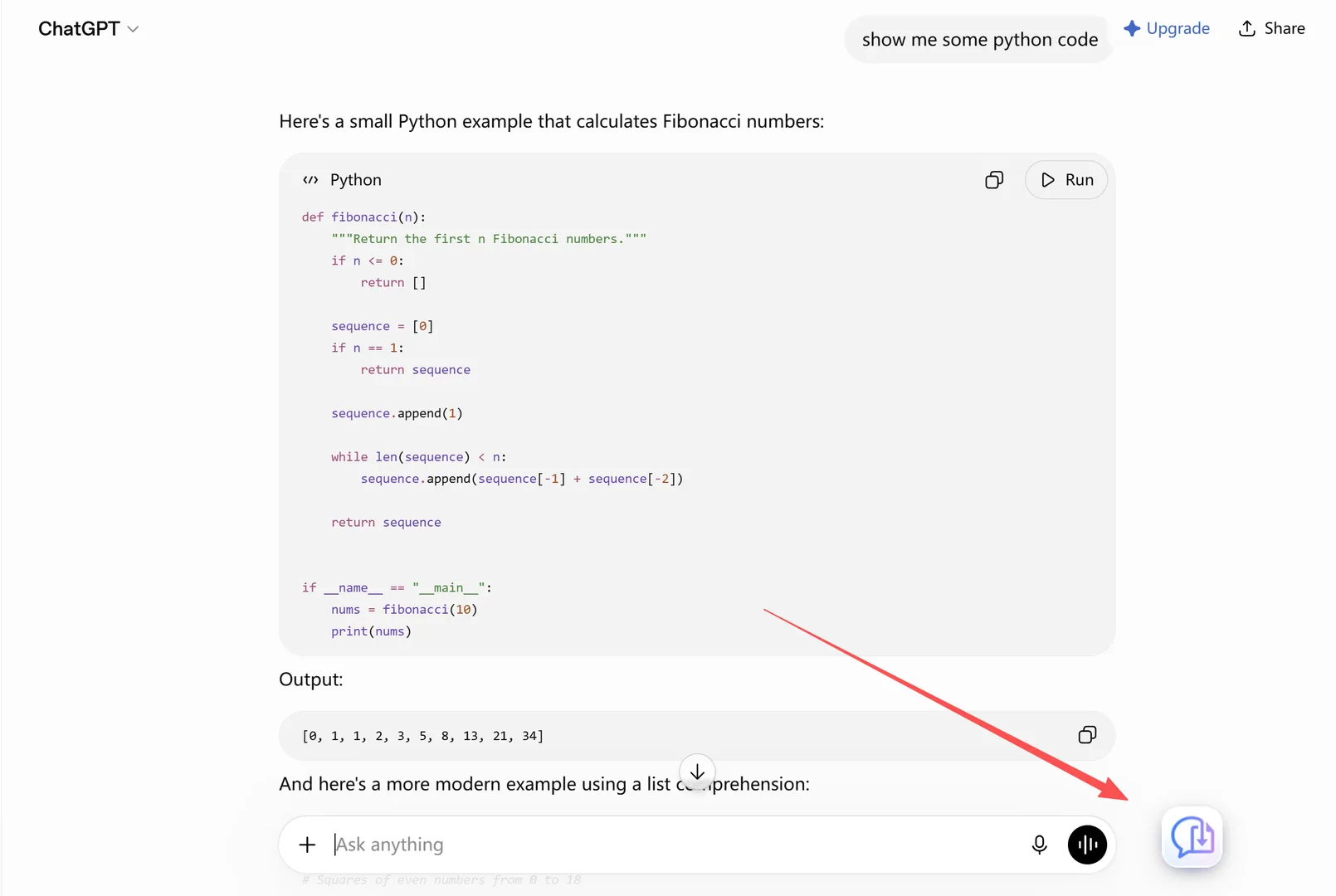
Choose PDF, Word, or Markdown
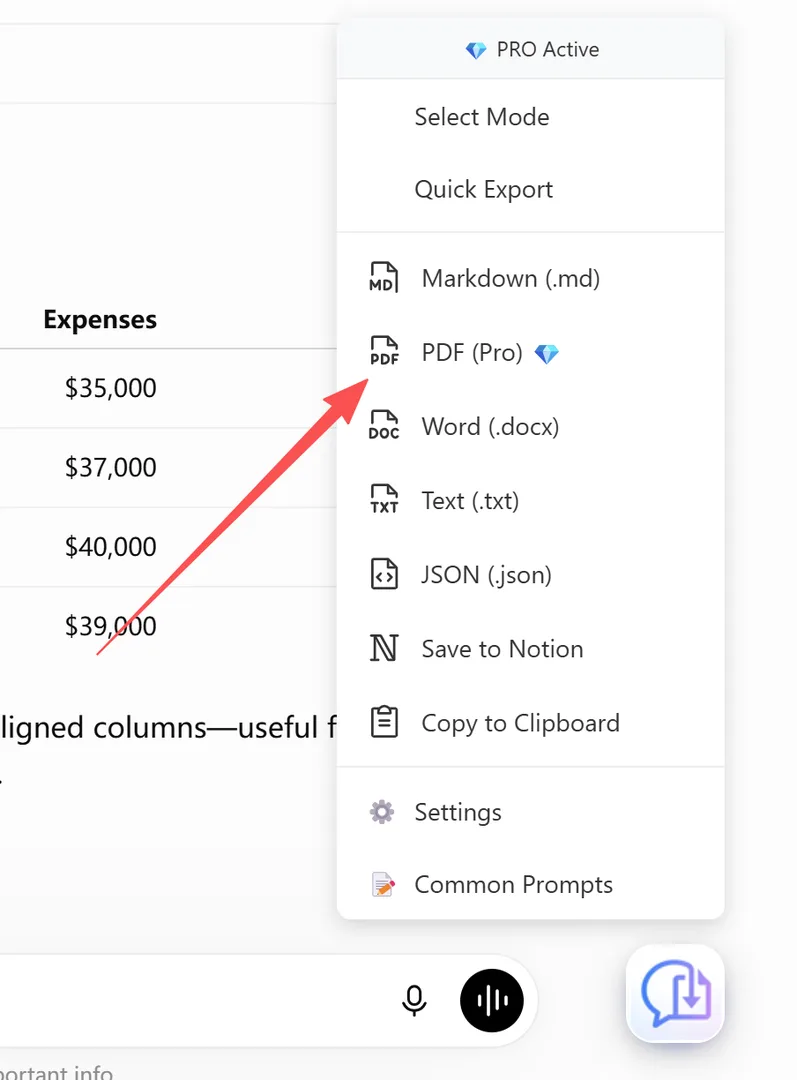
Step 3 — Choose PDF, Word, or Markdown. Click the floating button and pick your format.
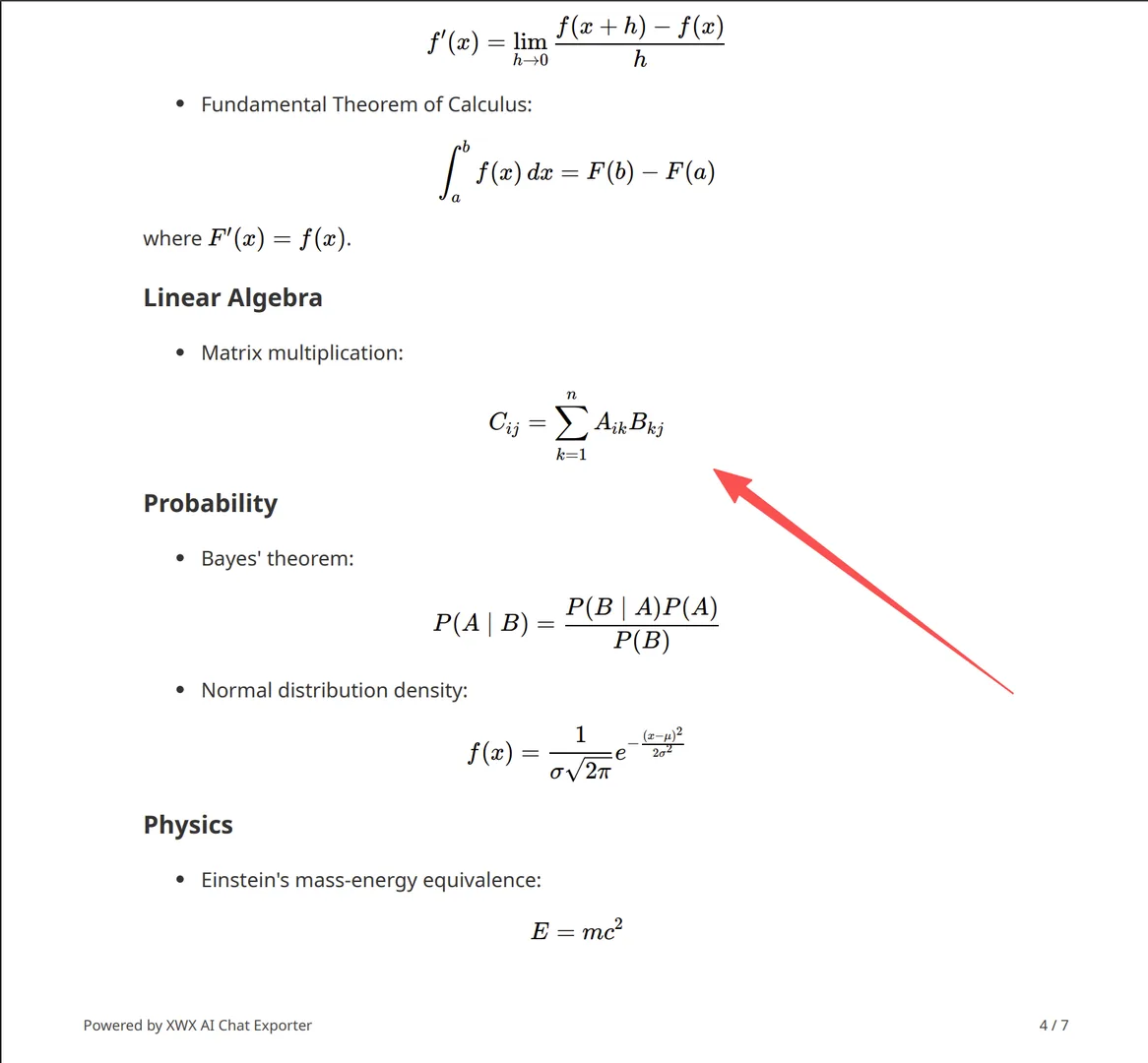
- PDF gives you a share-ready document with code highlighted, LaTeX math rendered, and the DeepThink chain exported as a distinct quote block.
- Word (.docx) gives you an editable document, generated entirely locally — math rendered with KaTeX, long images auto-sliced.
- Markdown gives you a
.mdfile with YAML frontmatter (title, model, timestamp, word count, source URL), ready for Obsidian, GitHub, or a technical notes app.
Step 4 — (Optional) Toggle the reasoning chain. The thinking-process export is off by default. If you want the DeepThink reasoning chain in the file, enable it in the extension’s settings — it exports as a clean quote block, clearly separated from the final answer.
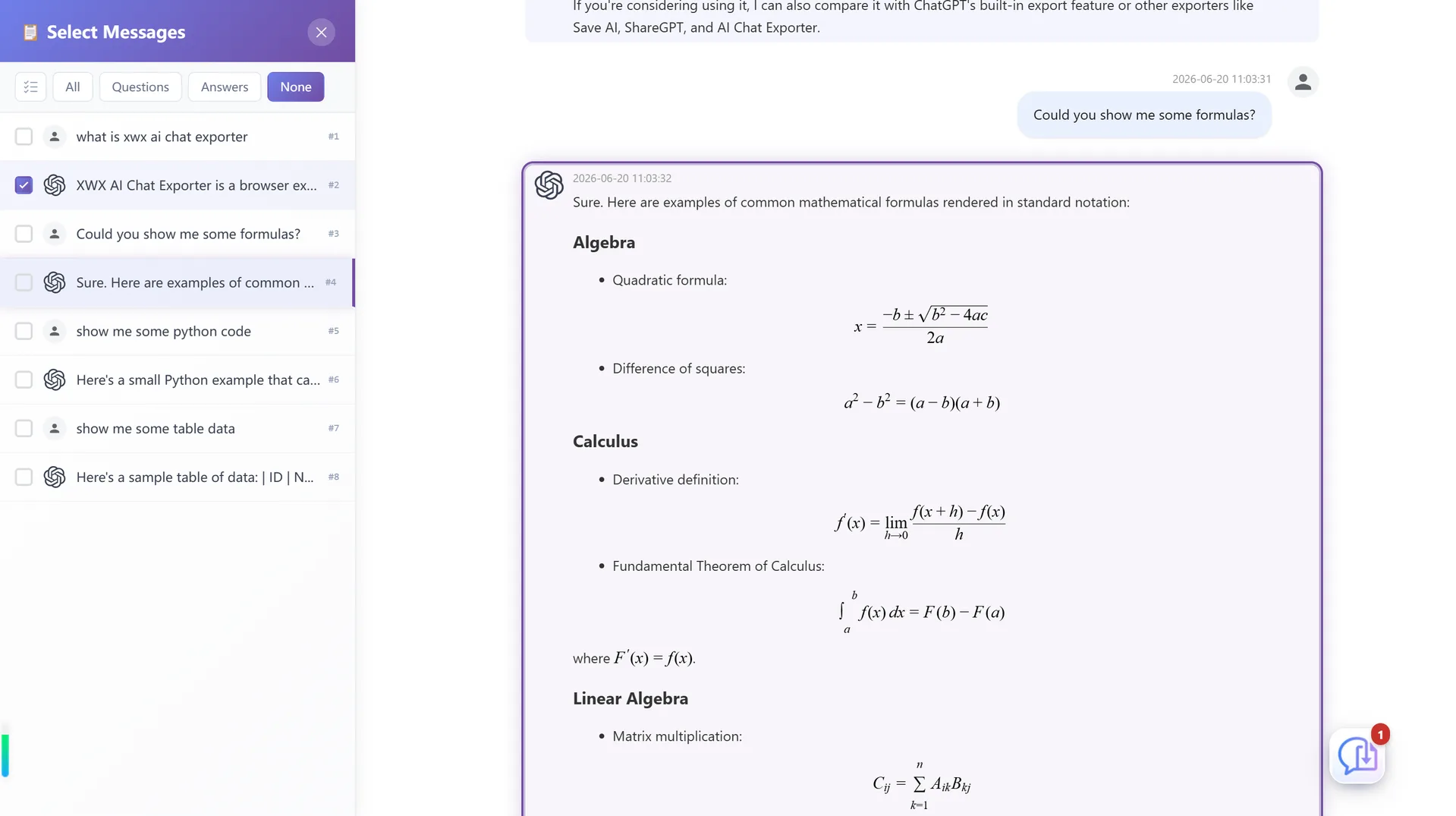
Step 5 — (Optional) Select only part of the thread
Use Smart Selection to export just one exchange or one answer with its code, without the long prompt history. The side panel stays in sync with the content panel as you click or drag.
What survives a DeepSeek export (and what doesn’t)
| Content type | Browser Print | XWX export |
|---|---|---|
| DeepThink / R1 reasoning chain | Collapsed, unreadable | Distinct quote block, readable |
| Code blocks with syntax highlighting | Highlight lost | Preserved |
| LaTeX math formulas | Raw markup | Rendered (PDF/Word) |
| Tables | Wrapped / misaligned | Intact |
| Long conversations (>100 msgs) | Cut off by virtualization | Complete, with auto TOC in PDF |
| Images in the thread | Missing on long chats | Embedded |
| Model name & timestamp | Not included | Included as metadata |
The realistic limitations
- PDF exports go through a render server so the layout engine stays consistent; content is deleted immediately after generation and never stored. Word, Markdown, TXT, and JSON export entirely locally.
- The thinking chain is exported the way the platform exposes it. The extension lets you toggle reasoning-block export on or off; if DeepSeek itself changes how reasoning is surfaced, the export follows what’s available. Turning it on means the reasoning text goes into the file — keep that in mind if you’re sharing the document externally.
- Images require the source to be downloadable. If a host blocks it, the export falls back to the image URL or a placeholder.
Who actually exports DeepSeek chats
- Developers — archiving debugging sessions where the DeepThink chain shows exactly why a fix works.
- Math & STEM students — saving step-by-step solutions with formulas intact, in a form they can print, cite, or paste into a study guide.
- Researchers — keeping the reasoning trail behind a result, since DeepSeek’s transparency is the whole point of using it.
- Data & ML engineers — collecting conversation logs as Markdown or JSON for evaluation, prompt iteration, or fine-tuning prep.
- Chinese & English users alike — DeepSeek serves both; the extension works on chat.deepseek.com in either language, and the export formats handle CJK text properly.
Alternatives to PDF (and when to choose them)
- Markdown — the format for notes and archives. Obsidian, GitHub, and technical note apps ingest it directly. See Export AI Conversations to Obsidian.
- Word (.docx) — when you need to edit, annotate, or fold the chat into a report. Fully local export with math rendered via KaTeX. See Export AI Chats to Word.
- JSON — structured data (role, model, timestamp, content) for scripts, analysis, or migrating between tools.
- Notion — pushes the conversation into your Notion workspace as a structured page. See Sync AI Chats to Notion.
よくある質問
Can I export DeepSeek chats?+
Not natively — chat.deepseek.com has no per-conversation download or export button. A browser extension like XWX AI Chat Exporter adds one-click PDF, Word, and Markdown export.
Does DeepSeek have an export button?+
No. As of this guide, DeepSeek offers no built-in export for individual conversations. The workaround most users fall into is screenshots — which a dedicated exporter replaces with a real, searchable document.
Can I export DeepSeek R1 thinking / DeepThink reasoning?+
Yes, with an extension. XWX can export the DeepThink reasoning chain as a distinct quote block, separated from the final answer. The reasoning export is off by default and can be toggled in the extension settings.
Does DeepSeek export preserve math formulas and code?+
With a proper exporter, yes. LaTeX math renders properly in PDF and Word, code keeps its syntax highlighting, and tables keep their layout. Browser print and copy-paste both degrade them.
How do I export DeepSeek to Word?+
Install XWX AI Chat Exporter, open the conversation on chat.deepseek.com, click the floating button, and choose Word. The `.docx` file is generated entirely locally with formatting intact.
Is it free to export DeepSeek chats?+
Markdown, TXT, JSON, and clipboard exports are free with no limits. PDF and Word include a free daily quota; Pro removes limits and adds AI-generated tags and summaries.