How to Export Claude Conversations to PDF & Markdown (2026 Guide)
Claude keeps your conversations in your account — until you need them somewhere else. There’s no "Download this chat" button on claude.ai. The official export option under Settings → Privacy emails you a ZIP of your entire history in JSON, arrives hours later, and can’t produce a single polished PDF or a clean Markdown file for the one conversation you actually care about. This guide covers every way to get a Claude conversation out of claude.ai — from the browser print shortcut to a proper one-click export that keeps the content the way you saw it: images, charts, code blocks, tables, and all.
Why Claude is harder to export than you’d expect
Three things make Claude exports trickier than they should be:
- No per-conversation export. Anthropic’s official data export is all-or-nothing: your full history as JSON, delivered by email.
- Rich content. Claude conversations regularly contain code blocks, tables, LaTeX, inline images, and charts. Copy-paste destroys most of it.
- No official API for the web UI’s data. The practical route for individual chats is a browser extension that reads the conversation you have open.
If you’re exporting once a year for archival, the official route works. If you export chats to share with a client, submit for a class, or feed into Obsidian every week, you need something faster.
The 4 ways to export a Claude conversation
| Method | Setup | Output quality | Single-chat export | Best for |
|---|---|---|---|---|
| Browser Print (Ctrl+P) | None | Fair — clips images/charts on long chats | Yes | Quick one-offs |
| Copy-paste → editor | None | Poor — code/tables/math break | Yes | Text-only snippets |
| Official Export Data | Slow, batch, JSON | Raw JSON, not readable | No | Full-account backup |
| Chrome extension | 1 click | Excellent — images, charts, code preserved | Yes | Regular use |
Method 1: Browser print
- Open the conversation on claude.ai.
- Press Ctrl+P (Windows) or Cmd+P (Mac).
- Destination → Save as PDF.
- Disable Headers and footers; enable Background graphics if you want Claude’s color scheme.
The catch: long Claude conversations virtualize older messages, so printing captures only what’s rendered on screen. Images and charts render at inconsistent sizes, and code block backgrounds often collapse.
Method 2: Copy-paste into a document
Select all, copy, paste into Word or Google Docs. For a short text exchange it’s fine. For anything with code blocks, tables, or math, you’ll spend more time repairing formatting than you saved.
Method 3: Official data export (full backup only)
- Click your initials in the bottom-left of claude.ai.
- Settings → Privacy → Export data.
- Wait for the email (from minutes to hours) and download the ZIP within 24 hours.
- Inside:
conversations.json— complete but machine-readable, not a document.
This is the right tool for a full-account backup. It’s the wrong tool for "I need this one chat as a PDF by noon."
Method 4: Export with a Chrome extension (recommended)
Step 1 — Install. Search for XWX AI Chat Exporter in the Chrome Web Store and click Add to Chrome.

Steps 2–4: Open the chat, pick a format, select messages
Step 2 — Open the Claude chat. Navigate to claude.ai and open the conversation. The extension detects Claude automatically.
Pick your format
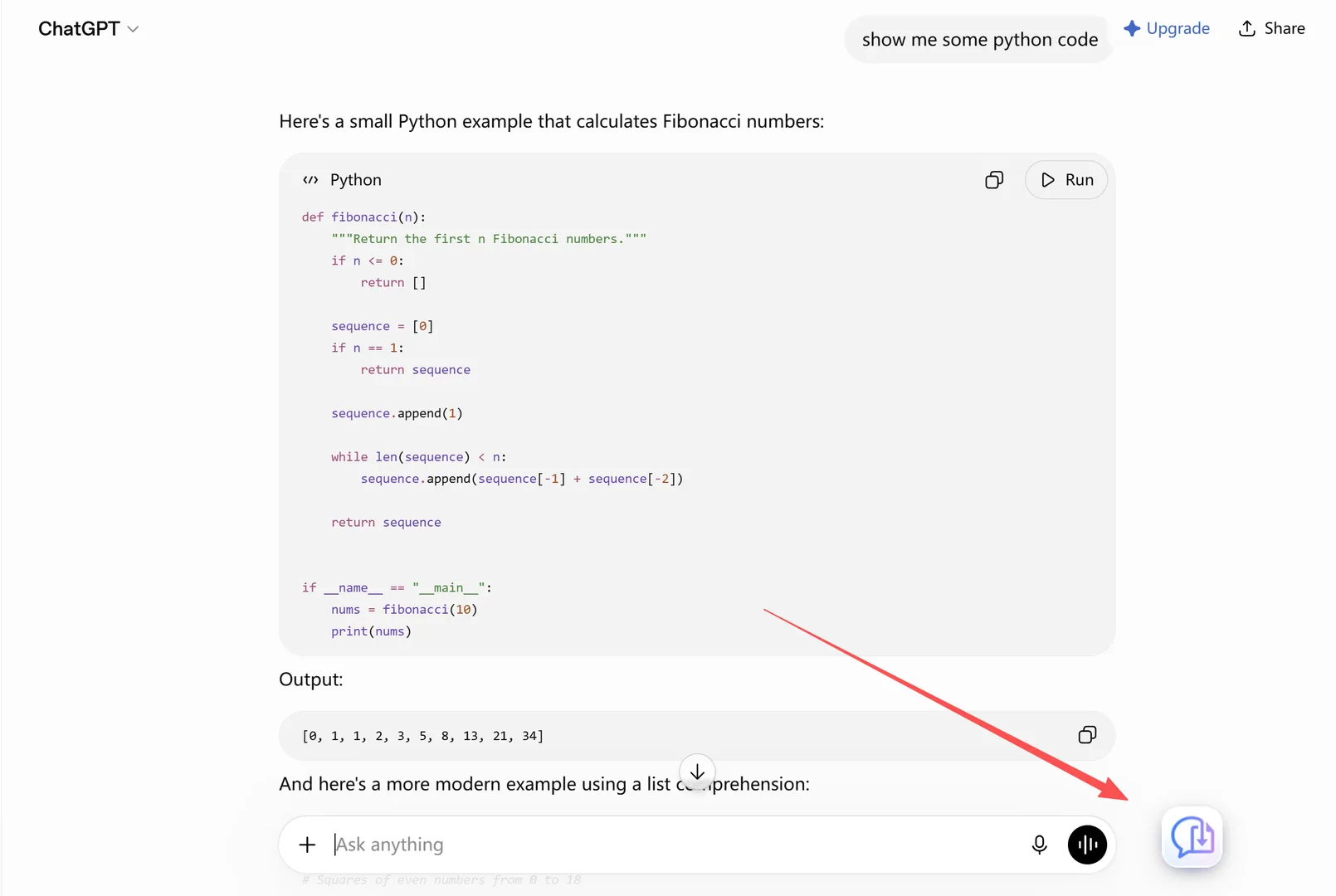
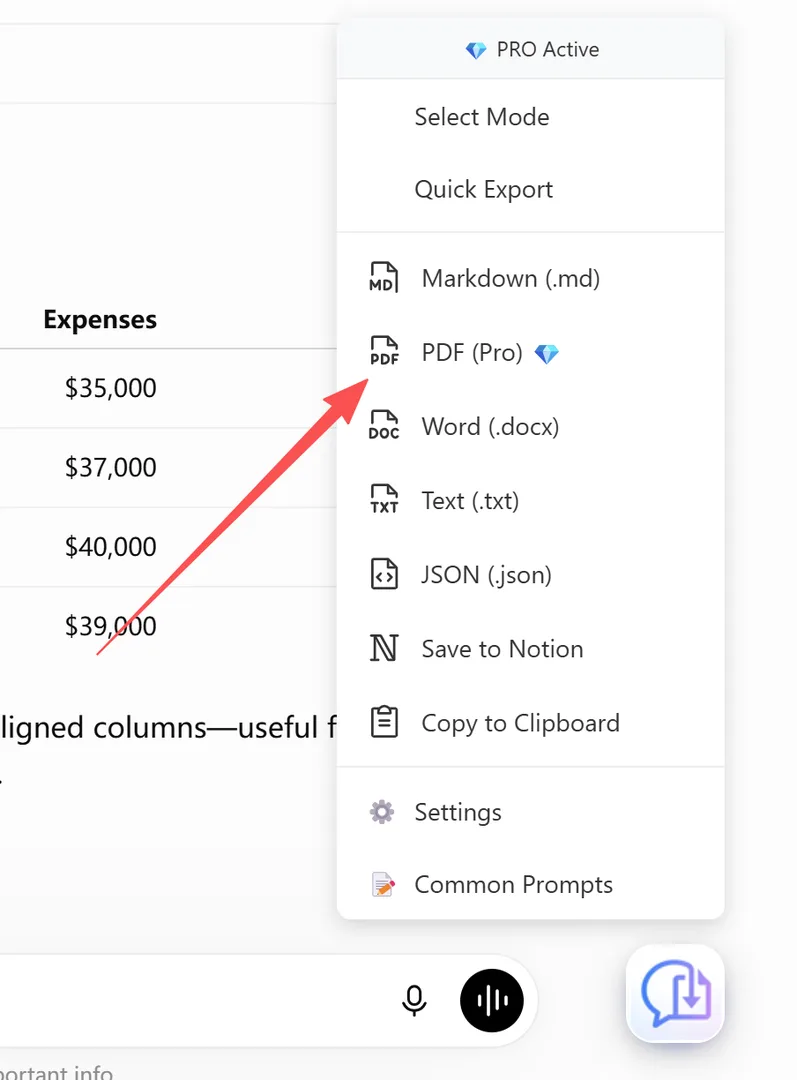
Step 3 — Pick your format. Click the floating button and choose PDF or Markdown.
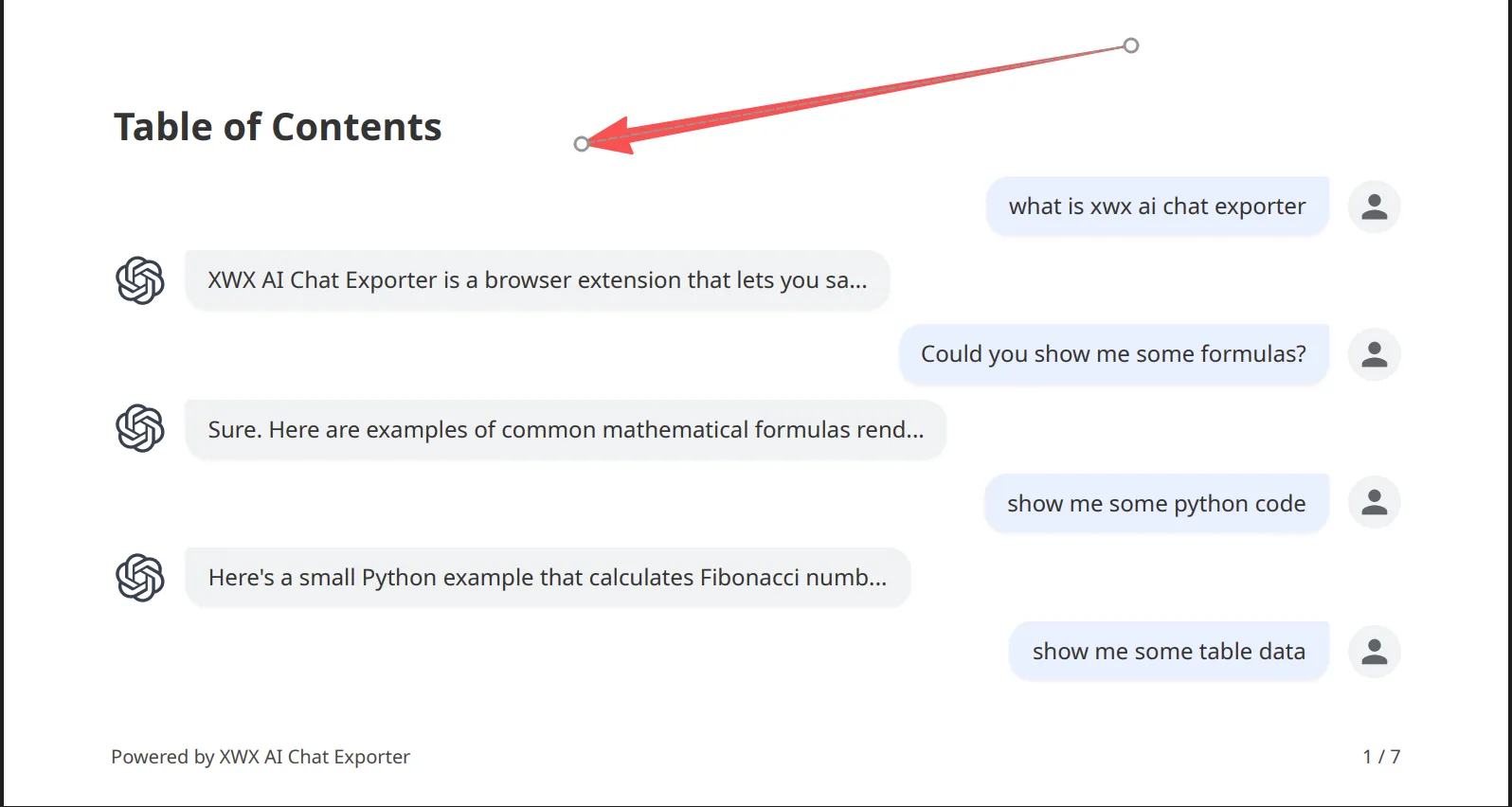
- PDF gives you a share-ready document with code highlighting, tables, math, and images in place.
- Markdown gives you a
.mdfile with YAML frontmatter (title, model, timestamp, word count, source URL) — ready for Obsidian, Logseq, Notion, or GitHub.
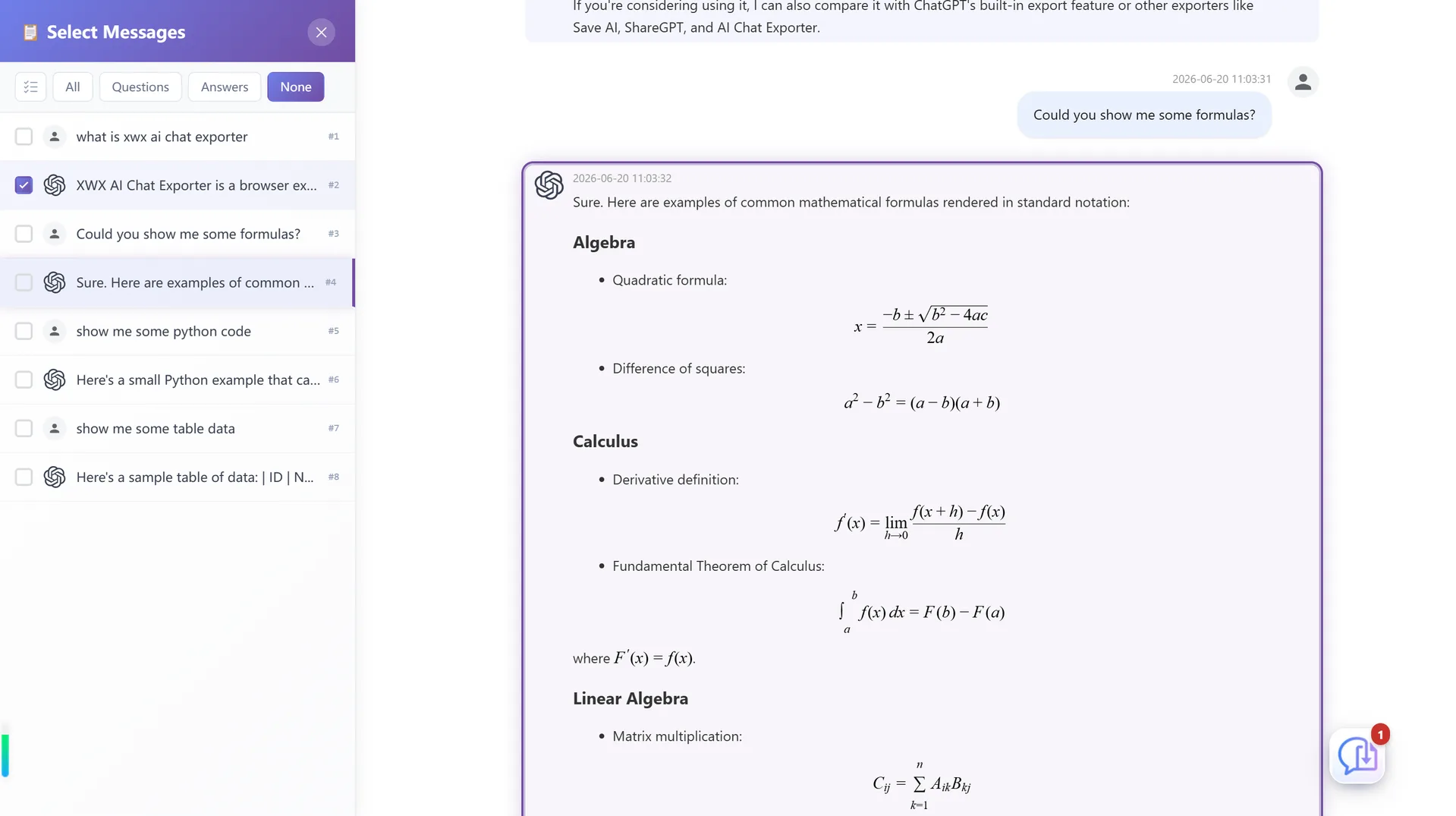
Step 4 — (Optional) Select messages. Use Smart Selection to export only specific parts — for example, just Claude’s final answer with the code, without your long prompt history.
What survives an export (and what doesn’t)
| Content type | Browser print | XWX export |
|---|---|---|
| Code blocks with syntax highlighting | Highlight often lost | Preserved |
| Tables | Wrapped / misaligned | Intact |
| LaTeX math | May appear as raw text | Rendered |
| Images Claude sent/generated | Cropped or missing on long chats | Embedded |
| Charts / data visualizations | Static or missing | Rendered cleanly |
| Long conversations | Cut off mid-thread | Complete |
| Model name & timestamp | Not included | Included as metadata |
The image and chart fidelity is where Claude-specific exporters differ most from generic ones. Because the conversation is read from structured backend data rather than scraped from the rendered page, images and visualizations line up with what you saw in the web app.
Realistic limitations
- PDF exports go through a render server for consistent professional layout; content is deleted immediately after generation and never stored. Markdown, Word, TXT, and JSON exports run entirely locally.
- Artifacts — files Claude generated in the conversation — are handled based on what the platform exposes; if an artifact isn’t retrievable, the export keeps the message content and notes the reference.
- Images require the source to be downloadable. If a host blocks it, the export falls back to the image URL or a placeholder.
Who exports Claude conversations
- Developers & engineers — archiving debugging sessions and architectural decisions before they’re lost to a cleared sidebar.
- Researchers — saving source-backed analyses and literature discussions as PDFs for review and citation.
- Consultants — turning Claude-assisted research into client-ready documents without copy-paste cleanup.
- Writers — preserving long editing sessions, outlines, and drafts in a format they can keep editing.
- PKM users — dropping Markdown exports into Obsidian with YAML frontmatter, so every Claude conversation becomes a searchable note.
Alternatives to PDF
- Markdown — the format for knowledge management. Obsidian, Logseq, Notion, and GitHub all ingest it directly. See Export AI Chats to Obsidian.
- Word (.docx) — when you need to edit, annotate, or fold content into a report. Exported locally. See Export AI Chats to Word.
- Notion — pushes the conversation into your Notion workspace as a structured page. See Sync AI Chats to Notion.
- JSON — full structured data for analysis, migration, or scripts.
Preguntas frecuentes
Can I export a Claude conversation as a PDF?+
Not from Claude’s UI — Anthropic offers only a full-account JSON export. A browser extension like XWX AI Chat Exporter adds a PDF button to any Claude conversation, with formatting preserved.
Can I export an entire Claude conversation?+
Yes, with an extension. XWX reads the full conversation from Claude’s backend, so you get every message — including older ones the UI would only load on scroll — without manual scrolling.
Does Claude have a download option?+
Claude has *Export data* under Settings → Privacy, but it emails your entire history as JSON. There’s no native per-chat PDF or Markdown download.
Does Claude auto-save conversations?+
Claude saves chats in your account, but they can disappear with account switches, workspace cleanup, or platform changes. If a conversation matters, export it.
Is it free to export Claude chats to PDF or Markdown?+
Markdown, TXT, JSON, and clipboard exports are free with no limits. PDF and Word include a free daily quota; Pro removes limits and adds AI-generated tags and summaries.
Will code and charts stay intact in the export?+
Yes. Code keeps its syntax highlighting, and images and charts are embedded from the conversation data — which is why exports match the web version more closely than browser print does.
Exporta tus chats de IA
Extensión gratuita de Chrome. Sin cuenta. Compatible con 13 plataformas de IA.