How to Export ChatGPT to PDF (Free, 2026) – Step-by-Step
ChatGPT conversations are easy to create and surprisingly easy to lose. OpenAI’s built-in export dumps your entire history as a JSON file that arrives by email hours later. The browser’s Print dialog turns a perfectly good chat into a jumble of broken code blocks and cut-off tables. And copy-paste? You’ve probably already learned that lesson — the formatting dies on arrival. This guide walks through every realistic way to turn a ChatGPT conversation into a PDF and shows you which one produces a document you’d actually hand to a colleague, a professor, or a client.
Why exporting a ChatGPT conversation to PDF is harder than it should be
OpenAI does not offer a "Download this conversation as PDF" button. The closest official feature is Settings → Data Controls → Export Data, which has real limitations:
- It exports all conversations, not the one you’re looking at.
- It can take from 20 minutes to several hours (sometimes up to 24) to arrive by email.
- The download link expires after 24 hours.
- The result is a ZIP containing
conversations.json— a tree-shaped structure you can’t open in a PDF reader. - On Business and Team workspaces, the self-serve export button is often missing entirely — a common complaint on Reddit and the OpenAI developer community.
So the practical question becomes: if the official route doesn’t give you a PDF, what does? You have four options, and they differ a lot in output quality.
The 4 ways to save a ChatGPT conversation as PDF (honest comparison)
| Method | Setup | Output quality | Single-chat export | Best for |
|---|---|---|---|---|
| Browser Print (Ctrl+P) | None | Poor to fair — broken code blocks, clipped tables | Yes | Quick one-off saves |
| Copy-paste → Word/Google Docs → export PDF | None | Poor — formatting, math, and code lose structure | Yes | Snippets only |
| OpenAI official export → JSON converter | Slow, batch | Depends on converter | No | Full-account backup |
| Dedicated Chrome extension | 1 click to install | Excellent — code highlighting, LaTeX, tables, images preserved | Yes | Anyone who exports regularly |
The rest of this guide focuses on the extension route, because it’s the only one that produces a PDF that looks like the chat actually did.
Method 1: Browser Print (works, but loses formatting)
The fastest zero-install approach:
- Open the conversation on chatgpt.com.
- Press Ctrl+P (Windows) or Cmd+P (Mac).
- Change the destination to Save as PDF.
- Under More settings, disable Headers and footers, and enable Background graphics if you want dark mode preserved.
The catch: ChatGPT renders long answers in a virtualized DOM, so printing captures only the messages currently on screen. For a 40-message thread you’ll often get a PDF with a handful of messages. Code blocks lose their background, tables wrap badly, and math formulas can appear as raw LaTeX text.
When to use it: a single short response, no code, no tables. Otherwise, skip it.
Method 2: Copy-paste into a document editor
- Select the conversation (click into the chat, Ctrl+A, then adjust the selection).
- Copy and paste into Word, Google Docs, or LibreOffice.
- Clean up the formatting — this is the painful part.
- File → Download → PDF.
This works for text-only chats. The moment you hit a code block, a table, or an equation, you’re manually rebuilding the document.
Method 3: OpenAI’s official export + a converter
For a full account backup, this is the correct answer:
- Settings → Data Controls → Export Data, confirm, and wait for the email.
- Download the ZIP (it expires in 24 hours — download promptly, check spam).
- Unzip and find
conversations.json. - Run it through a JSON-to-Markdown/PDF converter (several open-source tools exist).
The catch: it’s batch-only, slow, and the JSON format is optimized for machines, not humans. If you need one conversation as a clean PDF today, this is overkill.
Method 4: Export with a dedicated Chrome extension (recommended)
Step 1 — Install the extension. Search for XWX AI Chat Exporter in the Chrome Web Store and click Add to Chrome. No account, no signup, no configuration.

Step 2–4: Open the chat, click Export, choose PDF
Step 2 — Open the conversation you want to save. Go to chatgpt.com and open the chat. The extension auto-detects ChatGPT — no need to switch modes. It works on Free, Plus, Team, and Enterprise workspaces.
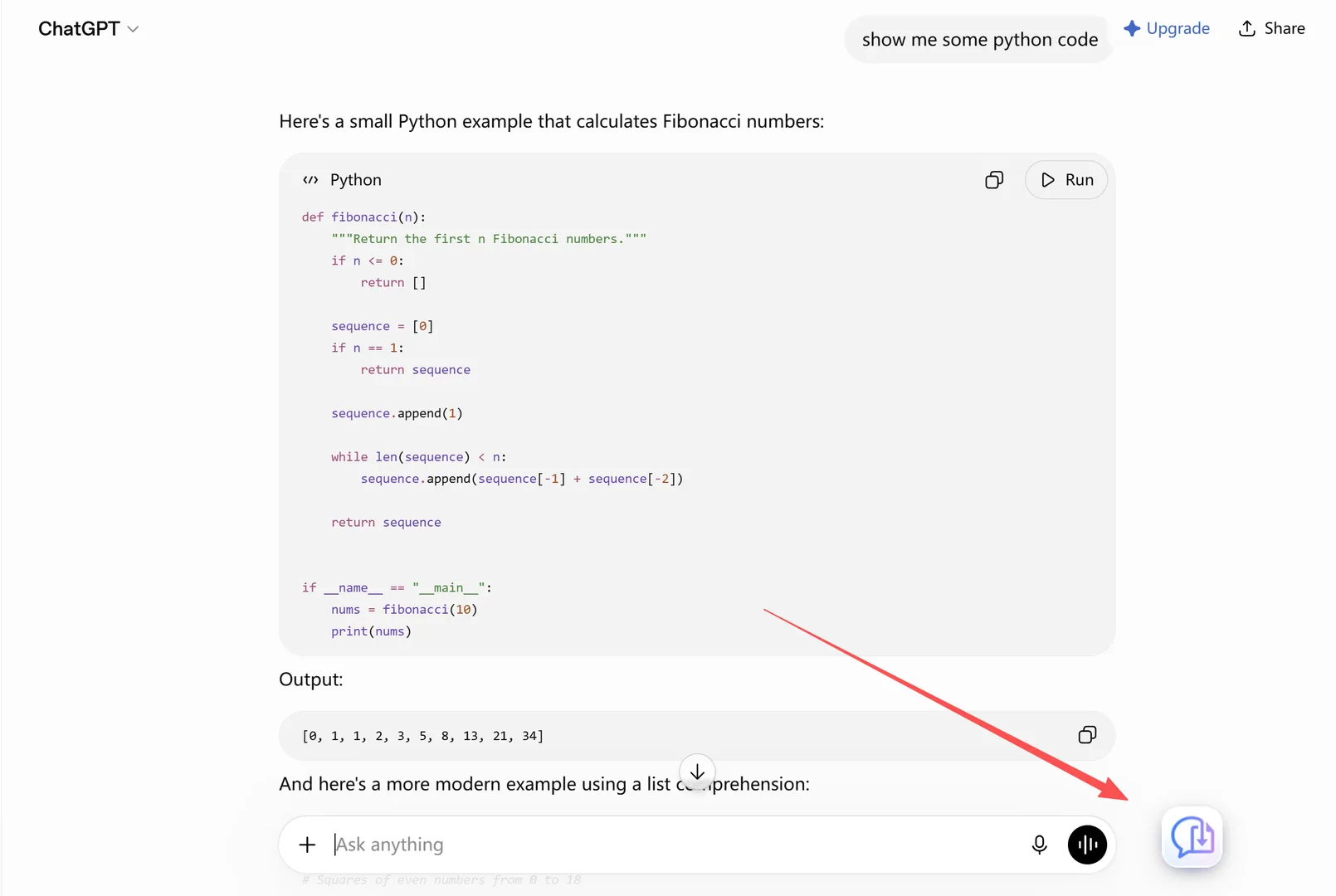
Click Export and choose PDF
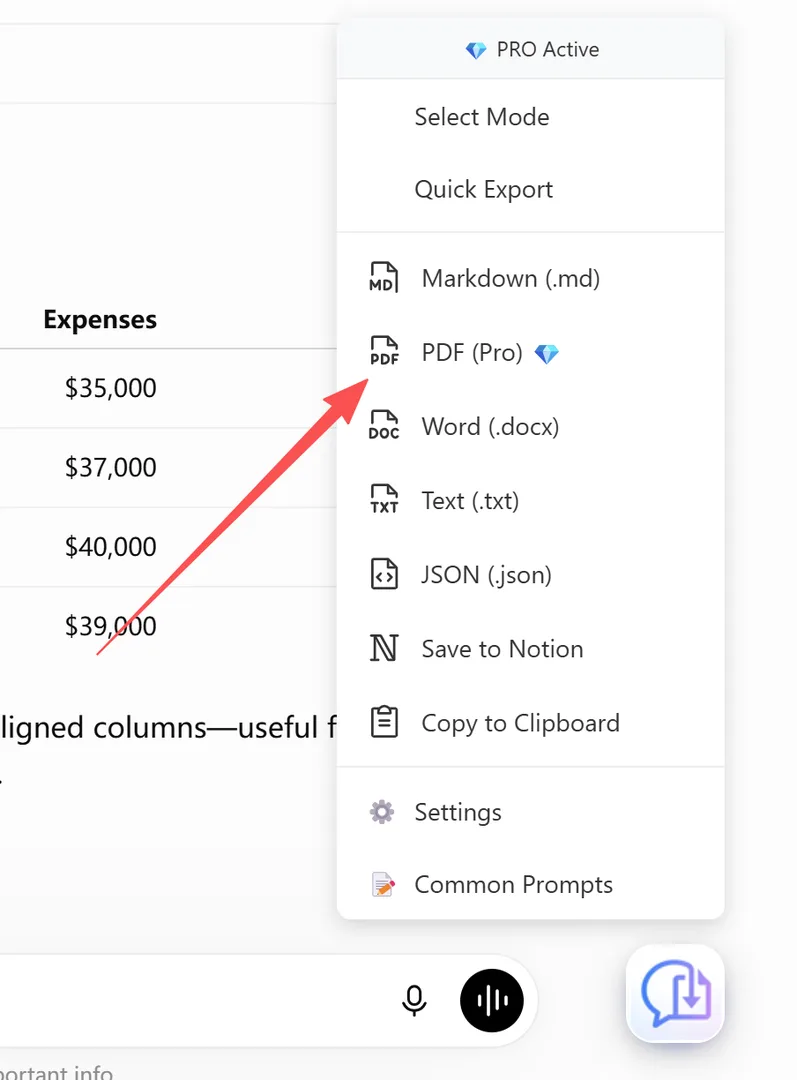
Step 3 — Click Export and choose PDF. Click the floating button, then select PDF from the format menu. The conversation is pulled from ChatGPT’s backend (not scraped from the page), rendered into a clean document, and downloaded.
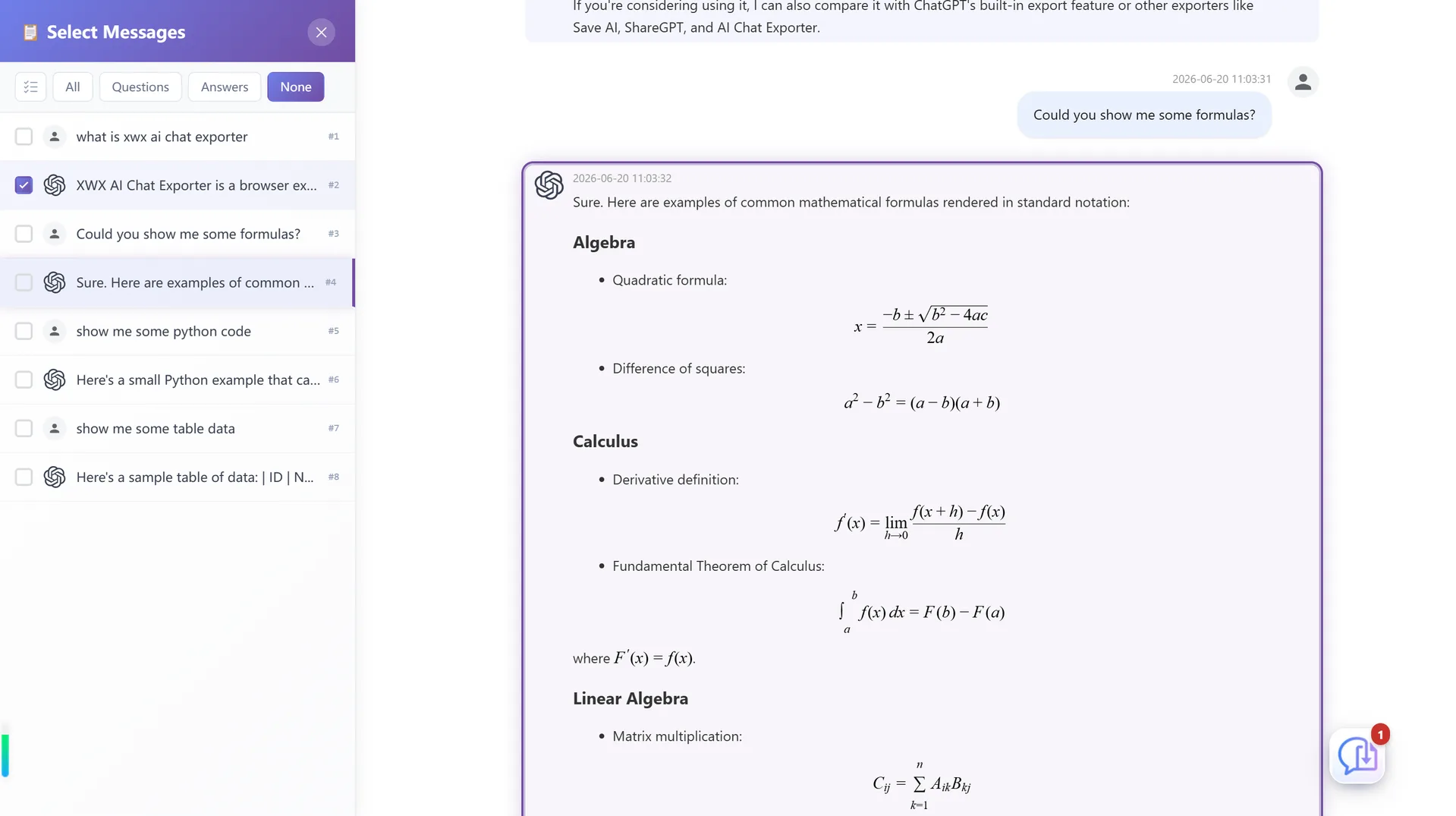
Step 4 — (Optional) Export only the messages you need. If the whole thread is too long, use Smart Selection: a side panel opens with the full conversation rendered, and you can click any message — or drag across a range — to pick exactly what goes into the PDF. The selection is mirrored instantly in the content panel.
That’s the whole process — under 30 seconds from "open chat" to "file downloaded."
What actually gets preserved in the PDF?
The reason to use a dedicated exporter instead of printing is fidelity:
| Content type | Browser Print | XWX PDF export |
|---|---|---|
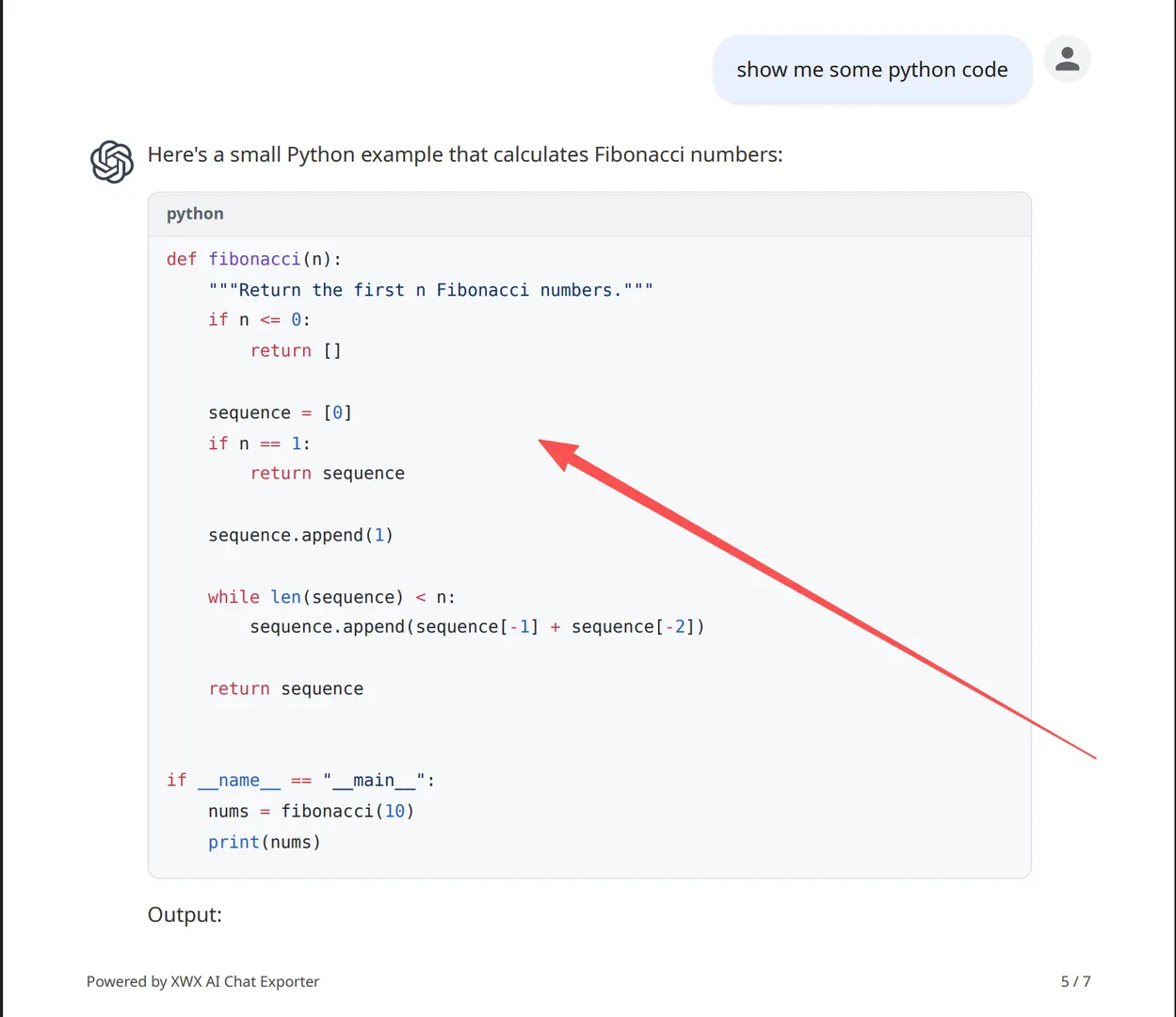
| Syntax-highlighted code | Often loses highlight/background | Preserved, 50+ languages |
| LaTeX math formulas | May show raw $...$ text | Rendered properly |
| Tables | Wrapped/overlapping columns | Intact layout |
| Inline images & generated images | Missing on long chats | Embedded |
| Charts (Charts.js, matplotlib) | Static screenshot or missing | Rendered as clean visuals |
| Thinking / reasoning blocks | Rendered as plain text | Kept as distinct blocks |
| Message timestamps & model name | Not included | Included as metadata |
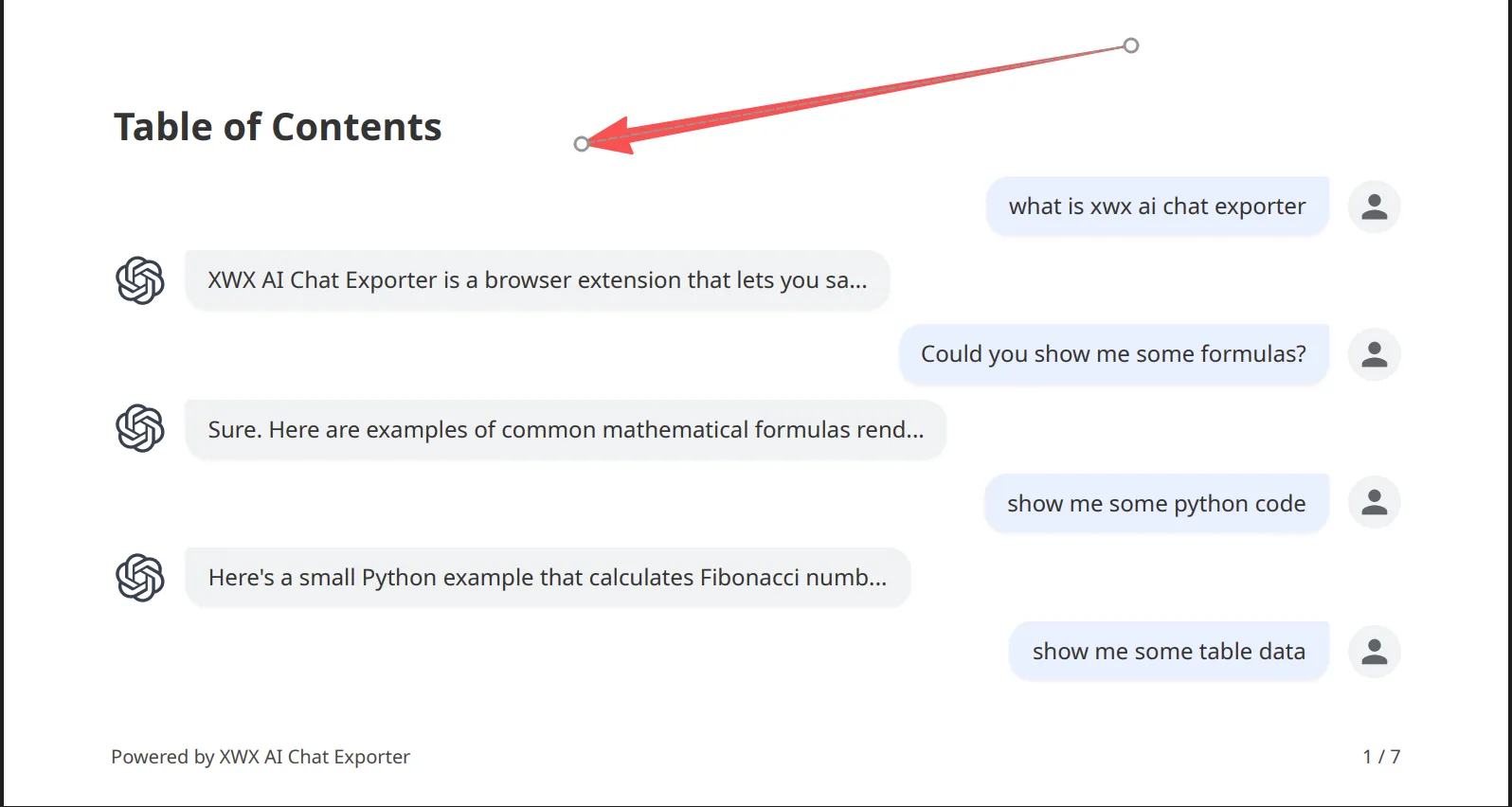
| Long conversations (>100 msgs) | Cut off mid-thread | Complete, with auto table of contents |
The realistic limitations (so you know what to expect)
- PDF exports go through a render server. The document is generated server-side so the layout engine is consistent and high quality; the content is deleted immediately after generation and never stored. If you need everything to stay 100% in your browser, use Markdown, TXT, or JSON instead — those never leave your machine.
- Images require the source to be accessible. If an image host blocks the download, the export falls back gracefully to the image URL or a placeholder.
- Exporting shared conversations (chatgpt.com/share/...) works for most platforms without even logging in.
Who actually uses this, and why
- Students & researchers — turning study sessions into printable, citable PDFs with math formulas intact.
- Developers — archiving debugging conversations so a working solution isn’t lost to a refresh; the syntax highlighting makes code usable in docs and wikis.
- Consultants & analysts — producing client-ready PDFs from AI-assisted research without copy-paste cleanup.
- Writers & creators — saving brainstorming threads as formatted drafts before the context window (or the tab) is gone.
- Anyone who’s lost a chat — the "conversation disappeared" scenario stops being a disaster when you already have the PDF.
Alternatives to PDF (and when to choose them)
- Markdown — drops into Obsidian, Notion, GitHub, or any notes app; you can keep editing it. The format for building a knowledge base. See how to export to Markdown.
- Word (.docx) — if you need to edit, annotate, or merge content into a report. Export is fully local. See Export AI Chats to Word.
- JSON — for scripts, analysis, fine-tuning datasets, or migrating between tools.
- Notion — pushes the conversation directly into your Notion workspace as a structured page. See Sync AI Chats to Notion.
- Clipboard / TXT — quick, zero-file saves.
Preguntas frecuentes
Can I save a ChatGPT conversation as a PDF?+
Yes. OpenAI has no built-in single-chat PDF button, but a browser extension like XWX AI Chat Exporter adds one. Open the chat, click the floating export button, choose PDF — the file downloads with formatting intact.
How do I export an entire ChatGPT conversation?+
With XWX, the full conversation (including messages you’d have to scroll to load) is exported automatically because the data comes from ChatGPT’s backend rather than the rendered page. Browser print, by contrast, only captures what’s on screen.
How do I convert ChatGPT text into PDF?+
The cleanest route is an extension: install it, open the chat, click Export → PDF. Alternatives are Ctrl+P → Save as PDF (loses formatting on code/tables) or copy-paste into Word/Google Docs and re-export.
Why can’t I download a PDF from ChatGPT?+
Because OpenAI doesn’t offer a per-conversation PDF export. The official "Export Data" feature produces a ZIP of JSON, is batch-only, and can take hours. It’s also unavailable on some Business/Team workspaces. A third-party extension fills that gap.
Is it free to export ChatGPT conversations to PDF?+
XWX includes a free daily quota for PDF exports. Markdown, TXT, JSON, and clipboard exports are completely free with no limits. Pro plans unlock unlimited PDFs and advanced features like AI-generated tags and summaries.
Does it work with ChatGPT Plus, Team, and Enterprise?+
Yes. The extension works across Free, Plus, Team, and Enterprise workspaces, and can also export shared conversation links.
Exporta tus chats de IA
Extensión gratuita de Chrome. Sin cuenta. Compatible con 13 plataformas de IA.